52D-Link G530 User Manual
Section 3 - Conguration
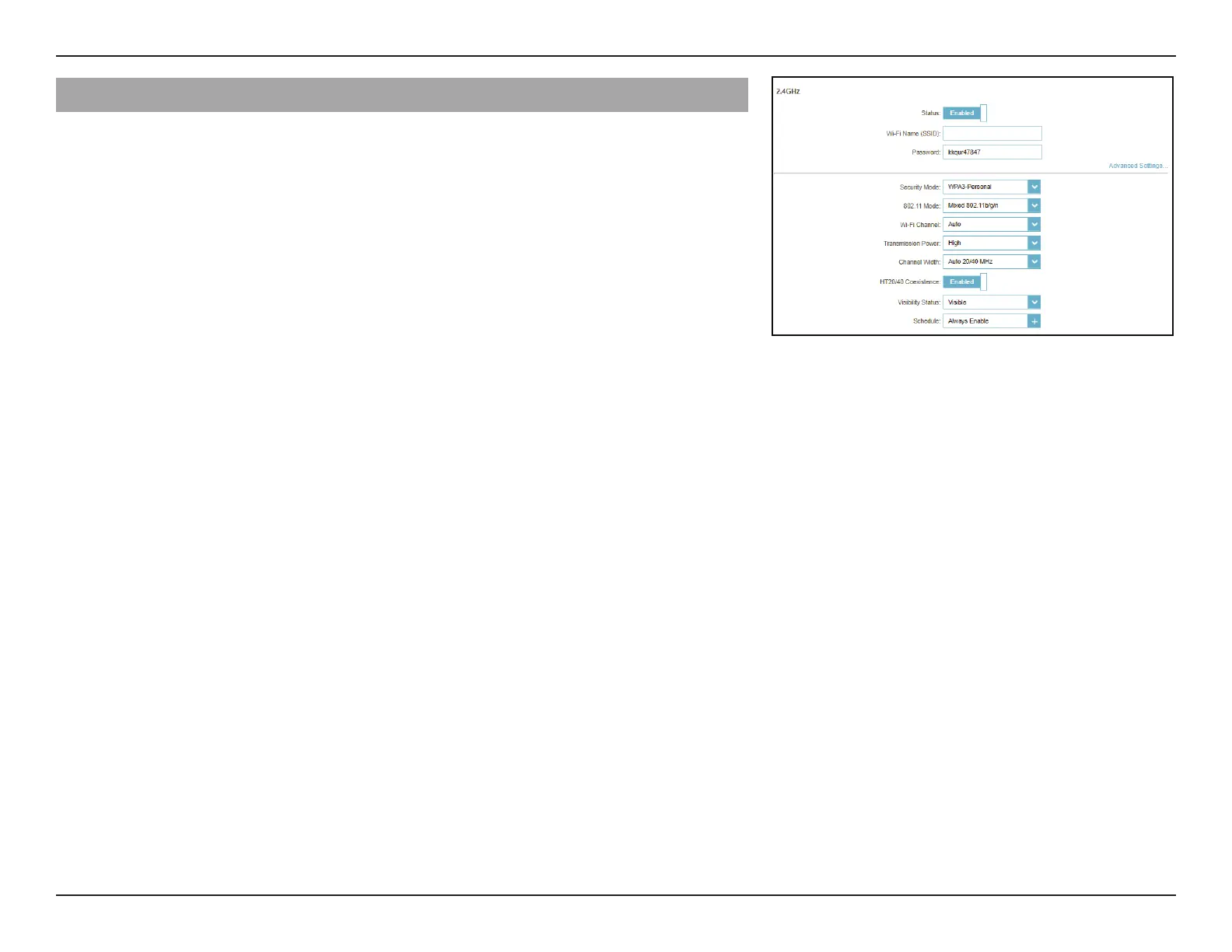
2.4GHz - Advanced Settings...
Security Mode: Choose None, WPA/WPA2-Personal, WPA2-Personal, WPA2/
WPA3-Personal, or WPA3-Personal. WPA3 provides the
highest level of security protection among these modes. Note
that WPS will be disabled if WPA3 is in use.
802.11 Mode (2.4GHz): Select a desired wireless networking standard to use.
The available options for the 2.4 GHz wireless network
are Mixed 802.11b/g/n/ax, Mixed 802.11b/g/n, Mixed
802.11b/g, Mixed 802.11g/n, 802.11b only, 802.11g only,
and 802.11n only.
Wi-Fi Channel: Select a desired channel from 1-13. The default is Auto
(recommended).
Transmission Power: Select a desired wireless transmission power: High, Medium,
or Low.
Channel Width
(2.4GHz):
Select Auto 20/40 MHz if you are using both 802.11n and
non-802.11n (802.11b/g/a) devices, or select 20 MHz if you
are using a mix of 802.11b/g/a devices.
HT20/40 Coexistence
(2.4GHz):
Enable or disable HT20/40 Coexistence.
Visibility Status: The default setting is Visible. Select Invisible if you do not
want to broadcast the SSID of your wireless network.
Schedule: Select the time during which the wireless network will be
available. The schedule may be set to Always Enable or you
can add your own schedule.
To add a schedule:
Each box represents half an hour, with the clock time (0~23) at
the top of each column. To add a time period to the schedule,
simply click on the start time and drag to the end time. You
can add multiple days and multiple periods per day to the
schedule.
G416-BD3A


 To Next Page