18
IDLE MODE:
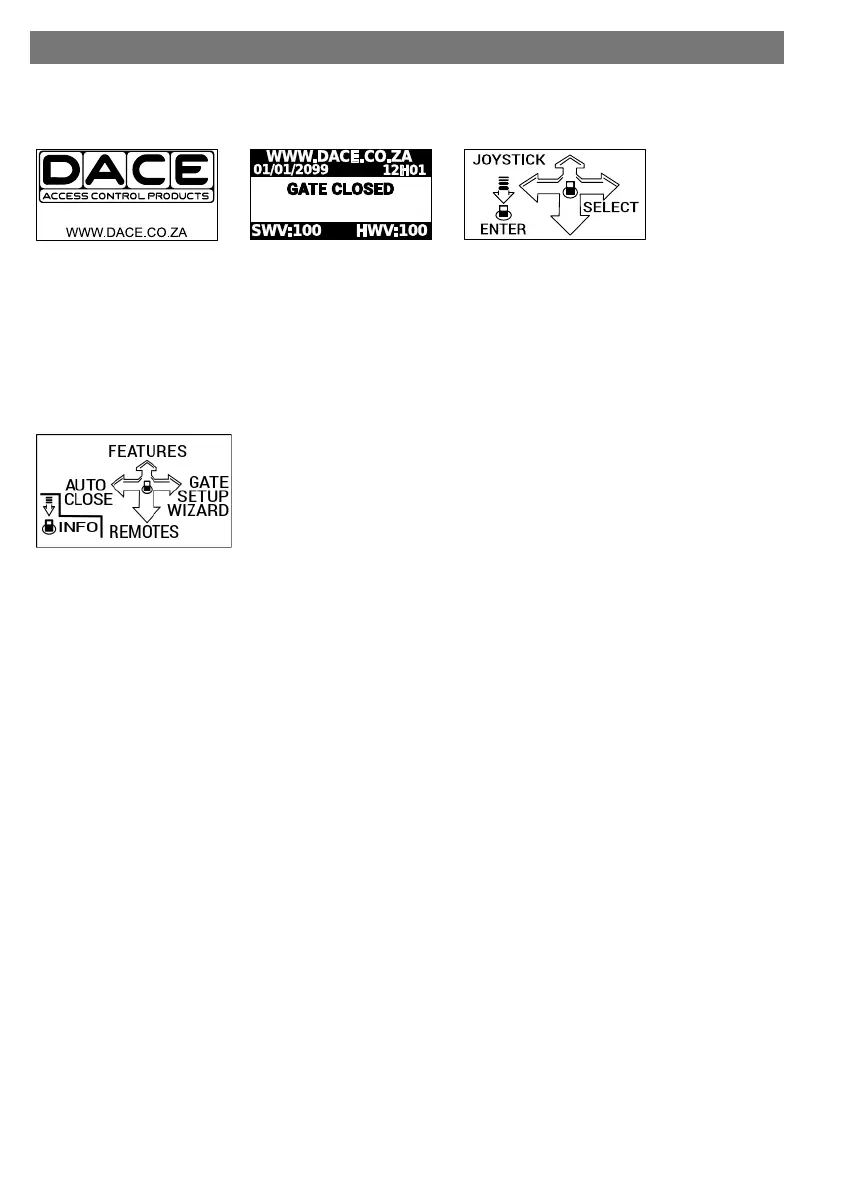
The LCD screen will remain in Idle Mode if the Joysck has not been moved for awhile and will scroll through the
following 3 screens.
JOYSTICK MENU NAVIGATION:
The Joysck moves in 5 direcons: UP (North); DOWN (South); LEFT (West); RIGHT (East) for navigaon and IN-
WARD (Press) for item selecon.
Moving the Joysck while the screen is in Idle Mode will acvate the Quick NAV screen
Pressing the Joysck while the screen is in Idle Mode will act as a trigger test buon.
QUICK NAV SCREEN:
This screen navigates you through the most commonly used funcons and features:
GATE SETUP WIZARD (RIGHT/ East):
On new installaons the Gate Setup Wizard must be run rst before the operator can be used. This funcon pro-
grams the gate limits into the controller.
FEATURES (UP/North):
All the controller features and funcons may be accessed from this screen. This shortcut will take you to the
MAIN SETTINGS screen where all the controller features are available .
REMOTES (DOWN/South):
This shortcut will take you straight to the REMOTE SETTINGS screen from where you can add new remotes to the
system.
AUTO CLOSE (LEFT/ West):
All the auto close (AC) features may be adjusted from within the AUTO CLOSE SETUP screen. During installaon it
might be useful to temporarily disable auto close from here.
INFO (INWARD/Press):
This gives real me informaon regarding the status of the operator. From this screen you can get informaon
such as the current baery voltage, main supply voltage and gate status.
INFORMATION SCREEN:
The informaon screen provides real me informaon on the current status of the controller. By using the joy-
sck to scroll le or right, the various categories below can be selected. Pressing the joysck in will cause the
controller to bring up the funcon menu associated with the highlighted category.
MENU NAVIGATION OVERVIEW
Connues……...



 To Next Page