Xtium-CLHS PX8 User's Manual Installing Xtium-CLHS PX8
13
Firmware Update: Manual Mode
Select Manual mode to load firmware other then the default version or when, in the case of
multiple Xtium-CLHS PX8 boards in the same system, if each requires different firmware.
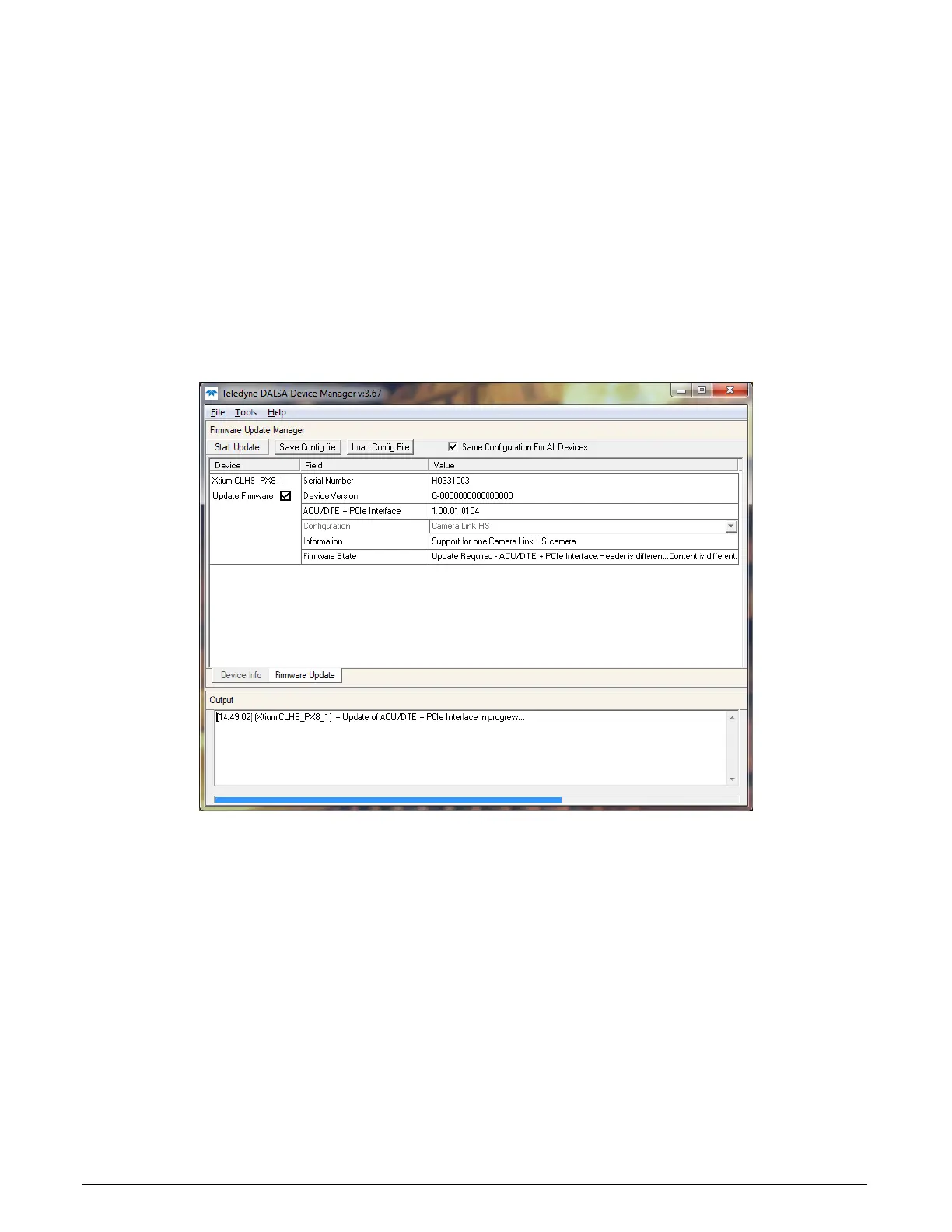
The following figure shows the Device Manager manual firmware screen. Displayed is information
on all installed Xtium-CLHS PX8 boards, their serial numbers, and their firmware components.
Do a manual firmware update as follows:
• Select the Xtium-CLHS PX8 to update via the board selection box (if there are multiple
boards in the system).
• From the Configuration field drop menu select the firmware version required (typical
required or offered to support different CLHS cameras).
• Click on the Start Update button.
• Observe the firmware update progress in the message output window.
• Close the Device manager program when the device reset complete message is shown.
Figure 2: Manual Firmware Update
Executing the Firmware Loader from the Start Menu
If required, the Xtium-CLHS PX8 Firmware Loader program is executed via the Windows Start Menu
shortcut Start • Programs • Teledyne DALSA • Xtium-CLHS PX8 Driver • Firmware
Update. A firmware change after installation would be required to select a different configuration
mode. See User Programmable Configurations.



 To Next Page