28
Troubleshooting Problems Xtium-CLHS PX8 User's Manual
Windows Device Manager
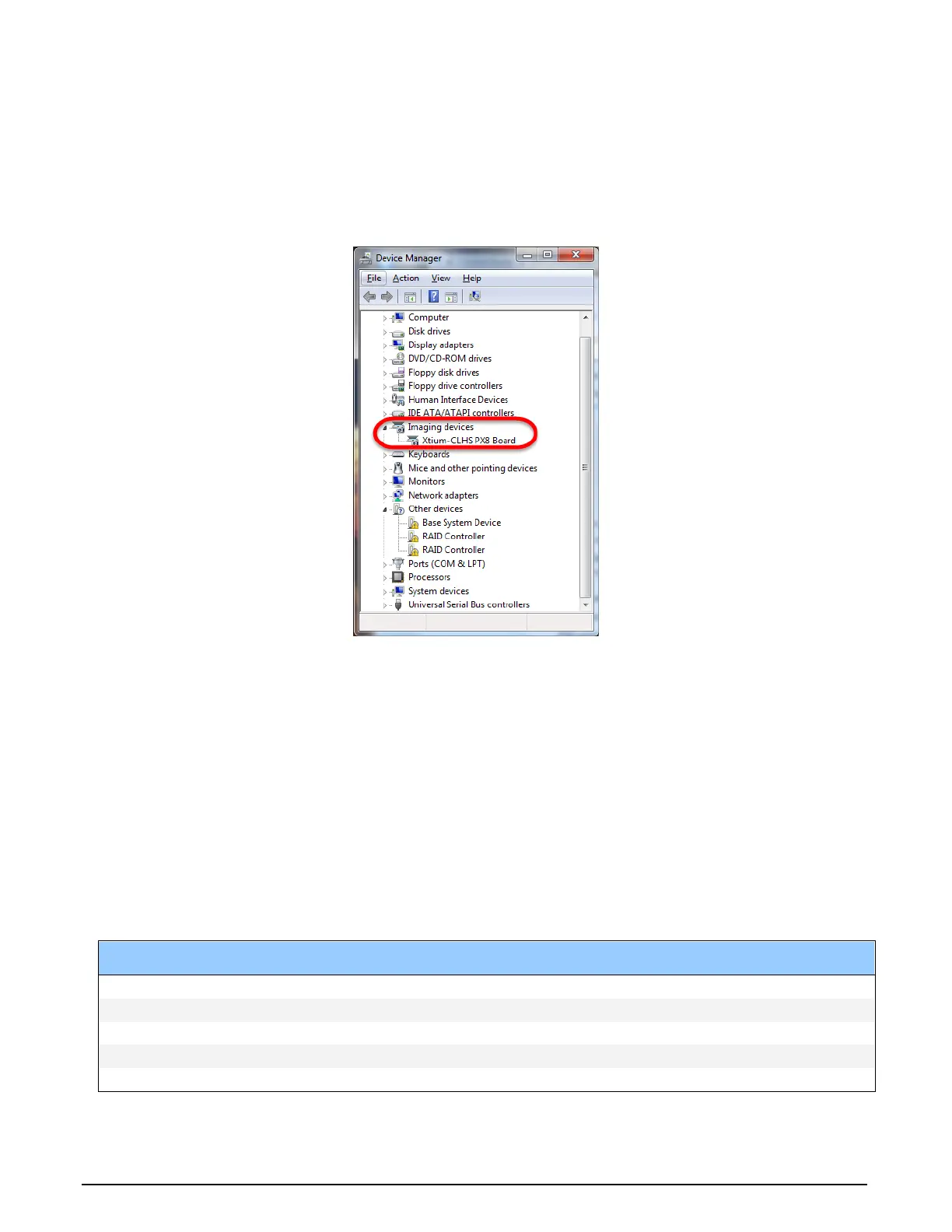
An alternative method to confirm the installation of the Xtium-CLHS PX8 board and driver is to use
the Windows Device manager tool. Use the Start Menu shortcut Start • Control Panel • System
• Device Manager. As shown in the following screen images, look for Xtium-CLHS PX8 board
under “Imaging Devices”. Double-click and look at the device status. You should see “This device is
working properly.” Go to “Resources” tab and make certain that the device has an interrupt
assigned to it, without conflicts.
Figure 10: Using Windows Device Manager
BSOD (blue screen) Following a Board Reset
There are cases where a PC will falsely report a hardware malfunction when the Xtium-CLHS PX8
board is reset. Ensure that you are using Sapera LT 7.50 or later.
Sapera and Hardware Windows Drivers
Any problem seen after installation, such as an error message running CamExpert, first make
certain the appropriate Teledyne DALSA drivers have started successfully during the boot
sequence. Example, click on the Start • Programs • Accessories • System Tools • System
Information • Software Environment and click on System Drivers. Make certain the following
drivers have started for the Xtium-CLHS PX8.
Device Description Type Started
CorXtiumCLHSPX8 Xtium-CLHS PX8 messaging Kernel Driver Yes
CorLog Sapera Log viewer Kernel Driver Yes
CorMem Sapera Memory manager Kernel Driver Yes
CorPci Sapera PCI configuration Kernel Driver Yes
CorSerial Sapera Serial Port manager Kernel Driver Yes
Table 4: Xtium-CLHS PX8 Device Drivers



 To Next Page