Field Service Ver. 1.0 Apr. 2005 17. Image quality problem
169
ineo 161
ineo 210
Troubleshooting
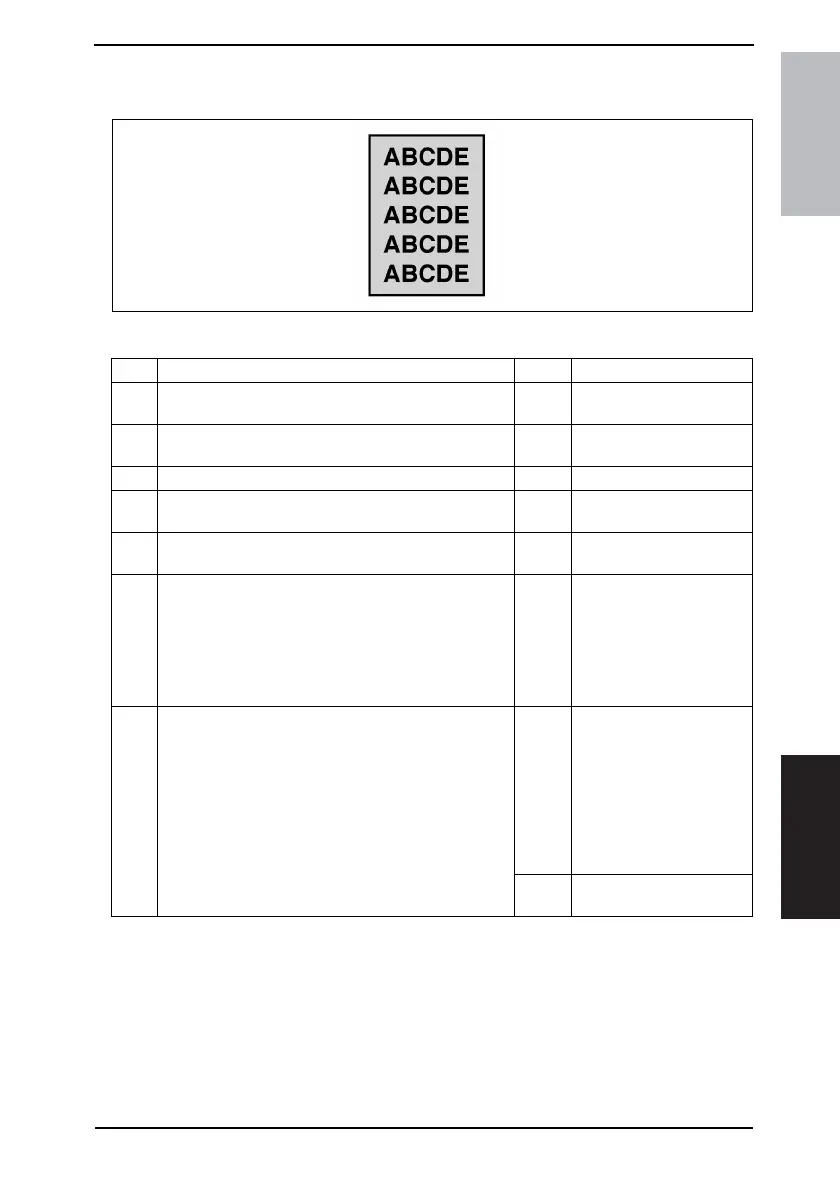
17.2.15 Printer Section: Foggy background or rough image
A. Typical Faulty Images
B. Troubleshooting Procedure
4011T004AA
Step Check Result Action
1
The image changes when “ID Adjust” and “VG Adjust”
are executed.
YES
• Readjust. For details, see
ADJUSTING/SETTING.
2
PC Drum surface and the areas in contact with Ds Col-
lars are dirty with foreign matter, or deformed or worn.
YES • Clean or change.
3 Main Erase (LA1) is dirty. YES • Clean.
4
Grid bias contact is dirty, scratchy, deformed, worn, or
damaged.
YES
• Clean, correct, or
change.
5
ATDC Sensor (UN1) is dirty with foreign matter (such as
paper dust) other than developer.
YES • Clean.
6
The following voltages develop from the ATDC Sensor
(UN1).
<Check Procedure>
Check voltage across a Master Board pin and GND
when the Power Switch is turned ON.
• DC5.39 V to 8.15 V across PJ10A-1 and GND
• DC1.41 V to 4.98 V across PJ10A-3 and GND
NO
• Change ATDC Sensor
(UN1) and then change
developer.
7
The following voltage is supplied from the Master Board
(PWB-A).
<Check procedure>
• Check that there is 24 V developing across the Master
Board pin and GND when the Power Switch is turned
ON (during a copy cycle or a standby state).
YES
• Adjust Db. For details,
see ADJUSTING/SET-
TING.
• Change Eraser Lamp
(LA1).
• Change PC Drum.
• Change Imaging Unit.
• Change High Voltage
Unit (HV1).
NO
• Change Master Board
(copier: PWB-A).








 To Next Page