8. Utility Mode Field Service Ver. 1.0 Apr. 2005
72
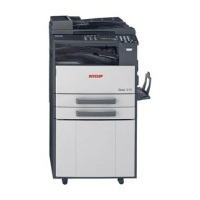
ineo 161
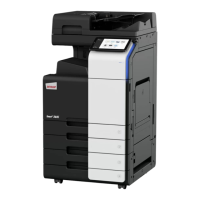
ineo 210
Adjustment / Setting
8.3.4 ADMIN. MANAGEMENT
• ADMIN. MANAGEMENT is used to make various settings after the administrator number
set using the Service mode has been entered.
<Admin. Management Mode Setting Procedure>
1. Press the Utility key.
2. Select “ADMIN. MANAGEMENT.”
3. Type the 6-digit administrator number and press the [Yes] key.
A. AUTO SHUT OFF
B. COPY TRACK
<COPY TRACK MODE>
<ACCESS NO. REG.?>
Purpose/Use To enable or disable the setting of Auto Shut OFF.
Setting/
Procedure
• The default setting is “ENABLE.”
DISABLE “ENABLE”
Purpose/Use To select whether to turn ON or OFF the copy track function.
Setting/
Procedure
• The default setting is “OFF” (copy track function is not used).
ON : Use the copy track function.
“OFF” : Not use the copy track function.
Purpose/Use To register a 3-digit (001 to 999) access number used for the copy track function, or to
change or delete a previously set access number.
Setting/
Procedure
<Registration Procedure>
1. Type any access number from the 10-Key Pad.
2. Press the [Yes] key to validate the entry of the access number.
3. To continue registering access numbers, repeat steps 1 and 2. (Up to 20 different
accounts can be set.)
4. When the registration procedure is completed, quit the function by pressing the [No]
key.
<Change/Delete Procedure>
1. Type the access number to be changed or deleted from the 10-Key Pad and press
the [Yes] key.
2. When you are prompted to determine whether to retain the data or not, press the
[No] key.
3. Select “EDIT” or “DELETE” and press the [Yes] key.
✽ If “EDIT” is selected, a screen appears allowing you to change the access number.
(To step 4)
If “DELETE” is selected, the current access number is deleted.
4. Type the new access number from the 10-Key Pad and press the [Yes] key.
5. To continue changing or deleting new access numbers, repeat steps 1 to 4.
6. When the EDIT/DELETE procedure is completed, quit the function by pressing the
[No] key.








 To Next Page