What you see What it means
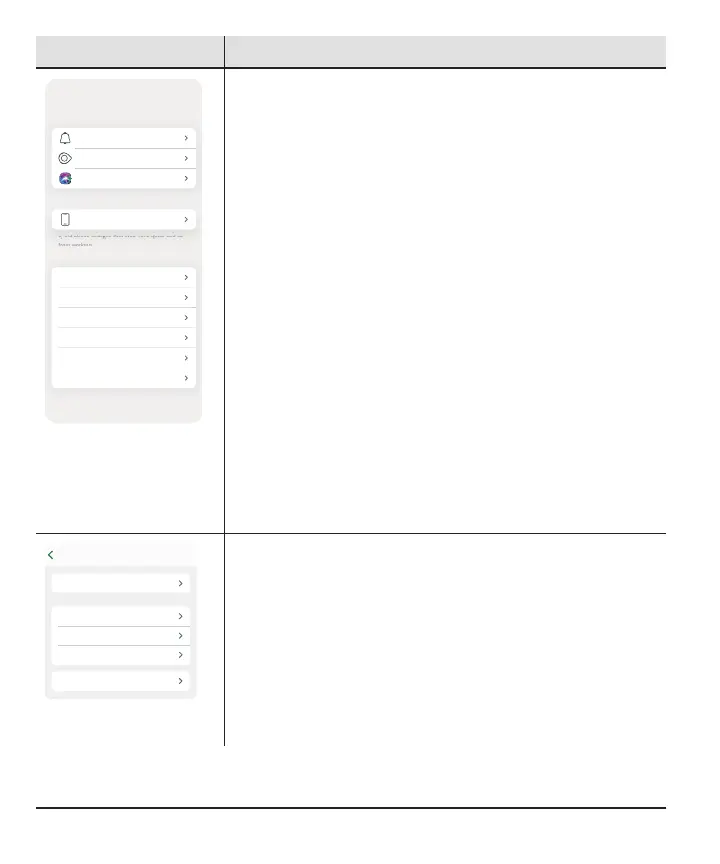
About
Account
Contact
Data Consents
Help
Feedback
Profile
Alerts
Glucose Tab
Siri Shortcuts
App Settings
Phone Settings
Support
Profile: Here you can change settings and get help.
l
App Settings: (go to the Alerts chapter for more
information)
l
Customize your alerts with different settings and
sounds
l
Use Quiet Modes
l
Customize the Glucose tab by changing the trend
graph height or target range and more
l
Set up Siri to tell you your sensor readings and
trend (Apple)
l
Phone Settings: Avoid phone settings that stop your
alerts and app from working
l
Support:
l
Review your software and account information
l
Contact technical support (in the app, go to
Profile > Contact)
l
Review and revise data consents
l
Get help (see Profile > Help next)
l
Give Dexcom feedback
Start Here Guide
How To
User Guide
CGM Safety Statements
Profile
Find Answers
Profile > Help: Find help, including:
l
Answers to your questions
l
Links to product guides
l
Videos
l
Inserting and removing sensors
l
Sensor readings
l
Alerts
l
When to use your BG meter
34



 To Next Page