3 • Set up your Dexcom ONE+ | Dexcom ONE+ User Guide
19
Smartwatch (Apple)
Check your glucose information on your Apple smartwatch.
Suggested use
Using a smartwatch with your Dexcom ONE+ system may change how you get alerts.
l
Your smartwatch communicates with your phone, not the sensor.
l
You won't get alerts or sensor readings on your watch unless it's connected to your phone and your phone is connected to
your sensor.
Make sure you understand how you get notifications when a watch is connected.
l
You must wear the watch to see alerts and feel their vibrations.
l
In your smart device settings, make sure notifications are sent to both your phone and watch.
l
Don't disable or block notifications from the app.
Waking up your watch updates your Dexcom ONE+ data from your phone. There may be a brief delay before your watch app
shows current information.
Go to dexcom.com/compatibility to make sure your watch works with your Dexcom ONE+.
Apple Watch setup (iPhone)
To install the app, use the Watch app on your iPhone.
See your watch instructions for details about installing apps.
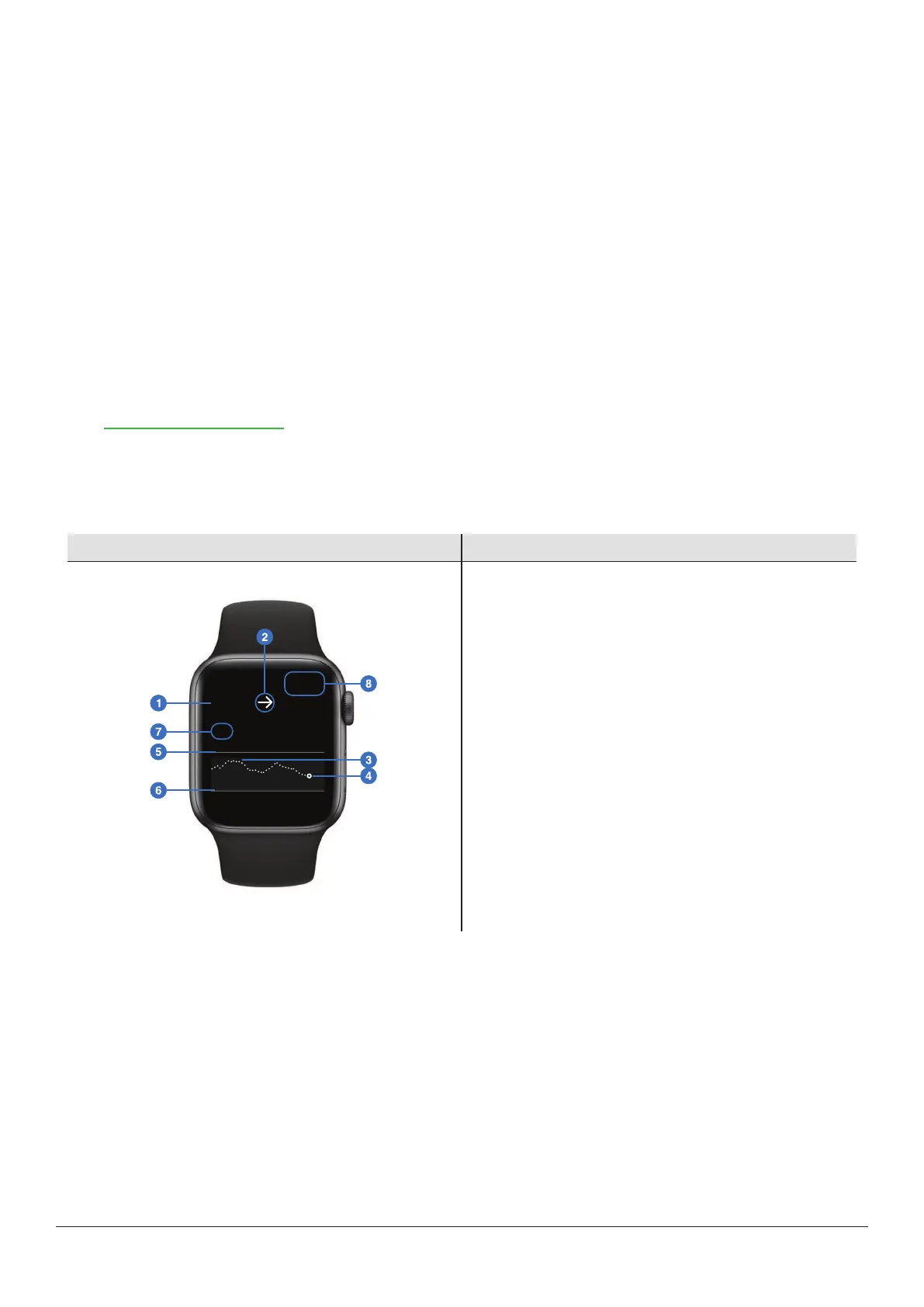
What you see What it means
Apple Watch
Sensor reading and arrow
1. Sensor reading
2. Trend arrow
Trend graph
3. Trend graph
4. Current sensor reading
5. High alert level
6. Low alert level
7. Shows past 3hours
8. Time
Tap the graph to change the number of hours shown: 1, 3, or 6 hours.



 To Next Page