4 • Display device screens | Dexcom ONE+ User Guide
28
Tips from banners, tooltips, and icons
Banners, tooltips, and icons appear on your screen to help you use Dexcom ONE+. They'll give you helpful information,
reminders, and even suggestions for next steps. See the following examples.
App
22
1
Phone setting conflict
I UNDERSTAND
Your phone settings are preventing your app
from working as designed. Tap the icon at
the top left corner to fix.
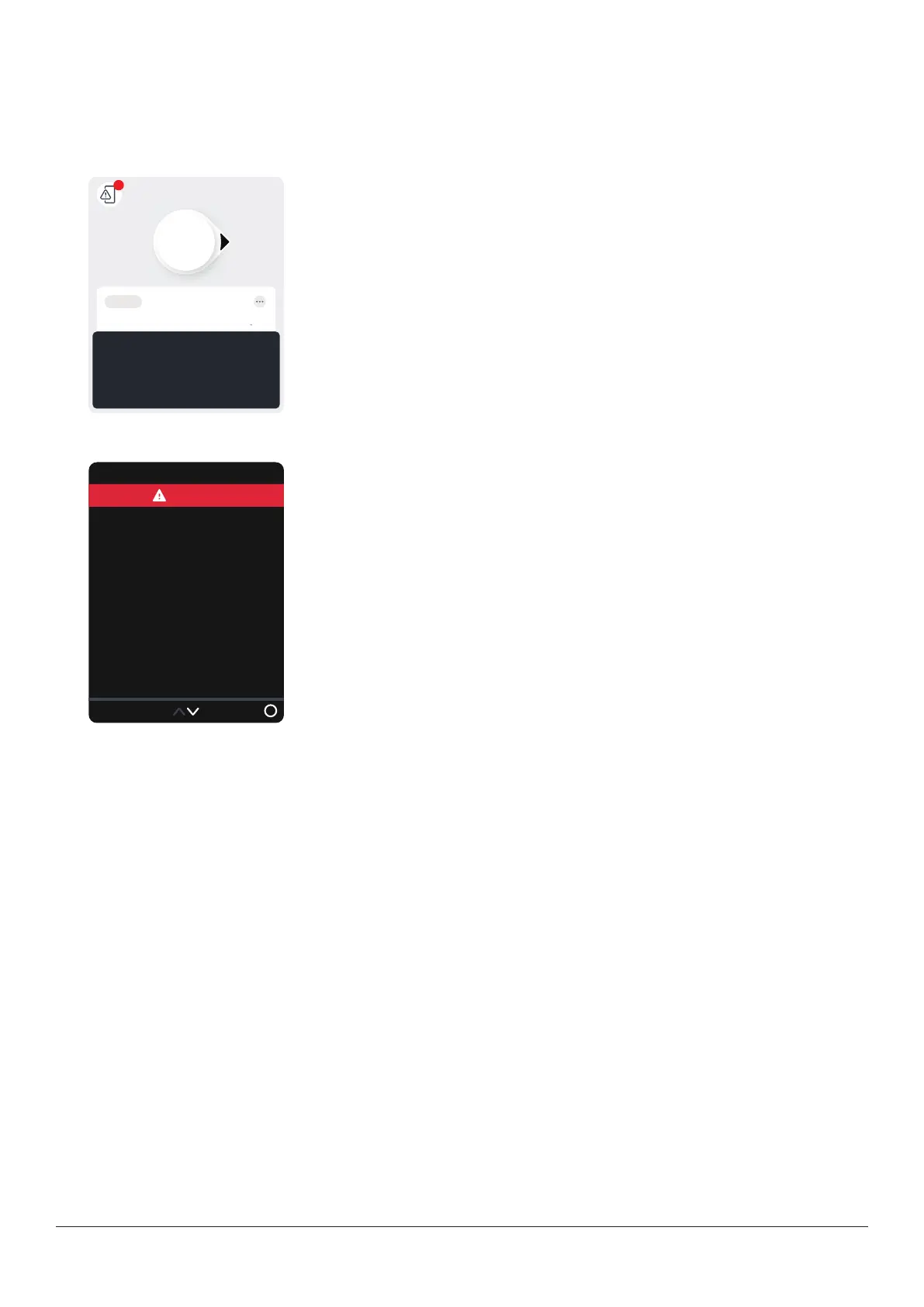
Phone settings conflict icon: The phone icon at the top left of the screen appears
after you get an alert about needing to change your phone settings. Tap the icon for
more information.
Black tooltip: Tells you what the next step is. For example, the first time you get the
phone settings conflict icon, a black rectangle message tells you what you need to do
next to begin resolving the issue.
Receiver
Menu
remaining
29:59
Sensor warmup
Your sensor is now warming up.
No sensor readings or alerts
until warmup is done.
No Alerts
Red banner: Reminds you of your status without blocking your screen. For example, it
lets you know that you won't get alerts while your sensor is warming up.



 To Next Page