7 • App connections | Dexcom ONE+ User Guide
40
7 • App connections
The Dexcom ONE+ app lets you add additional features and services to help you manage your diabetes.
Connections
Allow friends and family to view your sensor
readings.
Share
Consolidates health data from iPhone,
Apple Watch, and third-party apps.
Apple Health
Sensor
10 days left
Available connections
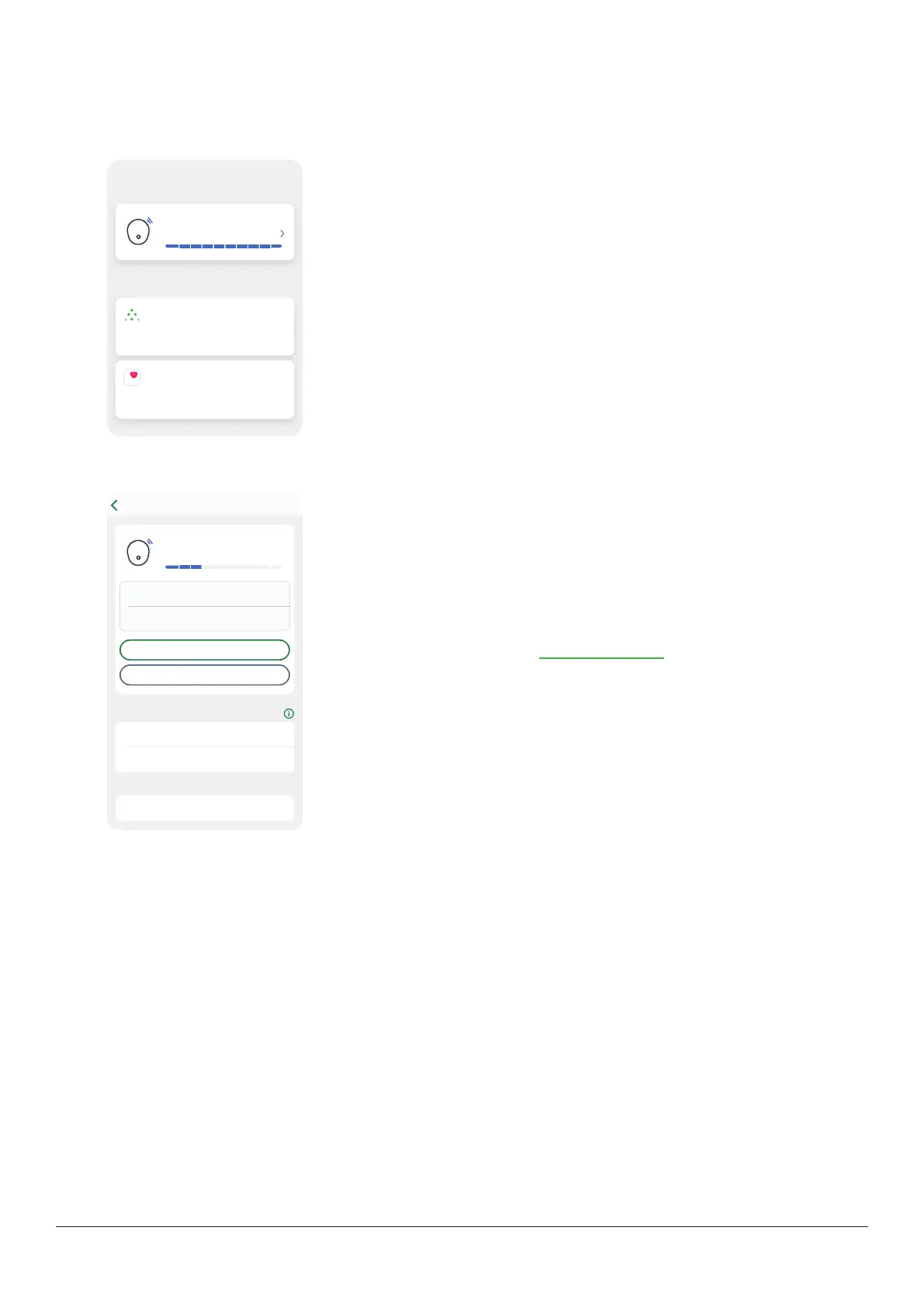
From Connections, you can:
l
Get information about your sensor session
l
Replace your sensor
l
Share your glucose information with others
l
Upload your glucose information to Apple Health
Active connections — like your sensor — appear at the top. Connections to
features you're not currently using are in the Available connections list.
Tap each connection to learn more.
Sensor
Stop sensor session
Replace sensor
Sensor
3 days left
Sensor
Insertion time
Sensor expires
19/10/24, 12:36
9/10/24, 12:37
Pairing code 9999
Receiver Not paired
Connections
In Connections > Sensor, you can do all this and more:
l
Check how much time is left in your sensor session.
l
Replace a sensor (go to the Next sensor session chapter for more information)
or stop the sensor session.
l
See your display devices and each one's status.
l
Get your pairing code.
Share and Follow
Use the app's Share feature to let friends and family members view your glucose information. Share sends your information
every 5minutes — almost as soon as you get it. Always treat using the primary Dexcom ONE+ app, not the Follow app.
Invite Followers
People you invite to follow you see only the information you want them to see. Give access to any or all of the following:
l
Sensor reading and trend arrow
l
Trend graph
l
Glucose alerts and notifications
You can change someone's access at any time.
To invite someone to follow you, go to Connections > Share. Then, follow the instructions on the app screens. You can invite
Followers from your contacts or enter their name and email.
Share and Follow may not be available in all regions.



 To Next Page