7 • App connections | Dexcom ONE+ User Guide
41
Invite FollowerCancel
Please review your invitation
Follower Edit
Nickname Jake
Email jake.person@gmail.com
Notifications Edit
Low Off
High Off
No Data Off
Data Sharing Edit
Current sensor reading and trend graph
Send Invitation
To customize what your Followers can see:
1. Tap Edit.
2. Tap Send Invitation.
Share sends an email inviting the person to follow you.
Follower status
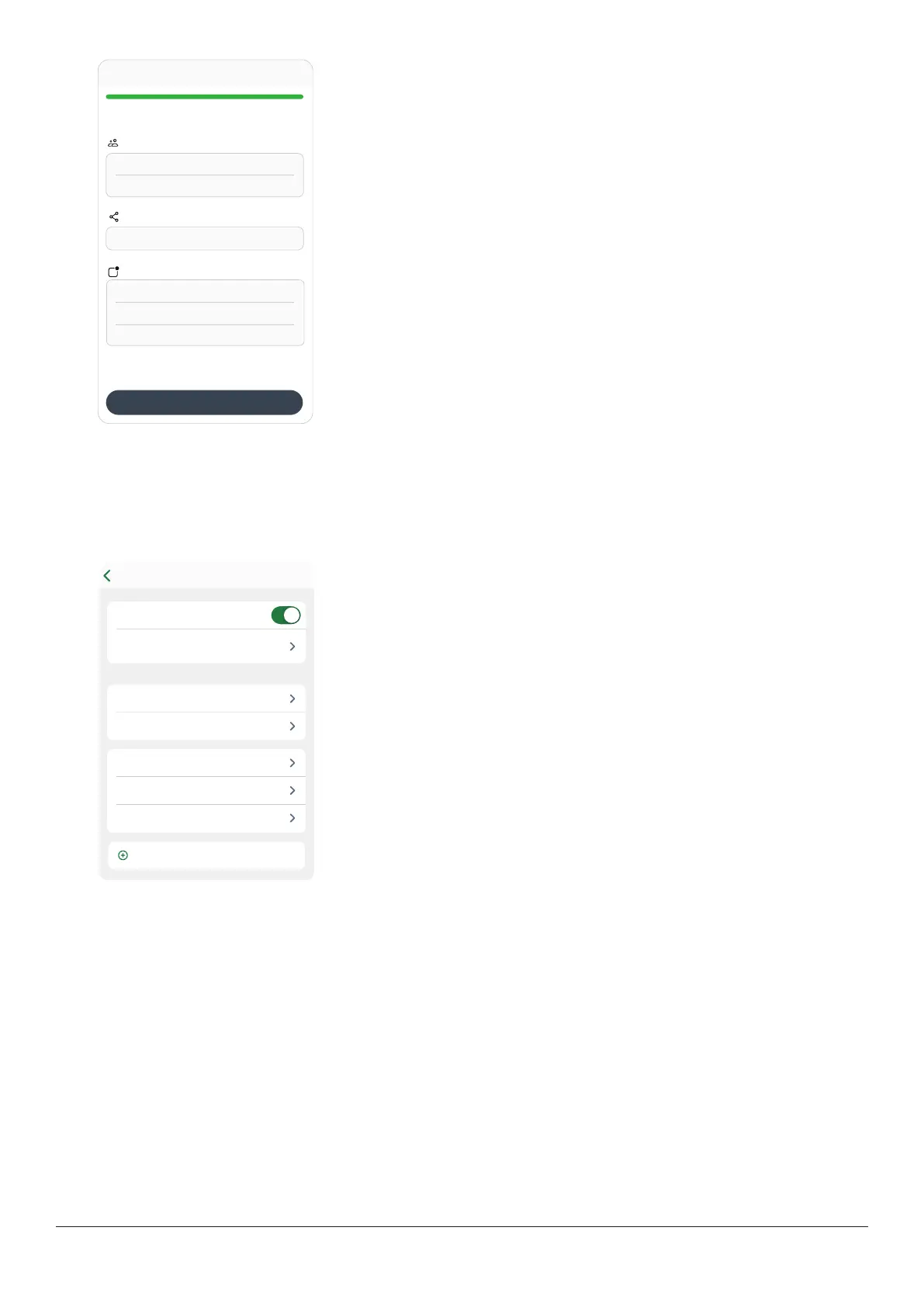
The Share screen shows the status of your Followers and lets you invite new ones.
Anna Sharing Paused
Kate Invitation Sent
David Invitation Expired
Invite Follower
Pat
Jeff
Share
Share
Status
Working
Connections
Share: Turn this off to stop sharing with all your Followers.
Status: Shows how Share is working. The statuses are:
l
Working: Share is connected.
l
No Active Follower: No one is following you.
l
No Internet Connection: Your phone must be connected to the internet for
Share to work.
l
Data Consent Required: You must consent to share data with Dexcom for
Share to work.
l
Server Outage: Dexcom server isn't working.
Followers: This shows the name and status of your inactive Followers. (Active
Followers don't have a status.) The inactive statuses are:
l
Invitation Sent: You invited a Follower. They haven't accepted yet. They have
7 days to accept.
l
Invitation Expired: Follower didn't accept invitation within 7 days. To
re-invite, tap Resend Invitation.
l
Sharing Paused: You stopped sharing with a Follower.
l
Stopped Following You: Follower stopped following you.
To change the status and information sent to each Follower, tap the Follower's name.



 To Next Page