11 • Next sensor session | Dexcom ONE+ User Guide
51
Receiver
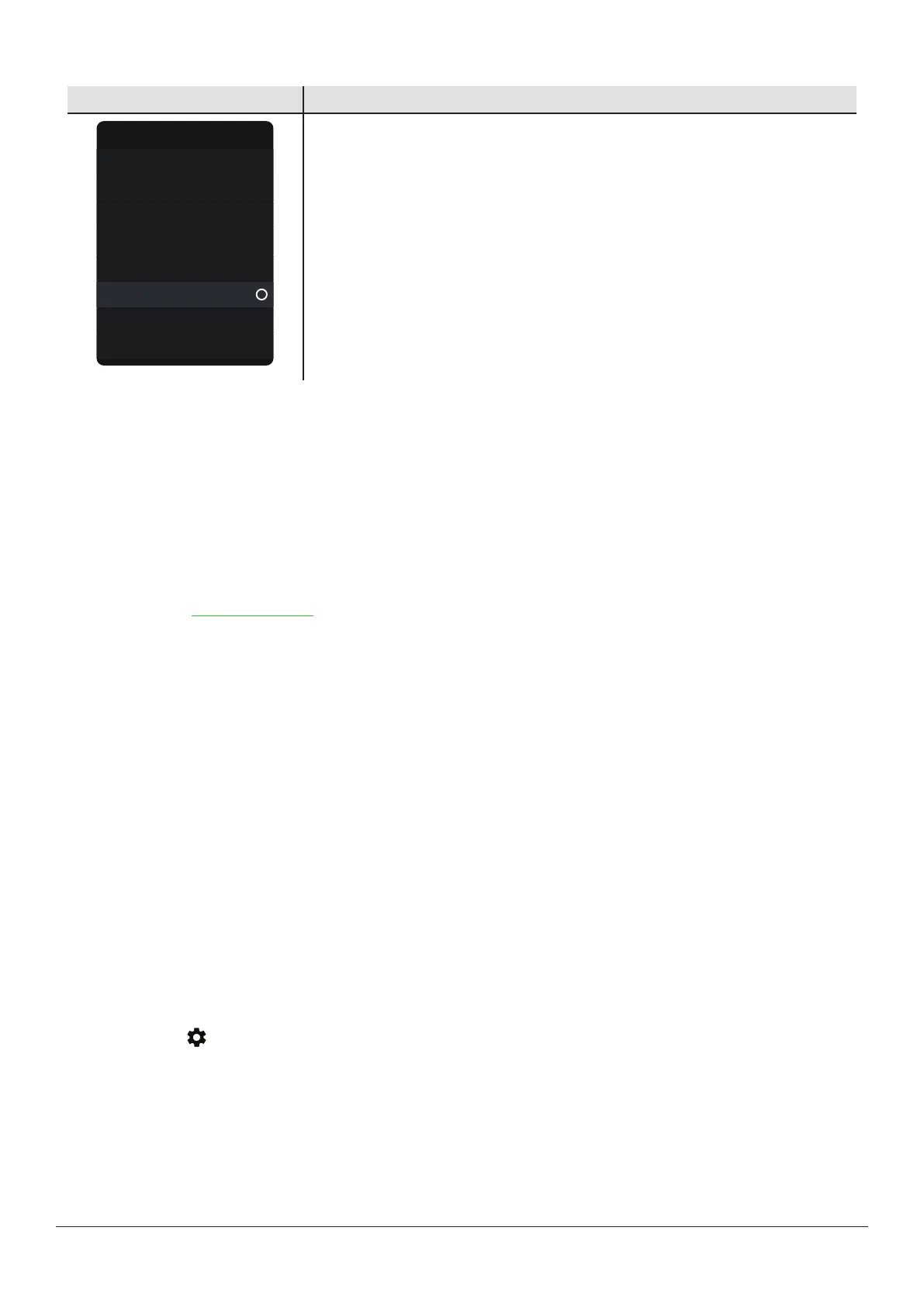
What you see What it means
Menu
Reports
Settings
Events
Information
Help
Power off
Stop sensor session
Replace sensor
To end your session early from the receiver, go to Menu. Go to either:
l
Replace sensor: If you want to start a new sensor immediately
or
l
Stop sensor session: If you want to stop this sensor without starting a new one
Then, follow the instructions on the receiver screens.
Remove your sensor
After your sensor session ends, peel off from the edge. To make it easier and to avoid irritating your skin, try these tips:
l
Loosen edge and soak patch in body oil, like baby oil or an adhesive remover for skin (check product instructions before
using).
l
Use adhesive removal wipes for skin, rubbing exposed skin as you peel back the patch.
l
Try different pulling techniques:
l
Pull off the patch slowly, folding it over itself, in the same direction of hair growth.
l
Stretch loosened edge, and push your fingers under the patch to pull it off skin.
For more tips, go to dexcom.com/faqs.
Before inserting a new sensor, remove the old one. You can use only one sensor at a time with Dexcom ONE+.
Throw out the used sensor following local guidelines.
Remove old sensors from
Bluetooth
connections in phone (optional)
Before inserting a new sensor, remove old sensors from your phone's list of Bluetooth connections.
There may be more than one sensor listed because your phone saves each sensor as a new device in the Bluetooth
connections list.
Apple
1. On your phone, go to Phone Settings > Bluetooth.
2. Find a used sensor in My Devices list. Dexcom ONE+ sensor names start with DXCM.
3. Tap i to see details about this sensor.
4. Tap Forget This Device.
Android
1. On your phone, go to Phone Settings > Connections > Bluetooth.
2. Find your used sensors in the list of paired devices. Dexcom ONE+ sensor names start with DXCM.
3.
Tap Settings to see details about the connection.
4. Remove your used sensor from the list.



 To Next Page