AIR_Manual_506a_ENG_rev_1.pdf Page 45/96
, software to edit and display OpenAir files:
https://bitbucket.org/airtome/airtome/downloads
https://bitbucket.org/airtome/airtome/wiki/screenshots
Online converter with the option of selecting the different classes of CTRs:
Converter OpenAir -> GoogleMap
http://cunimb.net/openair2map.php
b) Using the USB cable supplied, connect your Digifly to the PC/Mac and go to AirTools in the Digifly’s Menu.
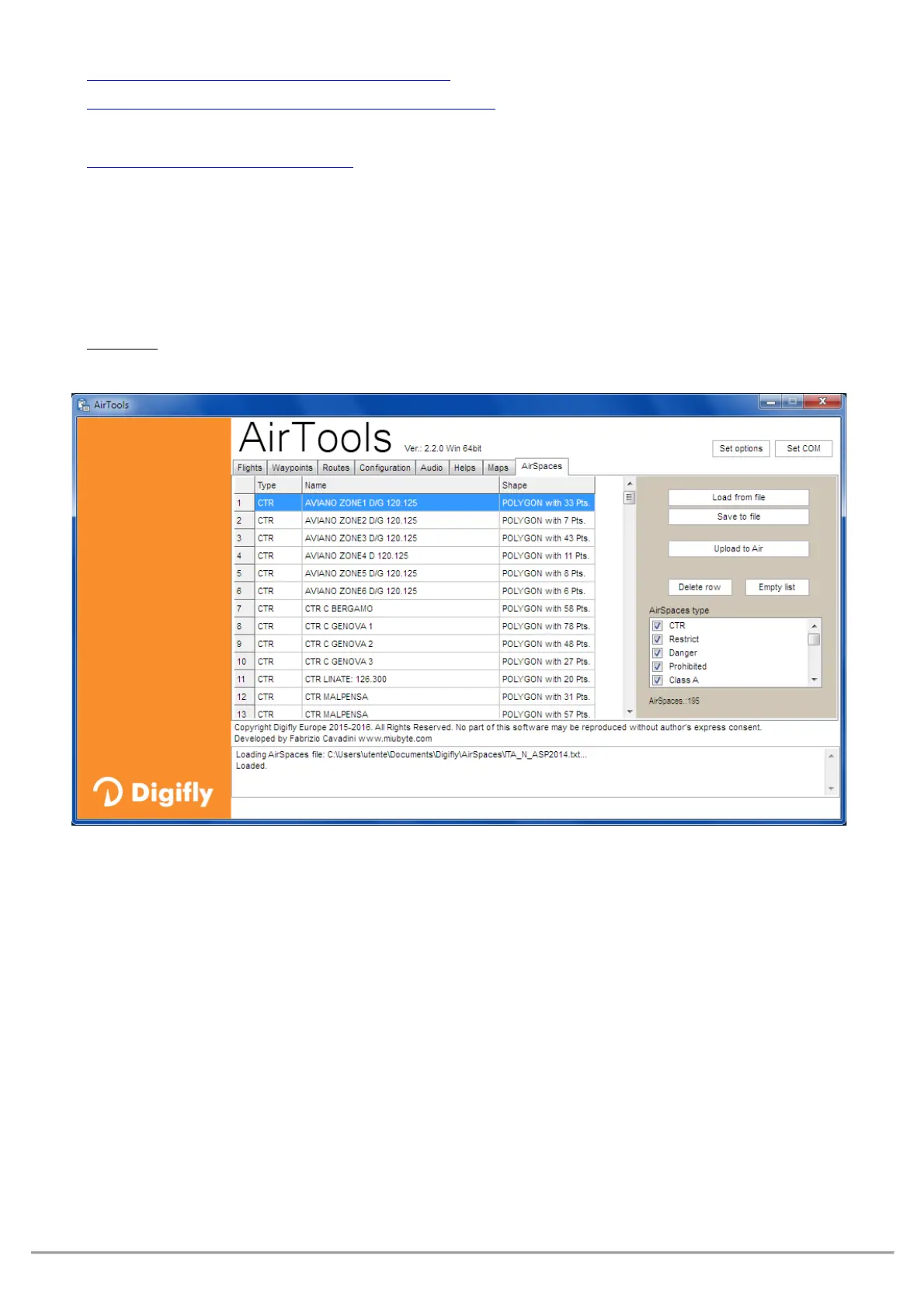
On your computer, open the AirTools program and click on the “AirSpaces” tab
Click on “Load from file”, set the type of file to “OpenAir (*.txt)” on the pop up browser and select the
airspace file you have; for example “ITA_N_ASP2014.txt”.
: the file may contain up to 1000 airspaces and each airspace may contain a maximum of 500
polygon points
If applicable, deselect the airspaces that you know are not necessary (from the box on the right side)
“Upload to AIR” to upload these files to the Digifly AIR’s internal flash memory
Close the AirTools program
Set the
MAIN SETUP\ n. 22 CTRM parameter (CTR mode) to ON
(enable CTR)
CTRM: OFF=CTR disabled (default), ON=CTR enabled
Set the Distance warning (horizontal) parameter in
MAIN SETUP\ n. 23 CTRD (default is 400mt)
CTRD : 0=warning disabled, from 1 to 9999= horizontal distance in mt at which the warning message and
alarm will go off; this alarm will also go off if you happen to invade the airspace.
Set the Distance warning (vertical) parameter in
MAIN SETUP\ n. 24 CTRH (default is 400 mt)
CTRH : 0=disabled, from 1 to 999=vertical distance in mt at which the warning message and alarm will go off;
this alarm will also go off if you happen to invade the airspace.


 To Next Page