AIR_Manual_506a_ENG_rev_1.pdf Page 54/96
To activate the navigation of your route, from the main menu, enter in the "ROUTES” sub-menu.
The first visualized route is the “Rt 01”, to select other routes
the arrow keys or .
Once you are in the route you’d like to activate ,
the key. You will see the message "Activate
Route Nav ?", press the key to confirm or press the key to cancel.
: when you activate the route, a window with the summary of the most important settings of your route
will pop up to allow for a settings check before the competition starts:
o
: check the UTCO setting is correct = time zone + summer or winter time
o
= OFF / CMP / XC: current setting of the automatic page switcher “Intellifly”
o
= x.x %: tolerance percentage used by the distance calculator
o
= FAI Sphere / WGS84: mathematical model of the earth used by the distance calculator
A route allows to automatically navigate towards the last WP (goal) passing through all the listed WPs.
The “Real Time Navigation Manager / Skip waypoint” function shows the navigation progress of the active route
in real time and allows you to choose to navigate to a different waypoint (see section 3.9.8).
DE-ACTIVATING A ROUTE (CLEAR NAV)
From the
page,
the key, the message "Clear Nav ?" is shown, press the key to
confirm or press the key to cancel.
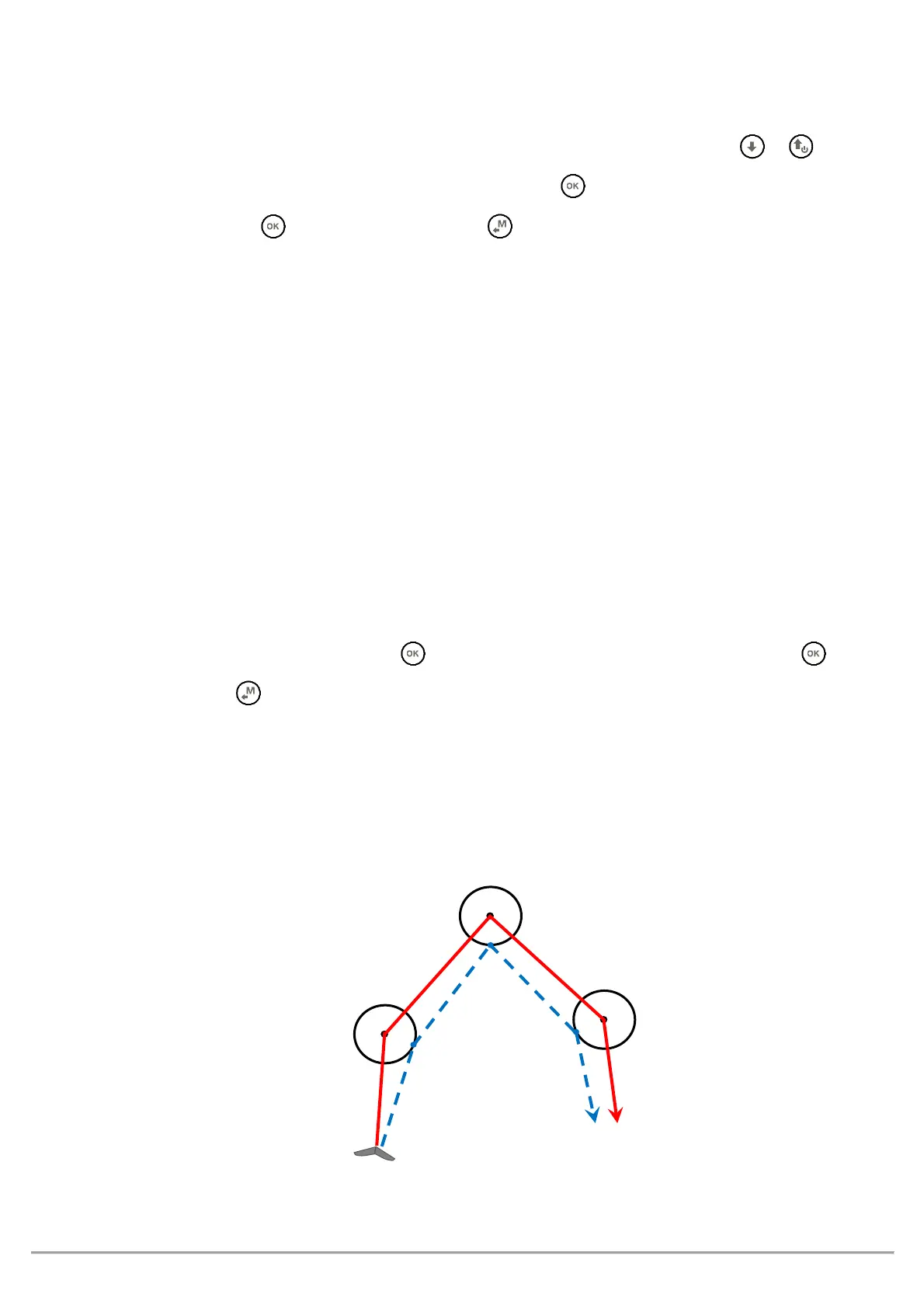
Route navigation is continuously optimized and recalculated every second in real time, indicating the shortest
path along the route :


 To Next Page