AIR_Manual_506a_ENG_rev_1.pdf Page 79/96
Digi-FLYBOX TELEMETRY TO LK8000
The free
software running on an external device (e.g. E-Reader, Smartphone, Tablet, etc.) receives,
decodes and displays the
Digi-FLYBOX Telemetry Data
sent in real time at high speed by the AIR via
or
.
How to use telemetry communication via USB-OTG cable
:
o On your AIR, do a one-time setting of the format in which it will transmit
the data:
ADVANCED SETUP \ n. 25 TELE = FL2
o Do a one-time setting of the communication type parameter
\
.
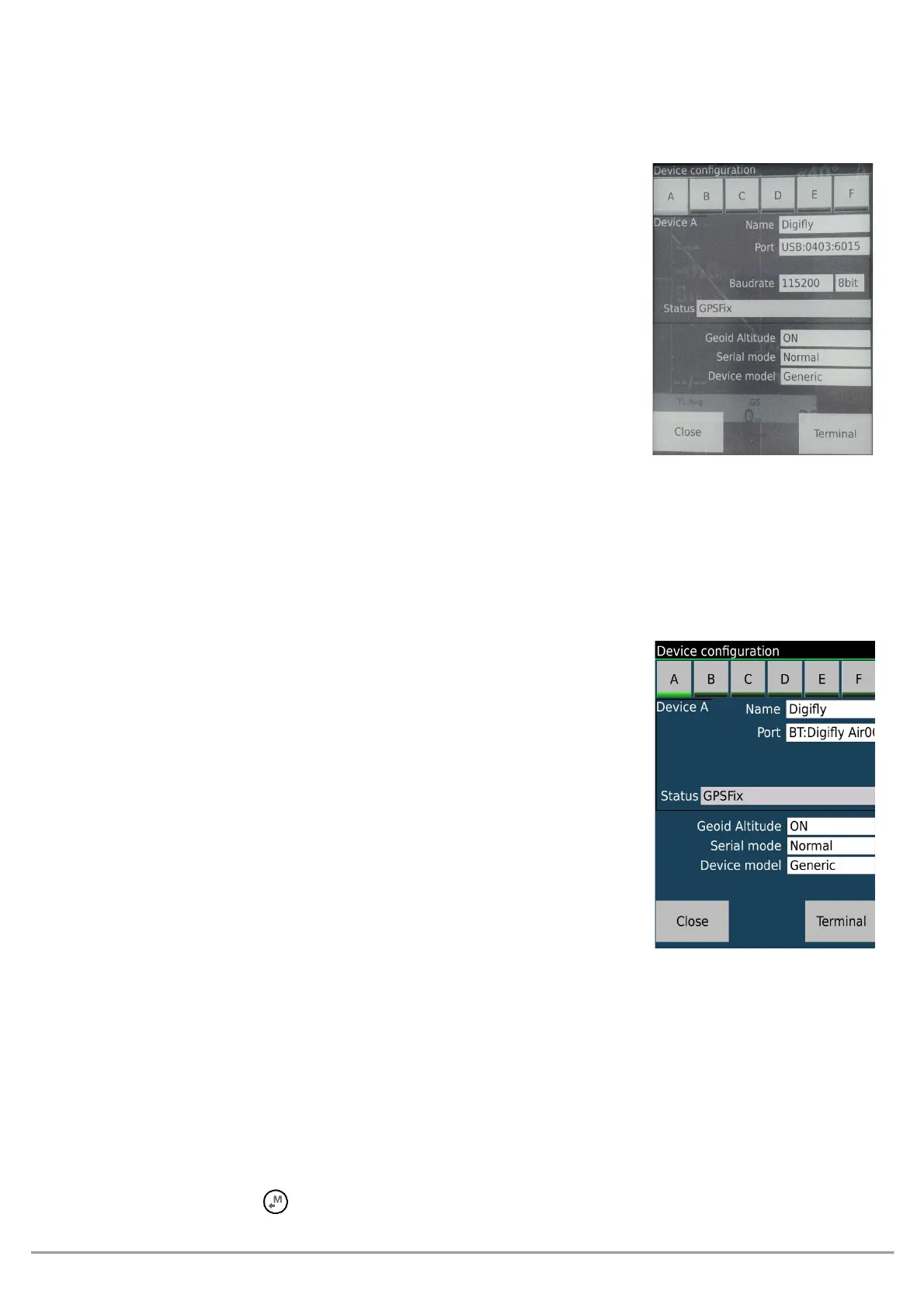
o To correctly decode the Digifly’s telemetry, it is necessary (only once) to
enter in the LK8000 : FLY mode, Menu, Config 2/3, LK8000 Setup,
Device Setup, Device A : Name:
, Port:
, Baudrate:
115200 [8bit], Serial mode: Normal, Device Model: Generic. Exit
configuration
o The data will be continuously transmitted, except when you are in the Menu pages
o
use a USB OTG adapter and verify that the external device (e.g. Smartphone) also provides power
supply through the USB cable; otherwise, it will be necessary to use a USB-OTG Y cable to provide 5V
external power using, for example, a battery pack.
No drivers are required to use a USB-OTG (On-The-Go) cable.
How to use telemetry communication via Bluetooth:
o On your AIR, do a one-time setting of the format in which it will transmit
the data:
ADVANCED SETUP \ n. 25 TELE = FL2
o Do a one-time setting of the communication type parameter
\
.
o In order to use the LK8000 software you must have already previously
done (only once) the pairing procedure with the external device (see
13.2.1)
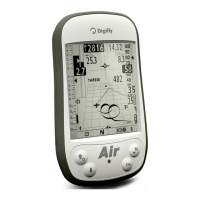
o To correctly decode the Digifly’s telemetry, it is necessary (only once) to
enter in the LK8000 : FLY mode, Menu, Config 2/3, LK8000 Setup,
Device Setup, Device A : Name:
, Port:
(where
“nnn” are the last three digits of your instrument’s serial number), Serial
mode: Normal, Device Model: Generic. Exit configuration
o The steps to follow each time you want to send the telemetry are:
1) On the
, go to MENU “
”.
2) Run the LK8000 software on the external device.
3) When the
receives from the confirmation that it is connected the external device, it automatically
exits from the "Telemetry BT" menu, returns to the current page of instruments, turns the Bluetooth icon on
and activates the continuous transmission of real-time Digifly telemetry data at high speed. In case of
problems, press the key on the
to exit and try again.


 To Next Page