14
Chapter 2 Adjusting Screens
●
To perform advanced adjustments
The “Color” menu of the Setting menu allows you to set and save the independent color adjustment for each
mode.
Attention
• It takes about 30 minutes for the performance of electrical parts to stabilize. Please wait 30 minutes or more after the
monitor power has been turned on, and then adjust the monitor.
• The same image may be seen in different colors on multiple monitors due to their monitor-specic characteristics.
Make ne color adjustment visually when matching colors on multiple monitors.
Note
• Using the “ScreenManager Pro for Gaming” allows you to perform the color adjustment by using the mouse and
keyboard of your PC. It is also possible to save adjustment statuses in a le and to read them. For details, refer to the
User’s Manual of the ScreenManager Pro for Gaming.
●
Adjustable settings in each mode
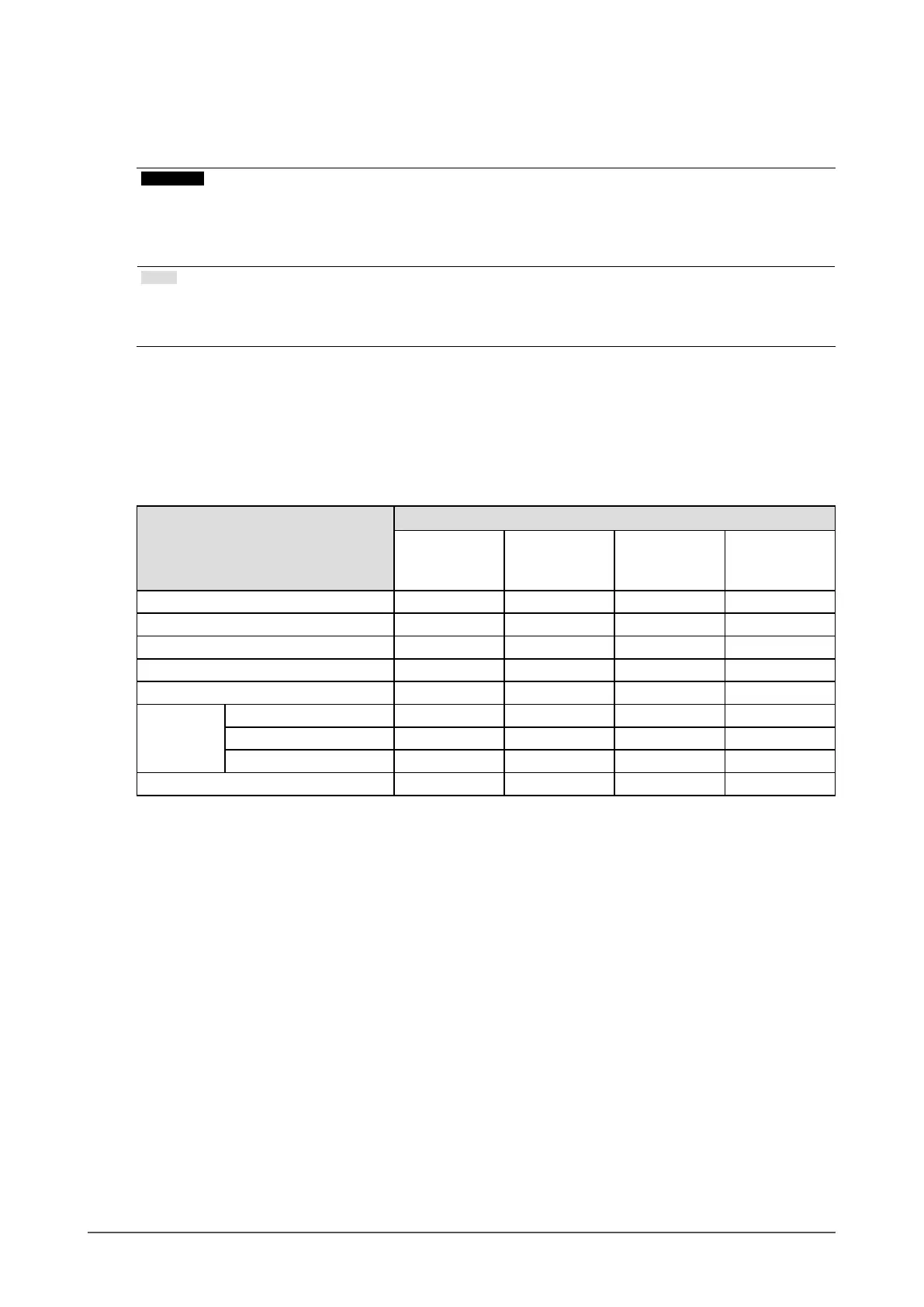
The adjustable settings depend on the mode. (You cannot select any non-adjustable or non-settable function.)
For instructions on how to adjust or set each function, refer to subsequent pages.
√: Adjustable -: Not adjustable
Function
Color Mode
User1
User2
User3
FPS1
FPS2
RTS Web
Brightness √ √ √ √
BlackLevel √ √ √ √
Contrast √ √ √ √
Temperature √ √ √ √
Gamma √ √ √ √
Advanced
Settings
Gain √ - - -
ContrastEnhancer √ √ √ √
Turbo240 √ - √ -
ColorReset √ √ √ √





 To Next Page