20
Chapter 2 Adjusting Screens
2-5. Setting Color Space
●
To set color space
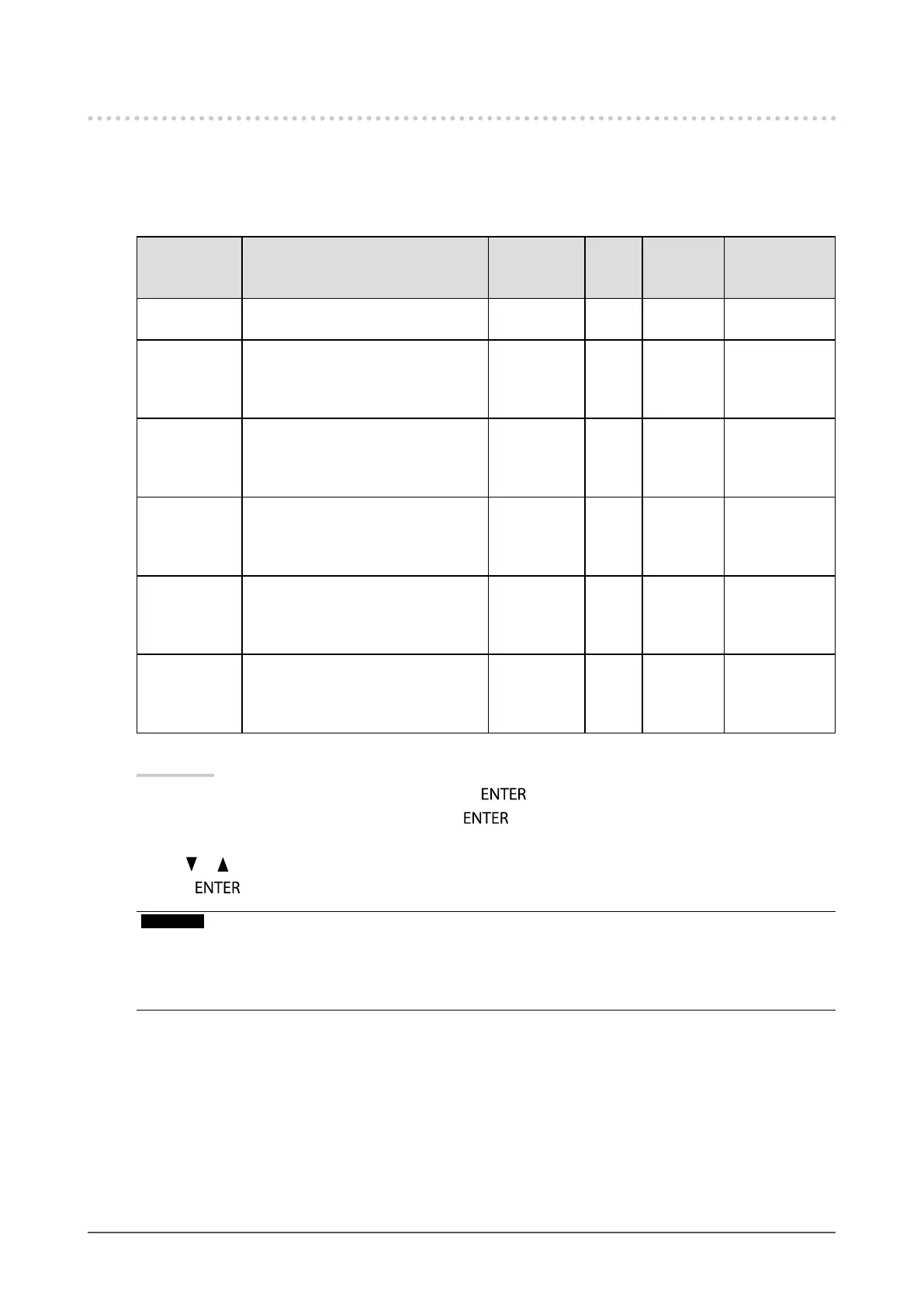
The color space of the input signal can be specied. Set to other than “Auto” if this product cannot display
correct color.
√: Can be set -: Cannot be set
Settings Function DisplayPort DVI-D
HDMI
(PC
signal)
HDMI
(video signal)
Auto Identiesthecolorspaceoftheinput
signalautomatically(recommended).
√ - - √
YUV Convertsthecolorspaceofthe
inputsignaltoaYUVformat.Make
thissettingifthescreencolorisnot
correctwhen“Auto”isset.
√ - - -
YUV4:2:2 Convertsthecolorspaceoftheinput
signaltoaYUV4:2:2format.Make
thissettingifthescreencolorisnot
correctwhen“Auto”isset.
- - √ √
YUV4:4:4 Convertsthecolorspaceoftheinput
signaltoaYUV4:4:4format.Make
thissettingifthescreencolorisnot
correctwhen“Auto”isset.
- - √ √
RGBFull
Range
Convertsthecolorspaceoftheinput
signaltoaRGB(0to255)format.
Makethissettingifthescreencoloris
notcorrectwhen“Auto”isset.
√ √
*1
√ √
RGBLimited
Range
Convertsthecolorspaceoftheinput
signaltoaRGB(16to235)format.
Makethissettingifthescreencoloris
notcorrectwhen“Auto”isset.
√ - √ √
*1 The color space for DVI input will always be “RGB Full Range”.
Procedure
1. Choose “Screen” from the Setting menu, and press
.
2. Choose “Color Space” from “Screen”, and press
.
The “Color Space” menu appears.
3. Use or for adjustment.
4. Press
to exit.
Attention
• The setting is required when a DVI device is connected to the monitor (at the HDMI connector port) using the DVI-
HDMI conversion connector.
• Even if “Auto” is set, correct color might not be displayed. If this happens, change the setting to one where the screen is
displayed correctly.





 To Next Page