15
Chapter 2 Adjusting Screens
●
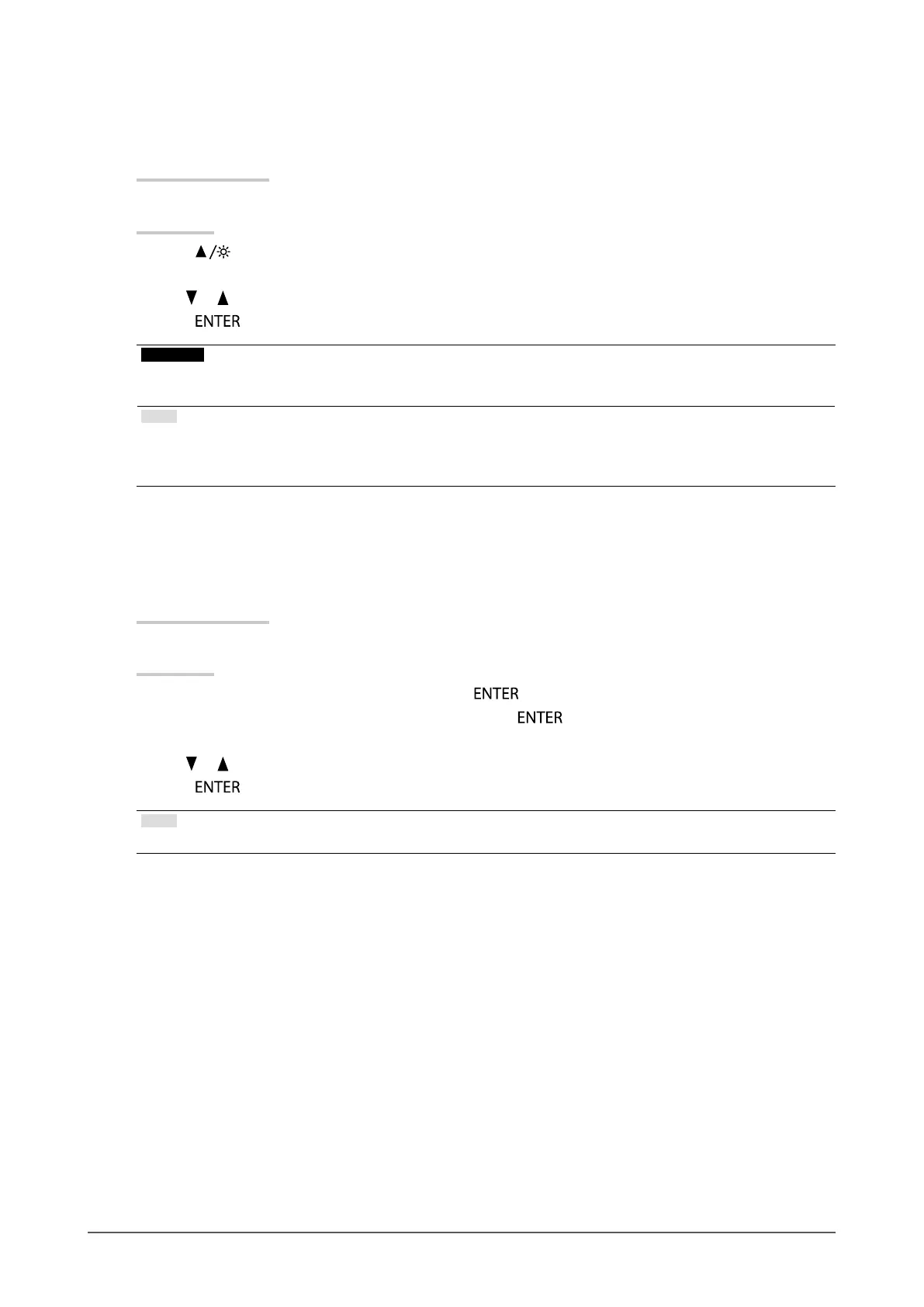
To adjust brightness
The screen brightness is adjusted by changing the brightness of the backlight (light source from the LCD back
panel).
Adjustable Range
0 to 100
Procedure
1. Press
.
The Brightness menu appears.
2. Use or for adjustment.
3. Press
to exit.
Attention
• Even if the brightness value is the same, the brightness of the screen will differ depending on the “Turbo 240” setting.
When “Turbo 240” is turned “ON”, the screen goes darker (see “To reduce motion blur” (page 18)).
Note
• If you feel that the image is too bright even if the brightness is set to 0 or that the image is too dark even if the
brightness is set to 100, adjust the contrast.
• Alternatively, you can use “Brightness” under “Color” in the Setting menu to adjust it.
●
To adjust the brightness and color of black
The brightness of black can be adjusted. Display the black test pattern or background and then adjust the black
level.
Adjustable Range
0 to 100
Procedure
1. Choose “Color” from the Setting menu, and press
.
2. Choose “Black Level” from the “Color” menu, and press
.
The “Black Level” menu appears.
3. Use or for adjustment.
4. Press
to exit.
Note
• After completing black level adjustment, readjust the contrast as appropriate.





 To Next Page