31
Chapter 6 Troubleshooting
6-2. Imaging problems
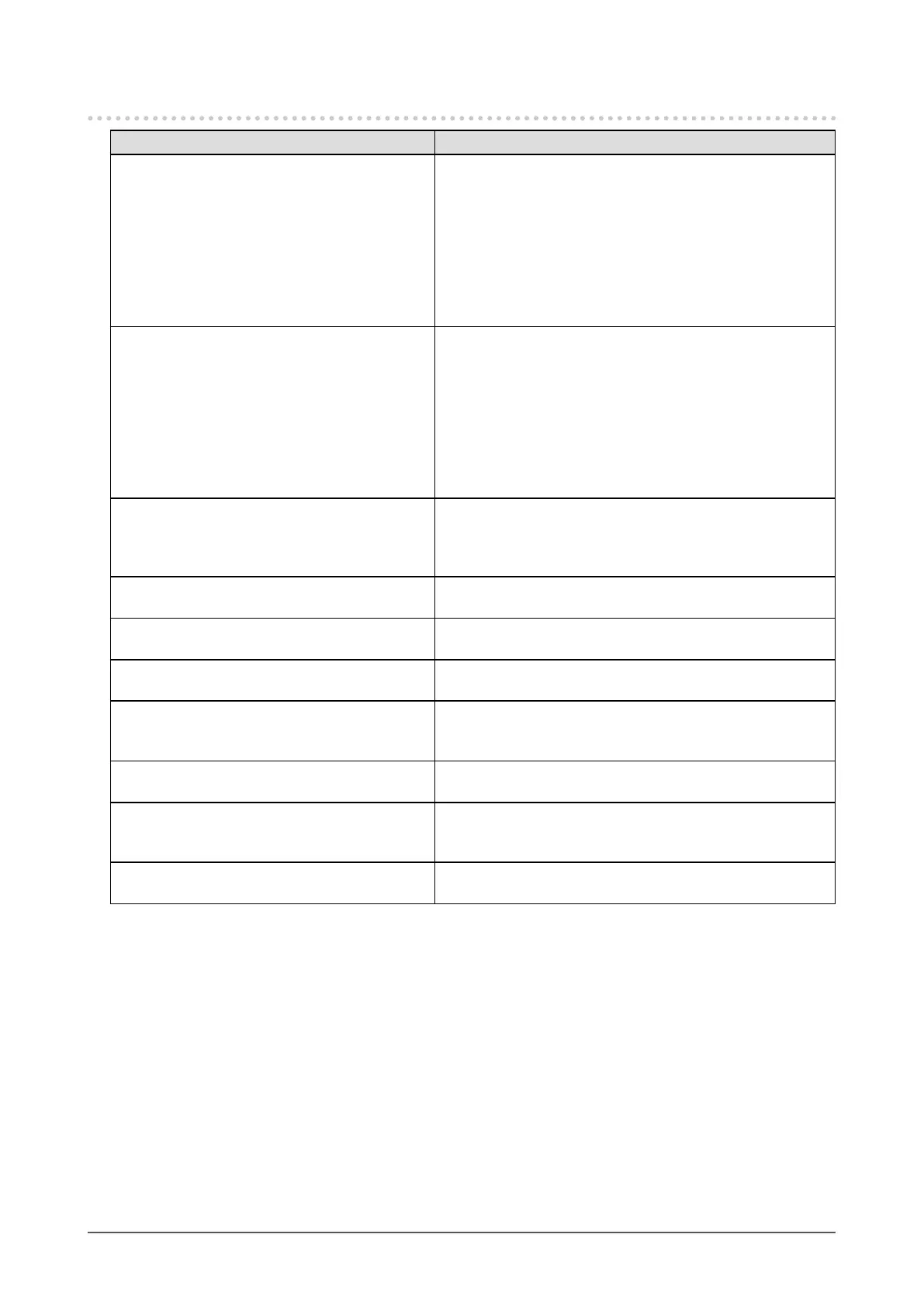
Problem Possible cause and remedy
1. The screen is too bright or too dark. • Use“Brightness”or“Contrast”intheSettingmenuto
adjustit(see“Toperformadvancedadjustments”(page14)).
(TheLCDmonitorbacklighthasalimitedlifespan.When
thescreenbecomesdarkorbeginstoicker,contactyour
localEIZOrepresentative.)
• Ifthescreenistoobright,turnonAutoEcoView(see“4-
2.Enabling/DisablingAutomaticBrightnessAdjustment”
(page27)).Themonitordetectsthebrightnessofthe
environmenttoadjustthescreenbrightnessautomatically.
2. Characters are blurred. • CheckwhetherthePCisconguredtomeettheresolution
andverticalscanfrequencyrequirementsofthemonitor
(see“2-1.CompatibleResolutions/Formats”(page11)).
• Whenanimageisdisplayedwitharesolutionotherthan
recommended,thecharactersorlinesofthedisplayed
imagemayblur.Use“Smoothing”and“ScreenSize”in
theSettingmenutoadjustit(see“Tomodifyblurred
charactersorlines”(page19)and“Toselectscreensize”
(page19).
3. Afterimages appear. • AfterimagesareacharacteristicofLCDmonitors.Avoid
displayingthesameimageforalongtime.
• Usethescreensaverorpowersavingfunctiontoavoid
displayingthesameimageforextendedperiodsoftime.
4. Green/red/blue/white dots or defective
dots remain on the screen.
• ThisisduetoLCDpanelcharacteristicsandisnota
failure.
5. Interference patterns or pressure marks
remain on the screen.
• Leavethemonitorwithawhiteorblackscreen.The
symptommaydisappear.
6. Noise appears on the screen. • WhenenteringtheHDCPsignals,thenormalimagesmay
notbedisplayedimmediately.
7. The screen is whitish or blackish. • Use“BlackLevel”(see“Toadjustthebrightnessandcolor
ofblack”(page15))and“Contrast”(see“Toadjustcontrast”
(page16))undertheSettingmenutoadjustit.
8. The color shown on the display is not
correct (for DisplayPort or HDMI input).
• Changethecolorspaceofthevideosignalin“Screen”-
“ColorSpace”undertheSettingmenu.
9. The screen ashes (for HDMI input). • Transmittablesignalsdifferdependingonthecategoryof
theHDMIcable.CheckwhetherthecablesupportsHigh
Speed.
10. The screen is whitish or blackish (for
DisplayPort or HDMI input).
• Use“Screen”–“ColorSpace”undertheSettingmenuto
adjustit.





 To Next Page