19
Chapter 2 Adjusting Screens
2-4. Selecting Screen Size
●
To select screen size
An image with a resolution other than the recommended resolution is displayed in full screen automatically.
You can change the screen size by using the “Screen Size” function.
Settings Function
Auto Themonitorautomaticallychangesthescreensizeaccordingtotheaspectratioand
resolutioninformationfromtheexternaldevice.Thissettingcanbeselectedwhenthe
inputisHDMI(videosignal).
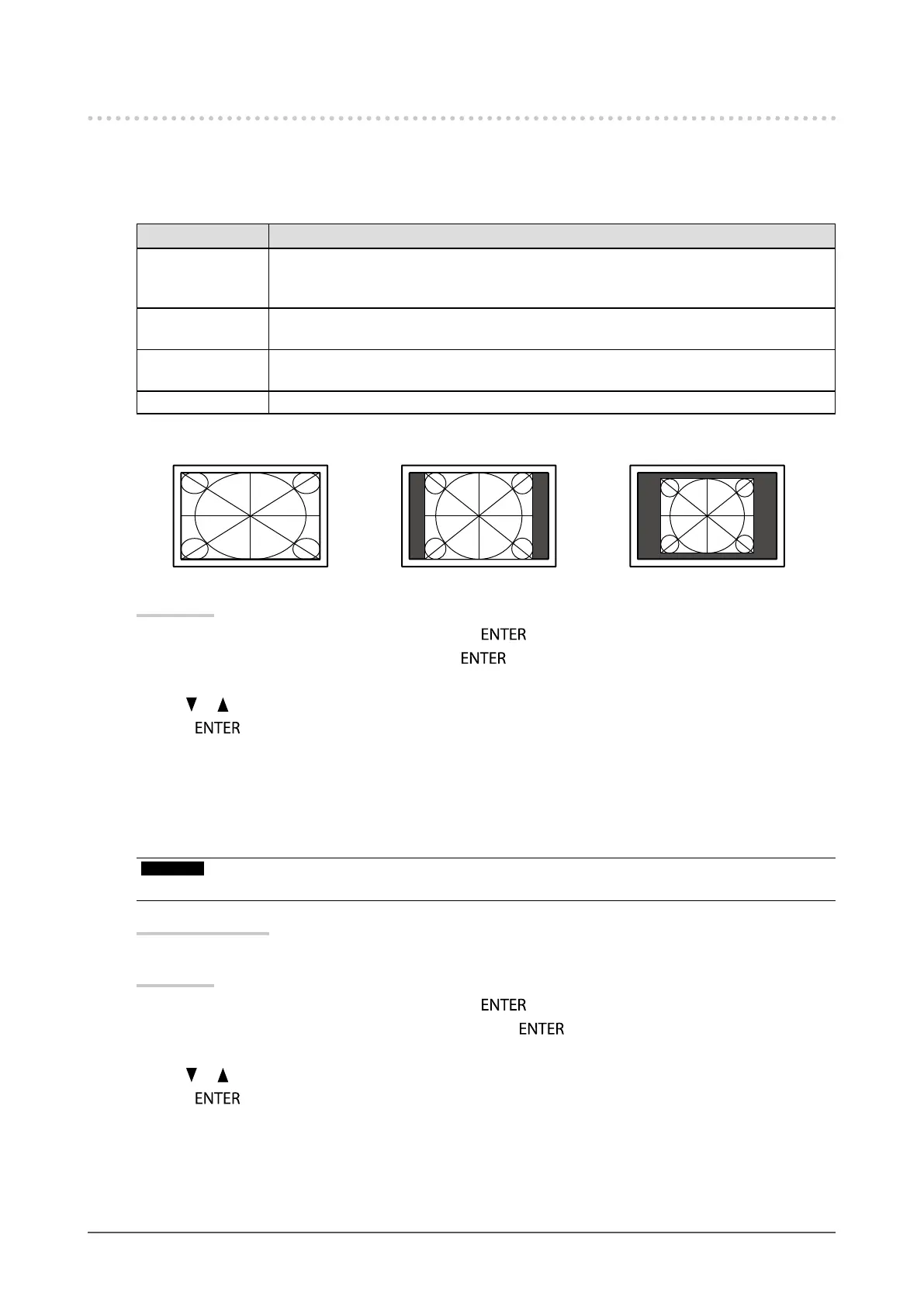
FullScreen Imagesarestretchedtofullscreen.Sinceaspectratiosvary,imagesmaybedistortedin
somecases.
Enlarged Imagesareenlargedtofullscreenwithoutchangingtheaspectratio.Sinceaspectratios
aremaintained,blankhorizontalorverticalbordersmayappear.
Normal Displaysimageswiththespeciedresolution.
Example: Image size 1024 × 768
FullScreen Enlarged Normal
(1920×1080) (1440×1080) (1024×768)
Procedure
1. Choose “Screen” from the Setting menu, and press
.
2. Choose “Screen Size” from “Screen”, and press
.
The “Screen Size” menu appears.
3. Use or for adjustment.
4. Press
to exit.
●
To modify blurred characters or lines
When an image is displayed with a resolution other than that recommended, the characters or lines of the
displayed image may blur.
Attention
• Smoothing setting may not be required depending on the display resolution. (You cannot choose the smoothing icon.)
Adjustable Range
1 to 5
Procedure
1. Choose “Screen” from the Setting menu, and press
.
2. Choose “Smoothing” from the “Screen” menu, and press
.
The “Smoothing” menu appears.
3. Use or for adjustment.
4. Press
to exit.





 To Next Page