4 Advanced System Operation
iConnect Installation Manual
32
To view the event log:
1. From the Event Log menu, select View Log [61]; a summarized version of the most recent event is
displayed. Press the
key to view the time/date stamp or the device/user number on the second row of
the display.
2. Use the arrow keys to scroll through the events.
3. When you have finished viewing, press to exit the log.
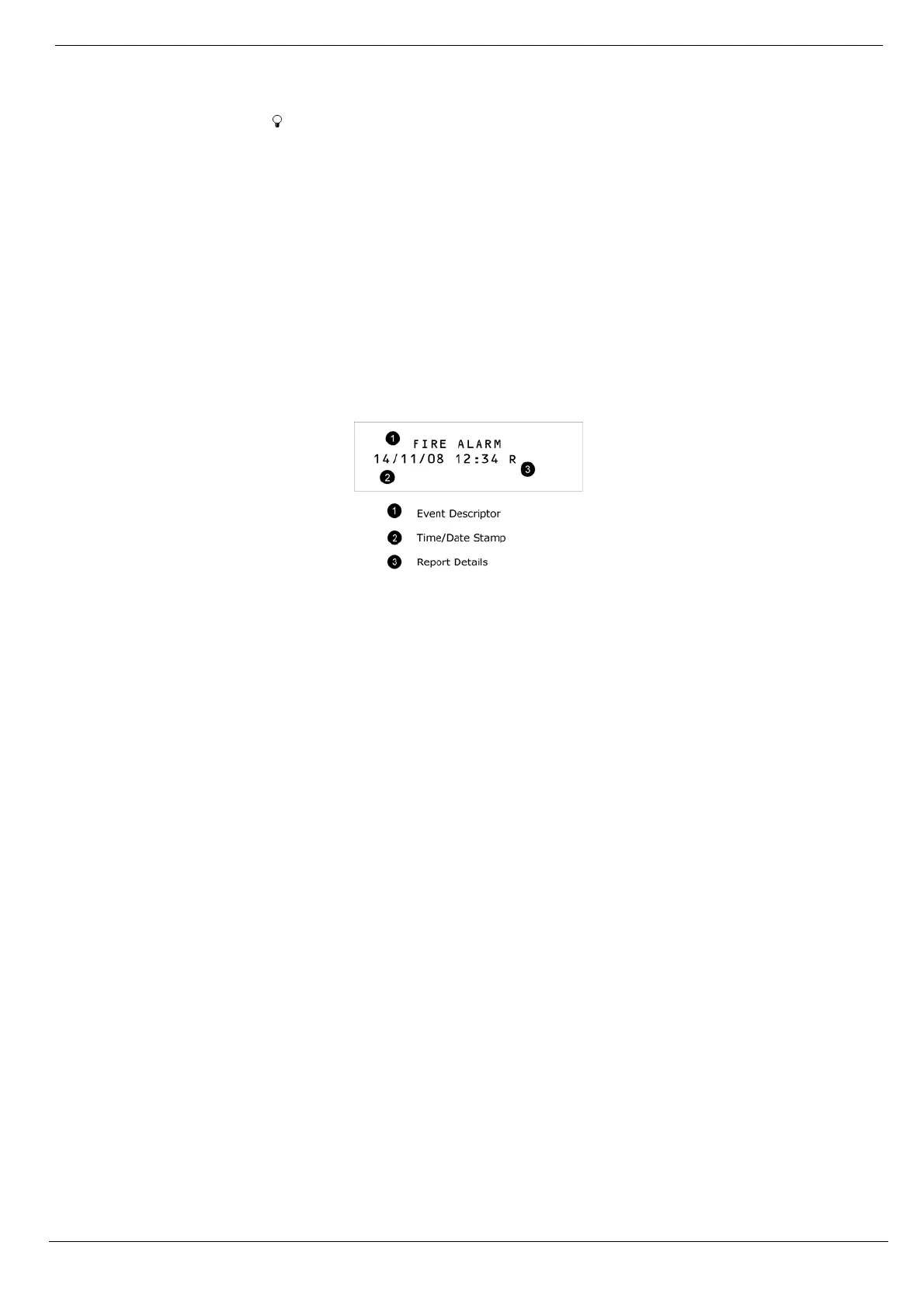
The event log displays the following information for each event:
The event descriptor – a brief description of the event that occurred.
The zone where the event occurred.
Time/date stamp – the exact time the event occurred.
Report details – a single character indicating whether the event was reported to the central station. The
options available are R: Report Sent, F: Report Failed, C: Report Canceled or N: No Report.
Figure 4-2 shows the detailed event log entry for a Fire alarm on November 14
th
2008. The event was successfully
reported to the central station.
Figure 4-2: Detailed Event Log Display
4.7.1. Event Log Authorization Levels
Every event that occurs is recorded in the event log. However, certain events are intended for the installer only. Those
events include various service messages that are of little interest to the regular user. The View Log function requires
you to enter either the Master or Installer code. The events that are displayed depend on which code you use to enter
the log – see p.130, Appendix E: Event Table.
4.7.2. Clearing the Event Log
The Clear Log function erases all events from the log. After performing this function, a Clear Log event is recorded in
the log. The Clear Log function is accessible using the Installer code only.
To clear the event log:
1. From the Event Log menu, select Clear Log [62]; the OK? confirmation message is displayed.
2. Press ; the log is cleared -- See p.130, Appendix E: Event Table.
Note: For certain versions of the iConnect Control System software, the Clear Log function may be disabled.
4.8. Service Menu
The Service menu is accessible using either the Installer or Master code. This menu includes various functions that
enable you to test the system effectively.
4.8.1. Set Time & Date
The time and date are used to time stamp events in the event log. Additionally the time is also displayed on the LCD
display.
To set the time:
1. From the Service menu, select Set Time/Date, Set Time [7011].
2. Enter the current time.
3. Press ; the time is modified.


 To Next Page