Ensite Pro configuration tool - General
Instruction manual Ensite Pro Configuration Tool Page 7
Ensite Pro configuration tool - General
The configuration tool works with windows. Within these windows are
buttons, on which the function is written. One of the characters on a
button is underlined.
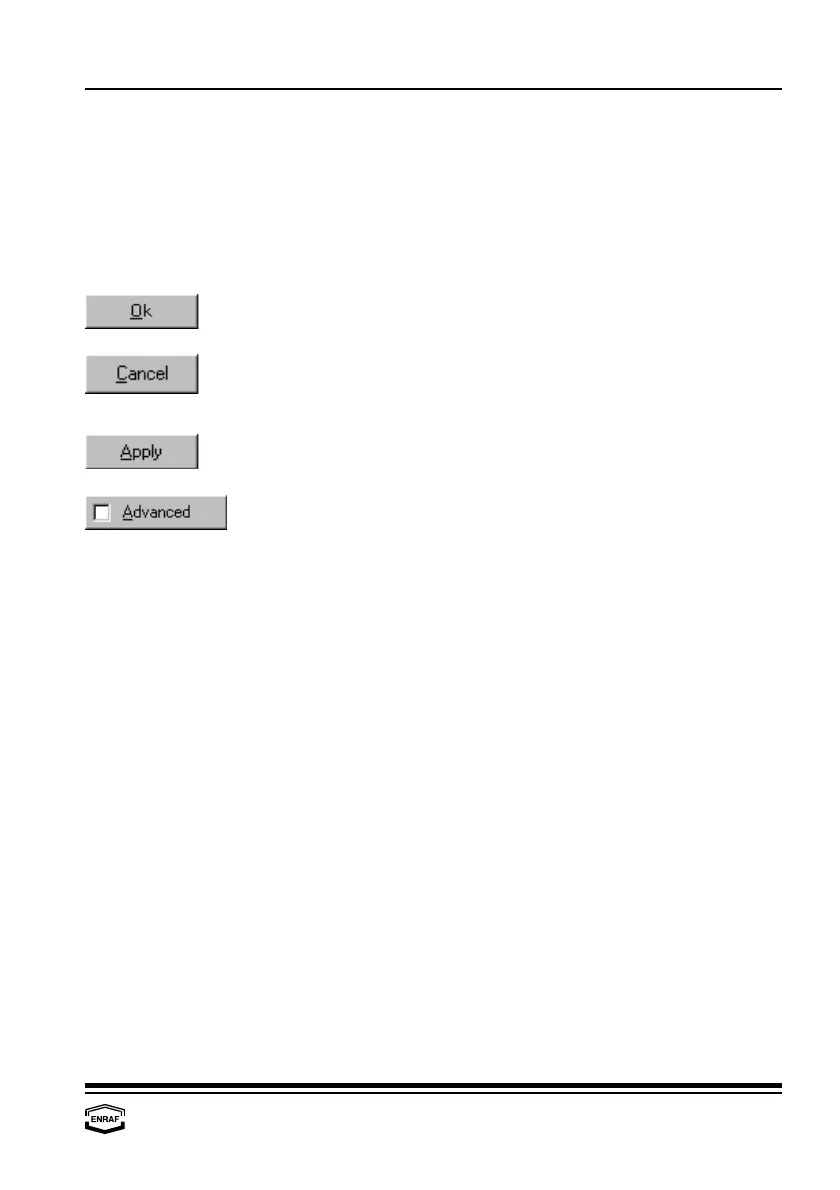
Throughout the configuration tool, common buttons are used.
Their description is given once:
Press the ‘Ok’-button to set the parameters and work with it
accordingly.
Press the ‘Cancel’-button to ignore any changes made. The program
returns to the previous window. In some cases this button has been
renamed into Close”
Press the ‘Apply’-button to set the parameters and work with it
accordingly, but remain in the active window.
Check the ‘Advanced’-button to activate the advanced part in the
active window.
Activate functions
The function of a button can be activated in several ways:
- mouse
• move the mouse pointer to the button and click the left mouse
button
- ‘Alt’-key
• press the ‘Alt’-key simultaneously with the underlined character
key of the text on the button
- ‘Tab’-key
• press the ‘Tab’-key to scroll over all buttons. When the desired
button is reached (marked), press the ‘Enter’-key



 To Next Page