Envision One cDLM® User Manual
TS-MAM-EnvisionOneCDLMUserManual-V5.0-FN-EN , 2021-12-15
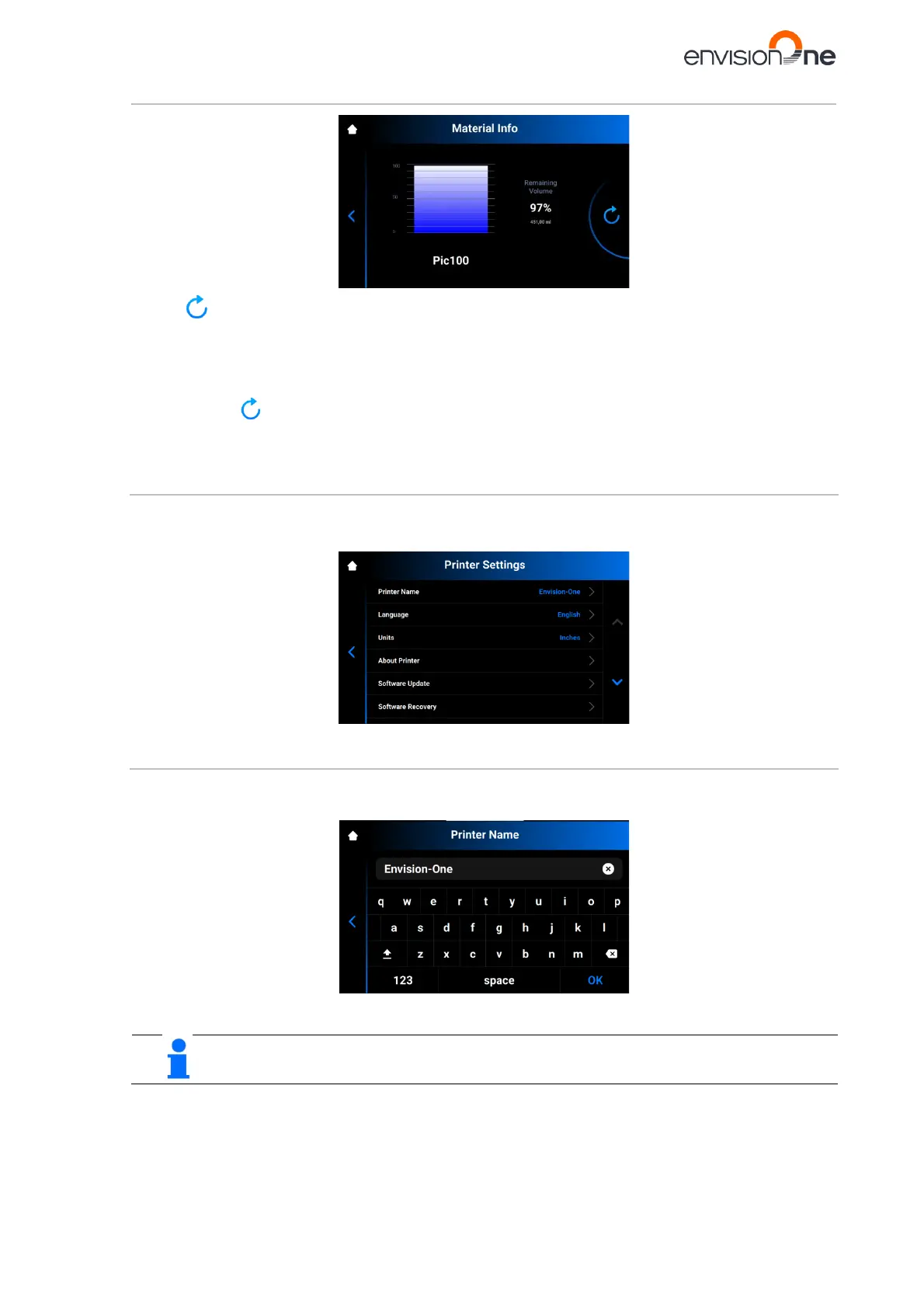
Tap the icon to update the data from the RFID tag reader.
To change the material tag, proceed as follows:
1. Remove the material tag from the tag reader.
2. Put the new material tag on the tag reader.
3. Tap the icon.
→ The material information will be updated based on your new material tag.
8.3 Printer Settings Tab
The Printer Settings tab provides information about the printer, allows for changing the printer name, selecting
units of measurement and updating the software version.
Tap Settings | Printer Settings to open the tab.
8.3.1 Printer Name
This option allows for changing the name of a printer.
1. Tap Settings | Printer Settings | Printer Name.
2. Enter the required name of the printer into the corresponding field using the keyboard on the screen.
Printer name may contain letters from a to z; digits from 0 to 9; a hyphen (-).
Printer name may not contain spaces; special characters; or begin with a number or a hyphen.
3. Tap OK.
→ The printer name is changed.


 To Next Page