Envision One cDLM® User Manual
TS-MAM-EnvisionOneCDLMUserManual-V5.0-FN-EN , 2021-12-15
5. Select the needed version from the list. Click [Apply].
→ The system saves the previously installed Control Software version.
6. Tap [Start].
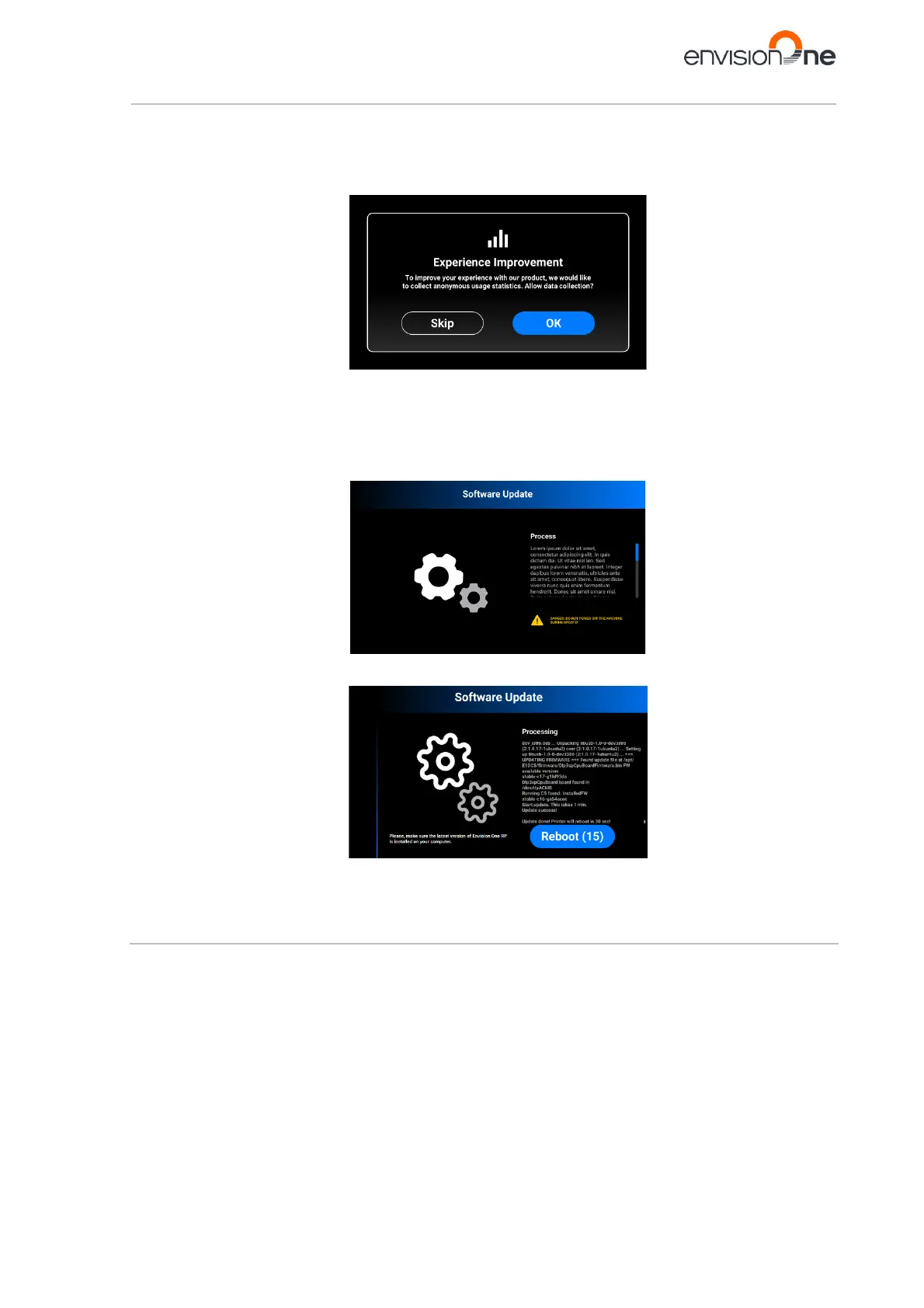
→ The Experience Improvement message appears.
7. Tap [OK] to allow data collection or [Skip] to skip this step.
→ The process of printer updating starts
→ The following message appears.
8. Tap [OK] to allow data collection or [Skip] to skip this step (see the Usage Analytics).
→ The process of printer updating starts.
→ After a successful printer update, the following screen appears.
9. To apply changes, reboot the printer. It will reboot automatically in 30 seconds. To reboot the printer
manually, tap [Reboot].
8.3.5 Software Recovery
The Software Recovery tab allows to recover the previous version of Control Software if for some reason the
current version of Control Software isn't working for you.
1. Tap Settings | Printer Settings | Software Recovery to open the tab.
→ The following screen appears.


 To Next Page