Envision One cDLM® User Manual
TS-MAM-EnvisionOneCDLMUserManual-V5.0-FN-EN , 2021-12-15
Check the Don’t ask again checkbox if you do not want to rate the future prints.
If you have selected [Partially Successful] or [Failed] option, you will be able to read more about
common printing issuing by scanning the QR-code with your tablet or mobile phone.
10.6 Stopping a Job
To stop or abort the print, the following options are available:
• Abort Job
• Delete Job
10.6.1 Abort Job
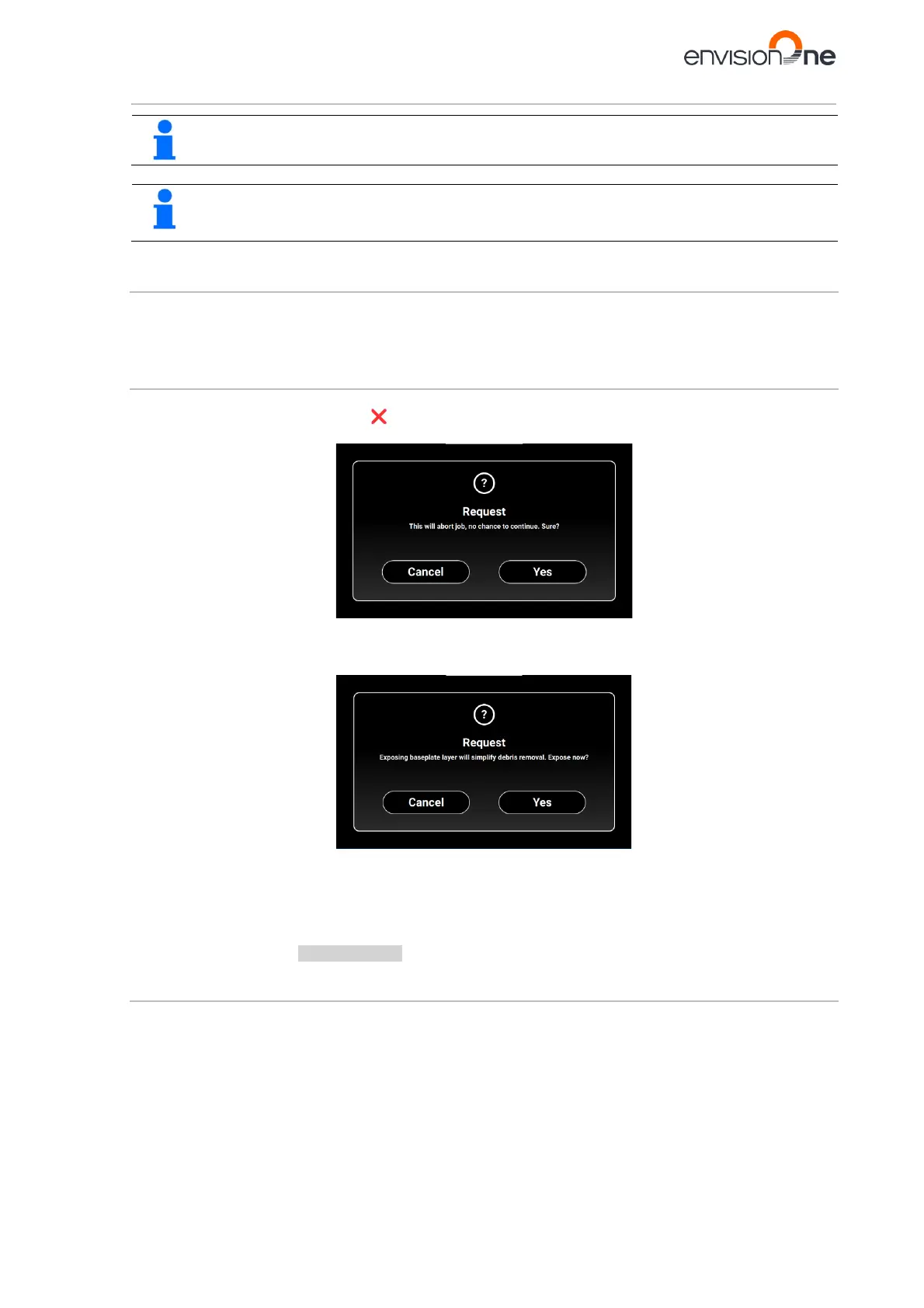
The job can be aborted by tapping the icon in the job printing window.
→ The following window appears.
1. In the confirmation window, tap [Yes].
→ The job has been aborted.
→ The following window appears.
• If there is no need to simplify the process of cleaning the material tray, tap [Cancel].
• To simplify the process of debris removal from the material tray, tap [Yes].
→ The job has stopped.
→ The whole material tray area has been exposed.
2. Remove debris from the material tray by simply taking off the thin film of exposed material and following
the procedure for Filtering Material.
10.6.2 Delete Job
To delete the job from the Job list:
1. Enter the Job List by tapping the [Job List] on the main screen.


 To Next Page