Envision One cDLM® User Manual
TS-MAM-EnvisionOneCDLMUserManual-V5.0-FN-EN , 2021-12-15
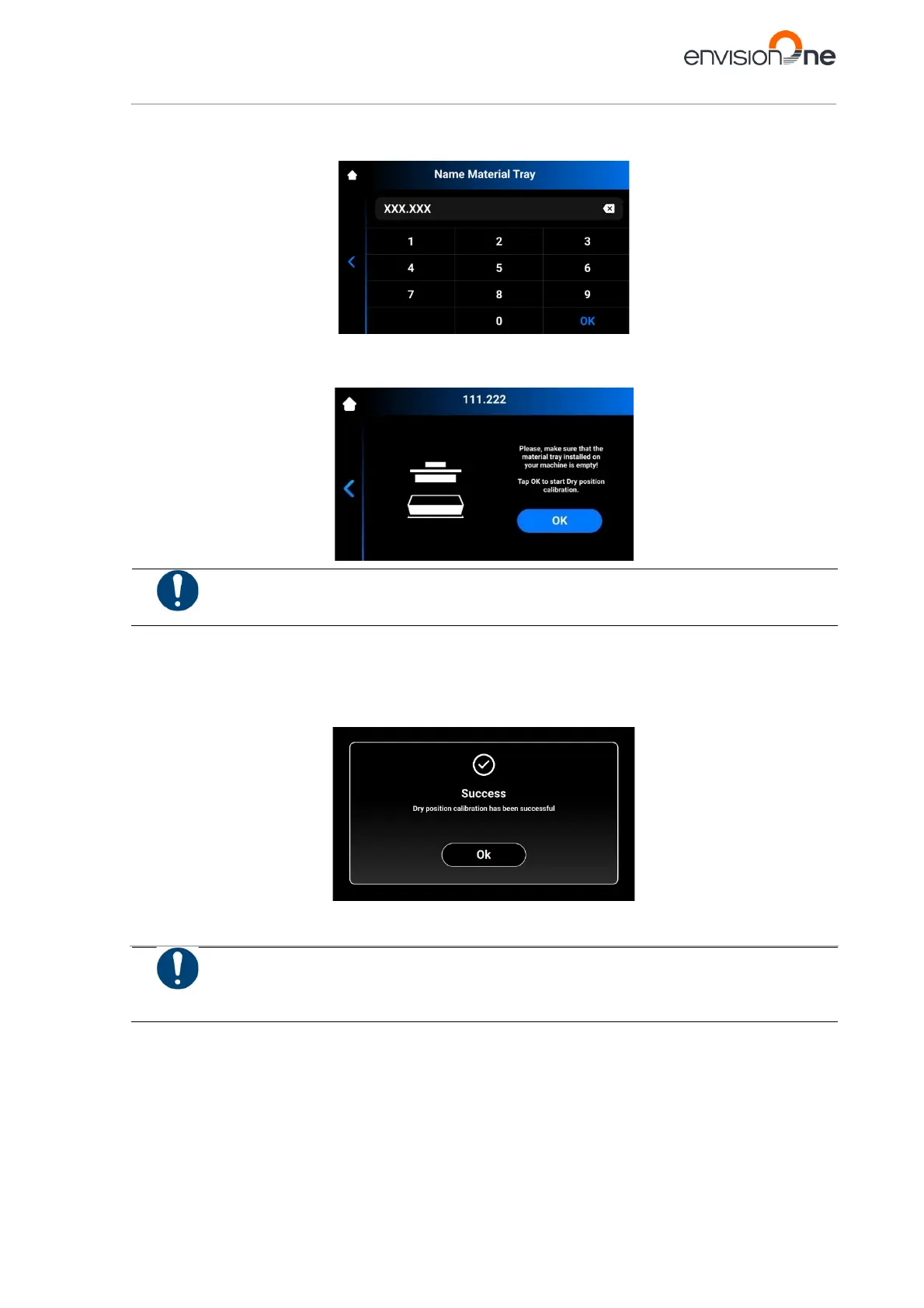
2. Name your material tray and enter the name to the field on the screen that appears. The name should
contain 7 digits from 0 to 9.
3. Tap [OK].
→ The following screen appears.
Make sure your material tray does not contain material in it. Material residue in the material tray
during the calibration will give a false reading to the sensors.
4. Tap [OK].
→ The platform starts moving to its Dry position.
→ Once the platform finds its Dry position, it starts moving to Zero position.
→ Dry position calibration has been saved.
→ The following screen appears.
9.1.2 Manual Home Position Calibration
Always remove the platform before taking the material tray out of the printer!
Failure to do so can result in material dripping down into or onto the printer causing failed builds
Equipment:
• Digital calipers
• Scraper
• Material
• RFID material tag
• 3 mm Allen wrench
• Post-processing materials


 To Next Page