Envision One cDLM® User Manual
TS-MAM-EnvisionOneCDLMUserManual-V5.0-FN-EN , 2021-12-15
8.3.6 Support
The Support tab contains options that would be useful for contacting the ET Support Team in case of any printer-
related issues.
One of the functions in the Support tab is the Download Log Report option. It allows for downloading a log
report and sending it to the ET Support Team.
1. Connect the USB-drive to the printer.
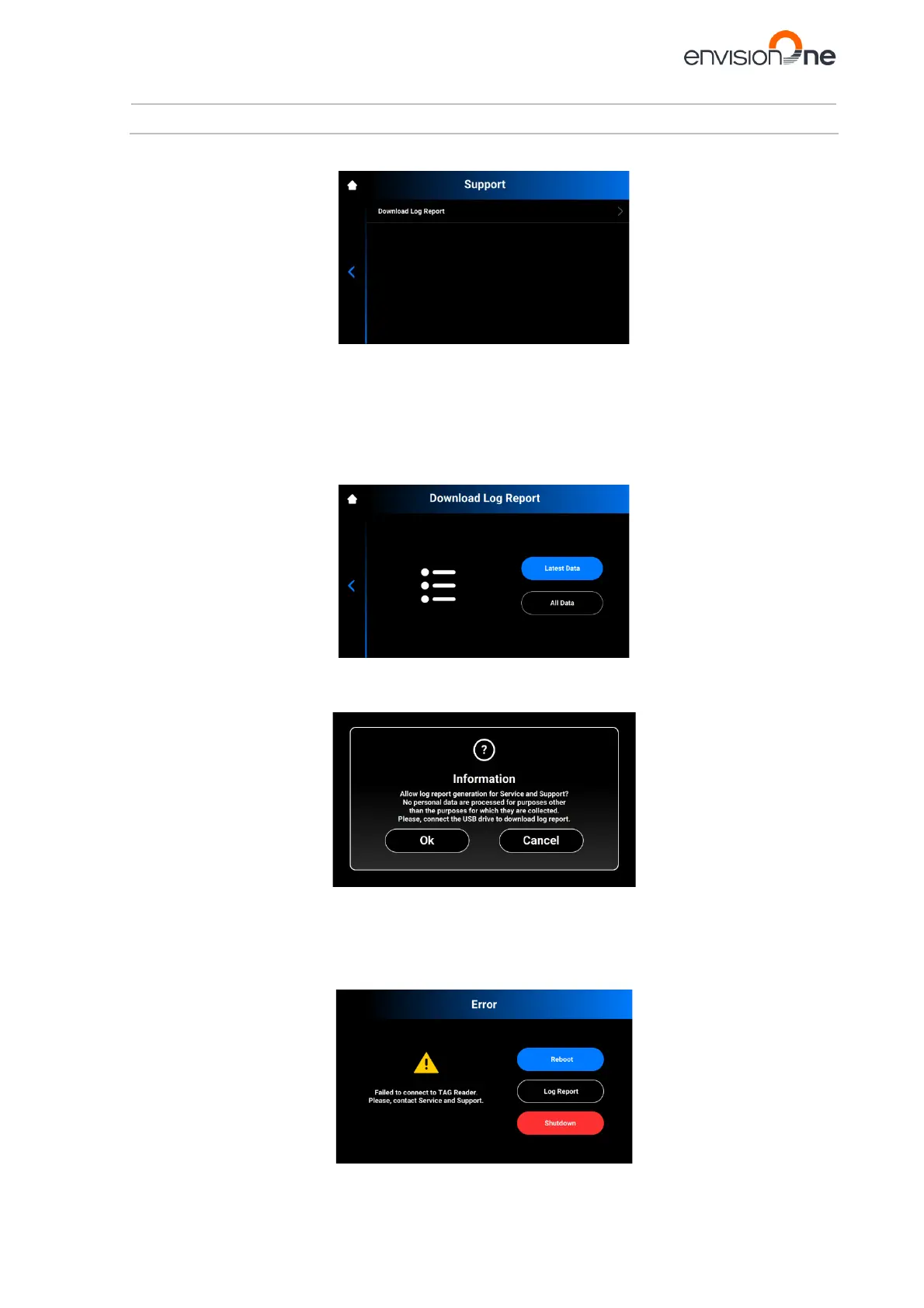
2. Tap Settings | Printer Settings | Support | Download Log Report to open the tab.
→ The following screen appears.
3. Tap [Latest Data] to download the latest printer information; or [All Data] to download the report
containing all information received during printer operation.
→ The following message appears.
4. Make sure the USB-drive is connected to the printer and tap [Ok].
→ The report downloads to the USB-drive.
If the printer experiences some hardware issue, download the log report with all printer information to the USB-drive
and send it to Service and Support.
In case a hardware issue is detected, the following Error message appears.


 To Next Page