Envision One cDLM® User Manual
TS-MAM-EnvisionOneCDLMUserManual-V5.0-FN-EN , 2021-12-15
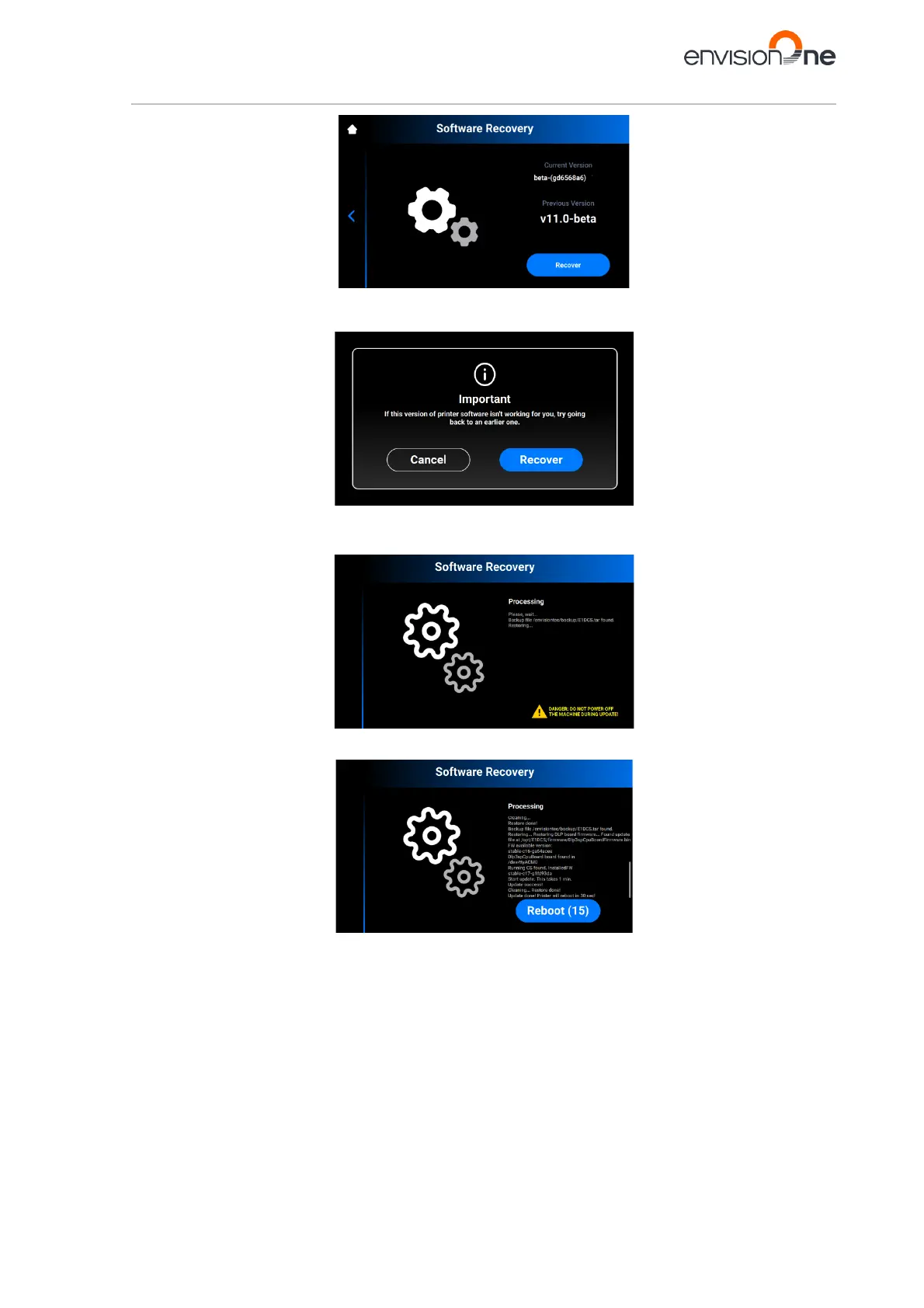
2. Tap [Recover] to get back to the previous version of Control Software.
→ The following message appears.
3. Tap [Recover] to confirm the Software recovery.
→ The process of software recovery starts.
→ After successful software recovery, the following screen appears.
4. To apply changes, reboot the printer. It will reboot automatically in 30 seconds. To reboot the printer
manually, tap [Reboot].


 To Next Page