Envision One cDLM® User Manual
TS-MAM-EnvisionOneCDLMUserManual-V5.0-FN-EN , 2021-12-15
4. Select a printer to send your job to and click on it.
→ The job is sent to the selected printer.
The Printers in the network can have the following statuses: Ready for Print, Printing, Offline.
You cannot send a job file to a printer with the Offline status.
10.4 Checking the Envision One Is Ready to Print
Checking the printer ensures get the highest quality of printed models and minimizes the risk of errors
or printer malfunctioning.
The pressure gauge should read between 0.05 and 0.80 PSI when ready to start a print.
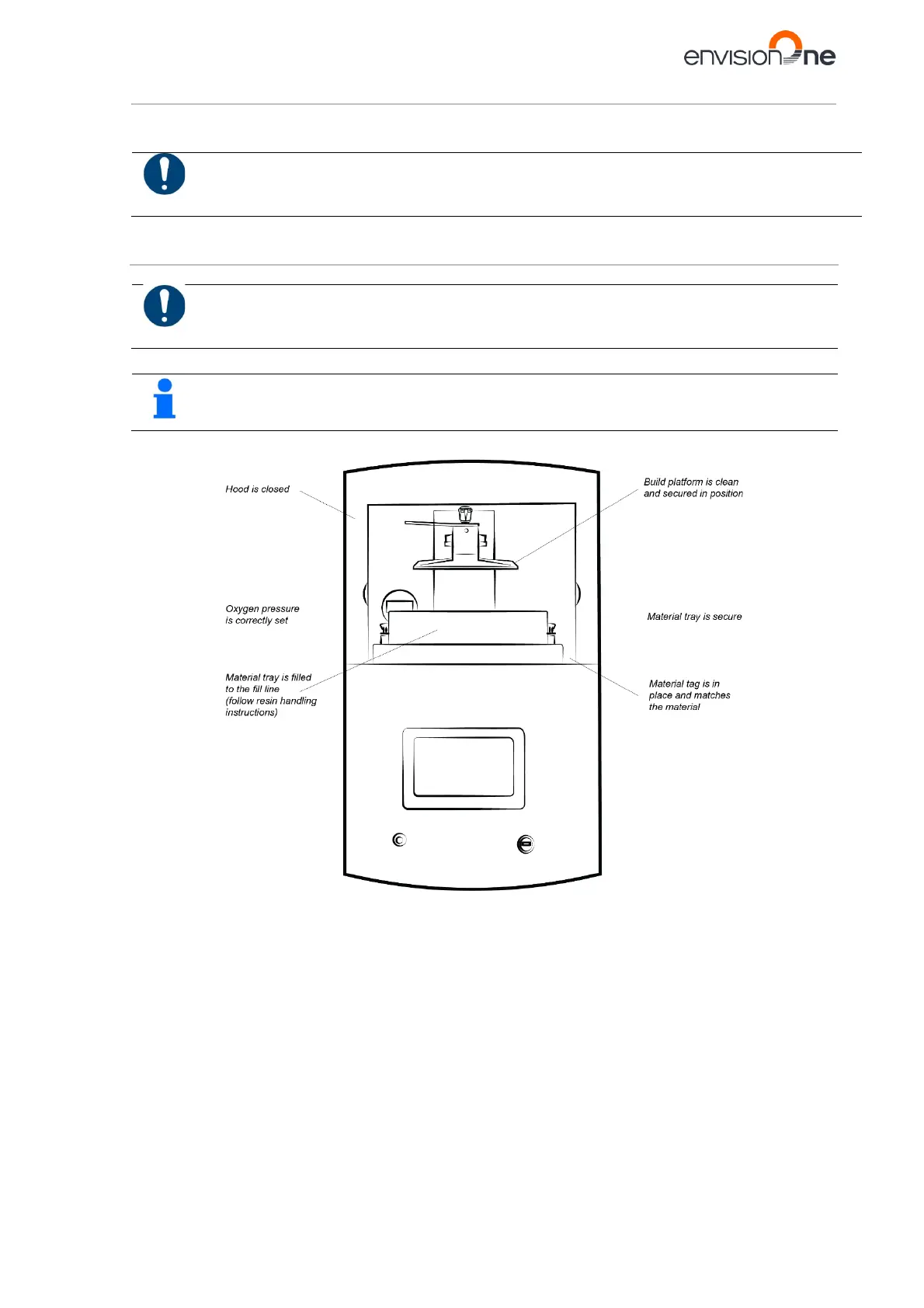
Before beginning a print, always check the following things:
1. The hood is closed.
2. The flat surface of the build platform is clean and free of all cured material, and the build platform torque
knob is secured in position.
3. The material tray is secured in position and the material tray torque knobs are tight.
4. The material tray is filled to the fill line, and all material handling instructions are followed for the specific
material used (mixing, temperature, etc.)
5. The material tag is on the material tag reader, and the tag matches the material in the tray and in the
buildstyle.
6. The oxygen concentrator is supplying pressure.
Figure 15: The Envision One CDLM Printer


 To Next Page