Envision One cDLM® User Manual
TS-MAM-EnvisionOneCDLMUserManual-V5.0-FN-EN , 2021-12-15
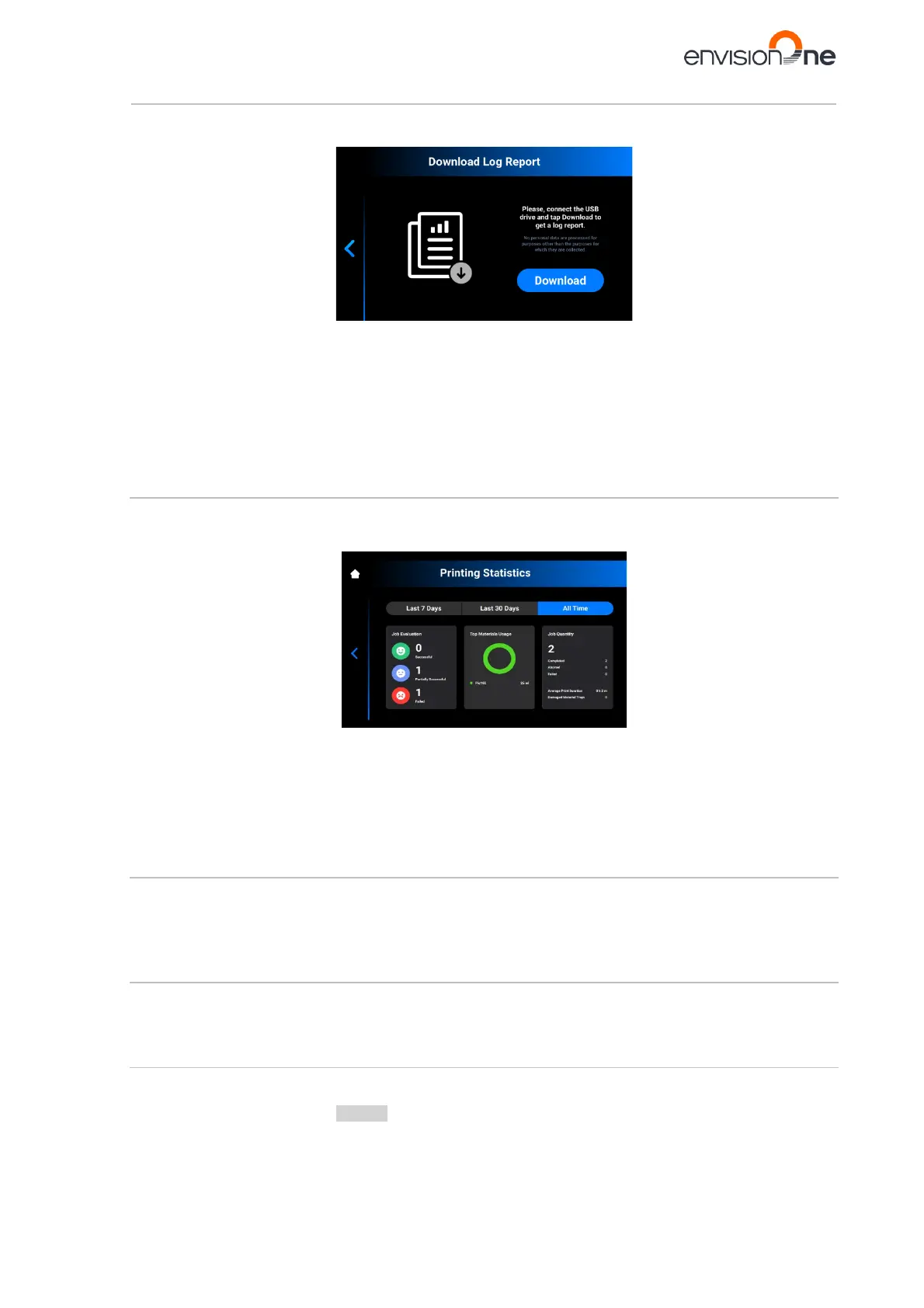
1. Tap [Log Report].
→ The following message appears.
2. Make sure the USB-drive is connected to the printer and tap [Download].
→ The report downloads to the USB-drive.
To send the log report to Service & Support, proceed as follows:
1. Open the USB-drive folder.
2. Find the file with the similar name: snapshot_2019-09-26T14-01.zip.
3. Send the log report file to the Service & Support technician.
8.3.7 Printing Statistics
This tab provides the printer usage data for the last 7 days, last 30 days or all operations data.
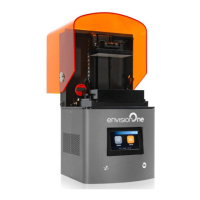
Tap Settings | Printer Settings | Printing Statistics.
→ The following screen appears.
The following information is shown:
• Job evaluation data: the quality of finished jobs (successful, partially successful and failed).
• Materials usage: the name and volume of each material in use.
• Job quantity: the quantity of completed, aborted and failed jobs.
• Average print duration: the average duration of the job in hours.
• Damaged material trays: the number of material trays marked as damaged.
8.3.8 Usage Analytics
Collecting and sending statistics automatically will help EnvisionTEC improve our products.
1. Tap Settings | Printer Settings | Usage Analytics.
2. Check the Usage Analytics check-box to consent to collection and usage of customer data.
8.4 Service Mode Tab
The Service Mode tab is intended for technicians and distributors only for calibration and repairing the Envision
One cDLM printer.
8.5 Ethernet Tab
This tab allows for setting the Network on Envision One printer.
Tap Settings | Ethernet to open the tab.
For detailed information, see the Network section of this User Manual.


 To Next Page