Envision One cDLM® User Manual
TS-MAM-EnvisionOneCDLMUserManual-V5.0-FN-EN , 2021-12-15
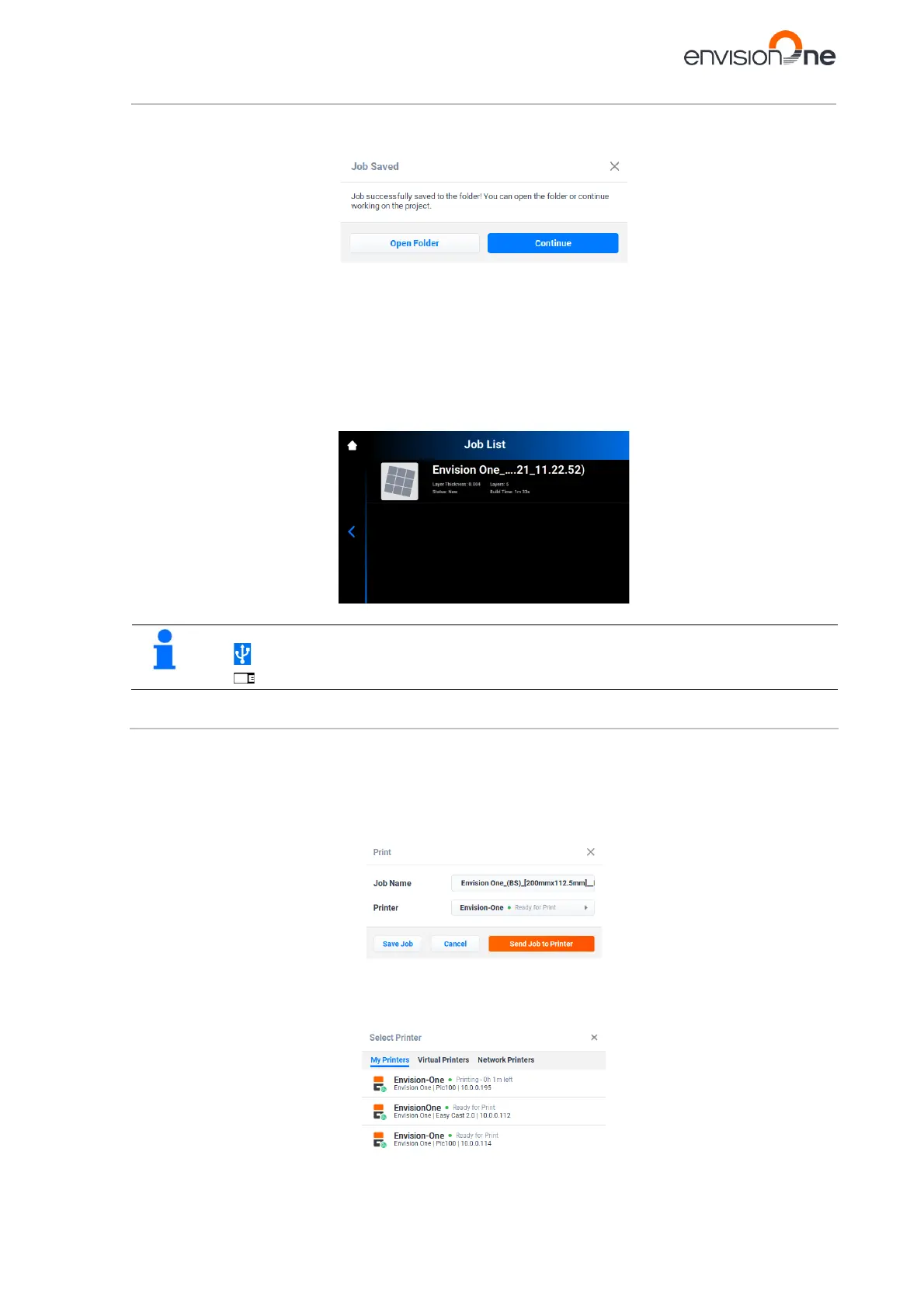
→ The job folder with all the required data is saved to the selected USB-drive.
→ The following window appears.
3. Click either:
→ Continue to exit the Save job dialog box; or
→ Open Folder to open the Job folder.
To load a job directly from the USB-drive:
1. Upload the required job to the USB-drive as described above.
2. Insert the USB-drive with the uploaded job into the corresponding plug of the printer.
→ The job is automatically added to the Job List of Envision One.
The icon indicates that USB drive is connected to the printer.
The icon in the Job list indicates that the job was added via USB drive.
10.3.3 Loading a Job from Envision One RP
1. Open the Envision One RP.
Requirements: At least one opened and selected 3D model.
2. Click the Print button in the Print Menu.
→ The following window appears:
3. Click the Printer field.
→ The following window appears:


 To Next Page