Envision One cDLM® User Manual
TS-MAM-EnvisionOneCDLMUserManual-V5.0-FN-EN , 2021-12-15
• Home Position Calibration Cubes.stl file
To check, modify, or fine-tune the printer’s parallelism and home position, a Home Position Calibration Cubes.stl
file is printed. The printer must be powered on for the duration of the parallelism calibration, and the home position
calibration.
Parallelism is achieved when the platform and material tray are aligned with each other. Home
position is the lowest point of the build platform along Z-axis, it is the start position of the build
1. Download the Home Position Calibration Cubes.stl file to the computer where the Envision One RP
software is installed.
2. Open the Envision One RP software and select a buildstyle. See the Envision One RP® User Guide
provided with the printer for details.
3. Import the .stl file into the Envision One RP software.
Home Position Calibration Cubes.stl is a file made of nine blocks, each block is five millimeters
high. This file is located on the USB-drive that is shipped with every Envision One cDLM printer.
The file is also available to download by contacting EnvisionTEC support, or an authorized
4. Print the Home Position Calibration Cubes.stl file. See Start Job for details.
5. Once the print has completed, check if there are nine cubes on the platform.
6. If any of the cubes are missing, tap the icon and remove any cured particles that settled to the bottom
of the material tray.
Post processing
7. Gently remove the calibration blocks from the build platform using the scraper that came in the starter kit.
8. Clean the models. See Part Processing and Curing for details.
9. Take a close look at each printed block. There is a small number printed on each cube.
Measure
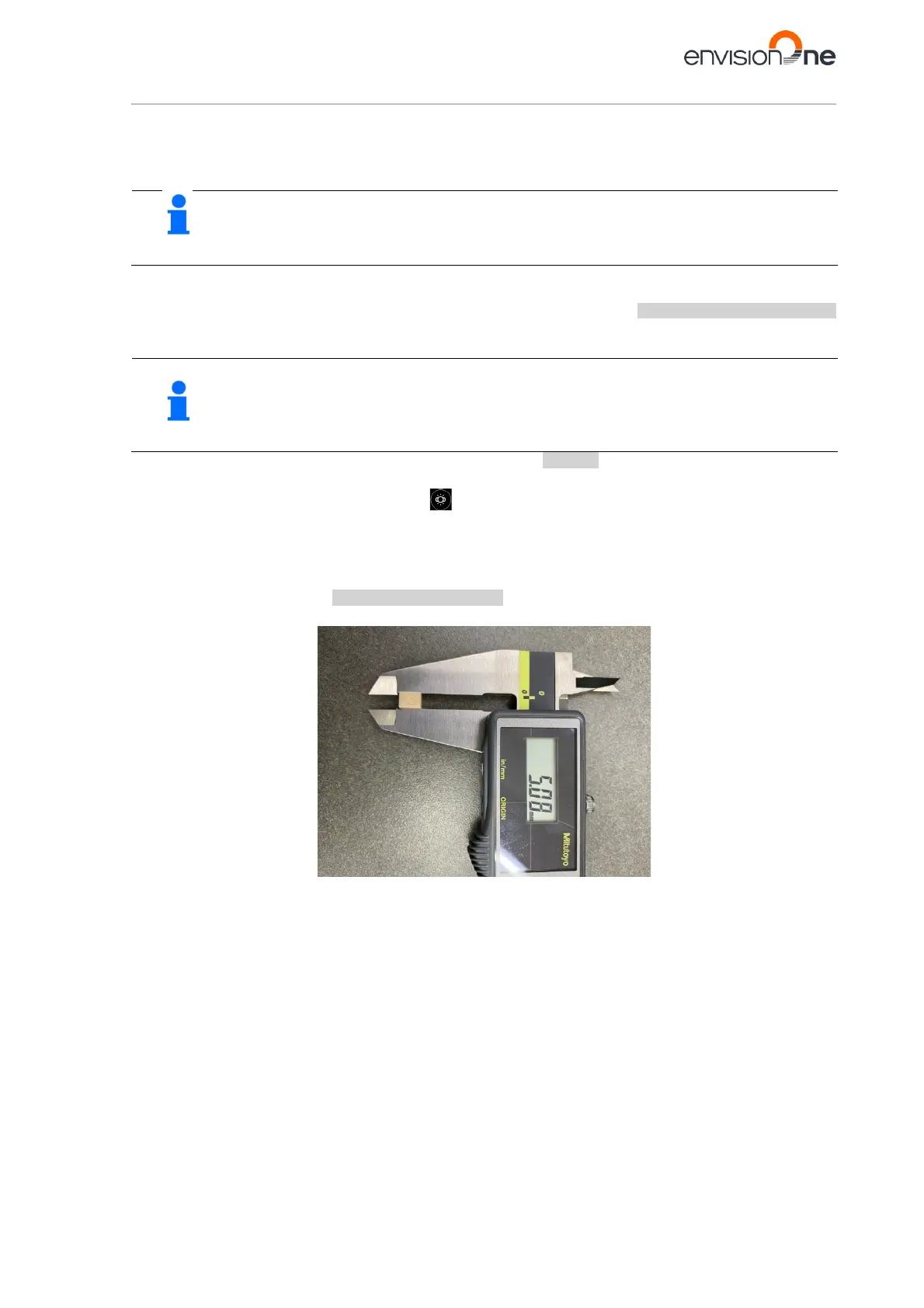
10. Measure the height of each cube and write down the values.
a) If all the blocks are within +/- 100 microns, the printer is paralleled, and no further actions need
to be taken at this time.
b) If all the blocks are within 4.90 and 5.10 mm (for the disposable tray – within 4.8 mm and 4.95
mm), the printer’s home position is correct, and no further actions need to be taken.
11. If the home position is correct and the printer is not paralleled, move on to Step 12. If the printer is
paralleled and the home position is not correct, skip to Step 16.


 To Next Page