EasyManua.ls Logo

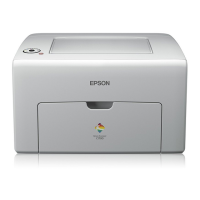
Epson AcuLaser C4000 - User Manual

Epson AcuLaser C4000
420 pages
Print Icon
To Next Page IconTo Next Page
Loading...
Where to Find Information
Setup Guide
Provides you with information on assembling the printer and
installing the printer software.
Reference Guide (this manual)
Provides you with detailed information on the printer’s functions,
optional products, maintenance, troubleshooting, and technical
specifications.
Administrator’s Guide (on CD-ROM)
Provides network administrators with information on both the
printer driver and network settings.
Quick Reference (PDF guide on CD-ROM)
Provides you with a list of LCD panel messages, solutions for
paper jam problems, and other information about your printer
you may need to refer to on a regular basis. We recommend
printing this guide and keeping it near the printer.

Table of Contents

Other manuals for Epson AcuLaser C4000

Questions and Answers

  • R
    robert89Aug 20, 2025
    What to do if my Epson AcuLaser C4000 is not printing in color?
    • A
      allenaustinAug 20, 2025
      If your Epson printer is not printing in color, verify that: * The Color setting is selected: Ensure that 'Color' is selected, not 'Black,' in the printer driver settings. * Application settings are correct: Confirm that the color settings in your application are appropriate for color printing.
  • P
    Patricia PerezAug 22, 2025
    Why is my Epson printer outputting complete blank pages?
    • D
      Dana BennettAug 22, 2025
      If your Epson printer is outputting complete blank pages, consider the following: * Paper feed issue: Remove the paper stack, fan it, tap it on a flat surface to even the edges, and then reload the paper. The printer may have loaded more than one sheet at a time. * Low toner: If the message appears on the LCD window, it indicates that the amount of toner is low. * Photoconductor unit problem: Replace the photoconductor unit.
  • A
    Alex PetersonAug 26, 2025
    What to do if my Epson printer is printing garbled characters or asterisks?
    • K
      Katherine CortezAug 26, 2025
      If your Epson printer is printing garbled characters or asterisks, the issue might stem from a few potential causes: * Check the interface cable: Ensure that both ends of the interface cable are securely plugged in. * Verify the cable type: If you are using a parallel interface, confirm that the cable is a double-shielded, twisted-pair interface cable no more than six feet in length. * Correct the emulation setting: Specify the correct emulation mode using the printer’s control panel menus.
  • P
    pamelaswansonAug 27, 2025
    How to fix dark or dirty background on Epson printer printouts?
    • L
      Lauren DavisAug 28, 2025
      A dark or dirty background on Epson printouts can be due to: * A problem with the photoconductor unit: Replace the photoconductor unit. * Incorrect paper type: Use EPSON special paper, or smooth, high-quality copier paper for best results. Avoid paper with a rough surface.
  • M
    moorerichardAug 29, 2025
    How to troubleshoot misalignment of colors on my Epson AcuLaser C4000?
    • M
      Michael MillerAug 29, 2025
      If you notice a misalignment of colors on your Epson printer, it may be because the registration position of each color has shifted. Check the color registration and adjust the alignment if necessary. See 'Checking color registration' for instructions.
  • S
    Susan WellsAug 31, 2025
    Why won't the font I selected in the application software print on my Epson AcuLaser C4000?
    • N
      Nancy ColonAug 31, 2025
      If the font selected in your application software won’t print on your Epson printer, it might be due to: * TrueType fonts substitution: In Windows, click the 'Print TrueType fonts as bitmap' button in the Extended Settings dialog box. * Unsupported font: Make sure that you have installed the correct font. See 'Available Fonts' for more information.
  • R
    Rhonda CarpenterSep 2, 2025
    How do I fix the position of the printout if it's incorrect on my Epson AcuLaser C4000 Printer?
    • M
      Marissa LaneSep 2, 2025
      If the position of the printout is incorrect on your Epson printer, ensure that you are using the correct page length and margin settings in your application.
  • J
    James JamesSep 4, 2025
    How to resolve graphics printing incorrectly on Epson printer?
    • R
      Roger MirandaSep 4, 2025
      If graphics don’t print correctly on your Epson printer, verify that: * The printer emulation setting is correct: Make sure that your application is set for the printer emulation you are using. * There is enough memory: Install more memory to avoid this problem.
  • B
    Briana JonesSep 6, 2025
    What causes black or white bands to appear in Epson printer printouts?
    • D
      dale77Sep 6, 2025
      Black or white bands appearing in Epson printer printouts may indicate a problem with the photoconductor unit. Replace the photoconductor unit.
  • N
    nataliesmithSep 8, 2025
    How to fix light or faint printed images from my Epson AcuLaser C4000 Printer?
    • A
      Andrew KellySep 8, 2025
      If the printed image from your Epson printer is light or faint: * Check paper condition: Do not store your paper in a humid or damp environment. * Disable Toner Save mode: Turn off the Toner Save mode using the printer driver or the printer’s control panel menus. * Photoconductor unit: There may be a problem with the photoconductor unit. Replace the photoconductor unit.

Summary

Chapter 1 Getting to Know Your Printer

Printer Parts

Details the various components and parts of the printer.

Options and Consumable Products

Lists available optional hardware and consumable items for the printer.

About Your Printer

Describes the printer's key features and technologies.

Chapter 2 Paper Handling

Available Paper

Explains the types of paper compatible with the printer.

Paper Sources

Details the different paper input trays and their capacities.

Loading Paper

Provides step-by-step instructions for loading paper into various trays.

Chapter 3 Using the Printer Software with Windows

Modifying the print layout

Adjusts page layout for printing multiple pages or frames.

Using a watermark

Applies text or images behind the main document content.

Using an overlay

Adds standard forms or templates as overlays to documents.

Chapter 4 Setting Up Your Printer on a Network

Setting for the Clients

Guides on configuring client computers to access a shared printer.

With Windows Me;98;95

Steps to configure Windows Me/98/95 clients to access network printer.

With Windows XP;2000

Steps to configure Windows XP/2000 clients to access network printer.

Chapter 5 Using the Printer Software with Macintosh

Using a watermark

Applies text or images behind the main document content.

Printing with the duplex unit

Instructions for printing on both sides of the paper.

Making the Extended Settings

Allows detailed configuration of printer settings like fonts and offsets.

Chapter 6 Functions of the Control Panel

Information Menu

Check toner levels, service life, print status, settings, and features.

Tray Menu

Specify paper size and type for MP tray and check lower cassettes.

Emulation Menu

Select printer emulation modes for different interfaces.

Chapter 7 Using Options

Installing the Large Capacity Paper Unit

Provides step-by-step instructions for installing the large capacity paper unit.

Hard Disk Drive

Details on installing and using the optional hard disk drive for expanded features.

Memory Modules

Information on installing and upgrading printer memory modules.

Chapter 8 Maintenance and Transportation

Toner cartridges

Instructions for replacing empty toner cartridges with new ones.

Photoconductor unit

Guidance on when and how to replace the photoconductor unit.

Cleaning the Printer

Guidance on how to clean the printer's exterior and internal components.

Chapter 9 Troubleshooting

Clearing Jammed Paper

Steps to resolve paper jams in various printer locations.

Problems and Solutions

A guide to common printer issues and their resolutions.

Status and Error Messages

Explanation of error messages displayed on the printer's LCD panel.

Appendix A Technical Specifications

Available Paper

Lists supported paper types, sizes, weights, and sources.

Specifications

Detailed technical specifications for printer components and capabilities.

Interfaces

Information on the printer's parallel, USB, and Ethernet connection options.

Appendix B Symbol Sets

In the LJ4 Emulation Mode

Lists symbol sets available when using LJ4 emulation mode.

International character sets for ISO

Details available international character sets for ISO compatibility.

In the ESC;P2 or FX Modes

Lists symbol sets available for ESC/P2 and FX emulation modes.

Appendix C Working with Fonts

LJ4;GL2 mode

Lists fonts available for LJ4/GL2 emulation modes.

ESC;P2 and FX modes

Lists fonts available for ESC/P2 and FX emulation modes.

Printing font samples

Instructions on how to print font samples from the printer's control panel.

Appendix D Contacting Customer Support

For users in North America

Contact information and support services for North American users.

For users in Latin America

Contact information and support services for Latin American users.

For users in the United Kingdom and the Republic of Ireland

Support services and contact information for UK and Ireland users.

Epson AcuLaser C4000 Specifications

General IconGeneral
BrandEpson
ModelAcuLaser C4000
CategoryPrinter
LanguageEnglish

Related product manuals