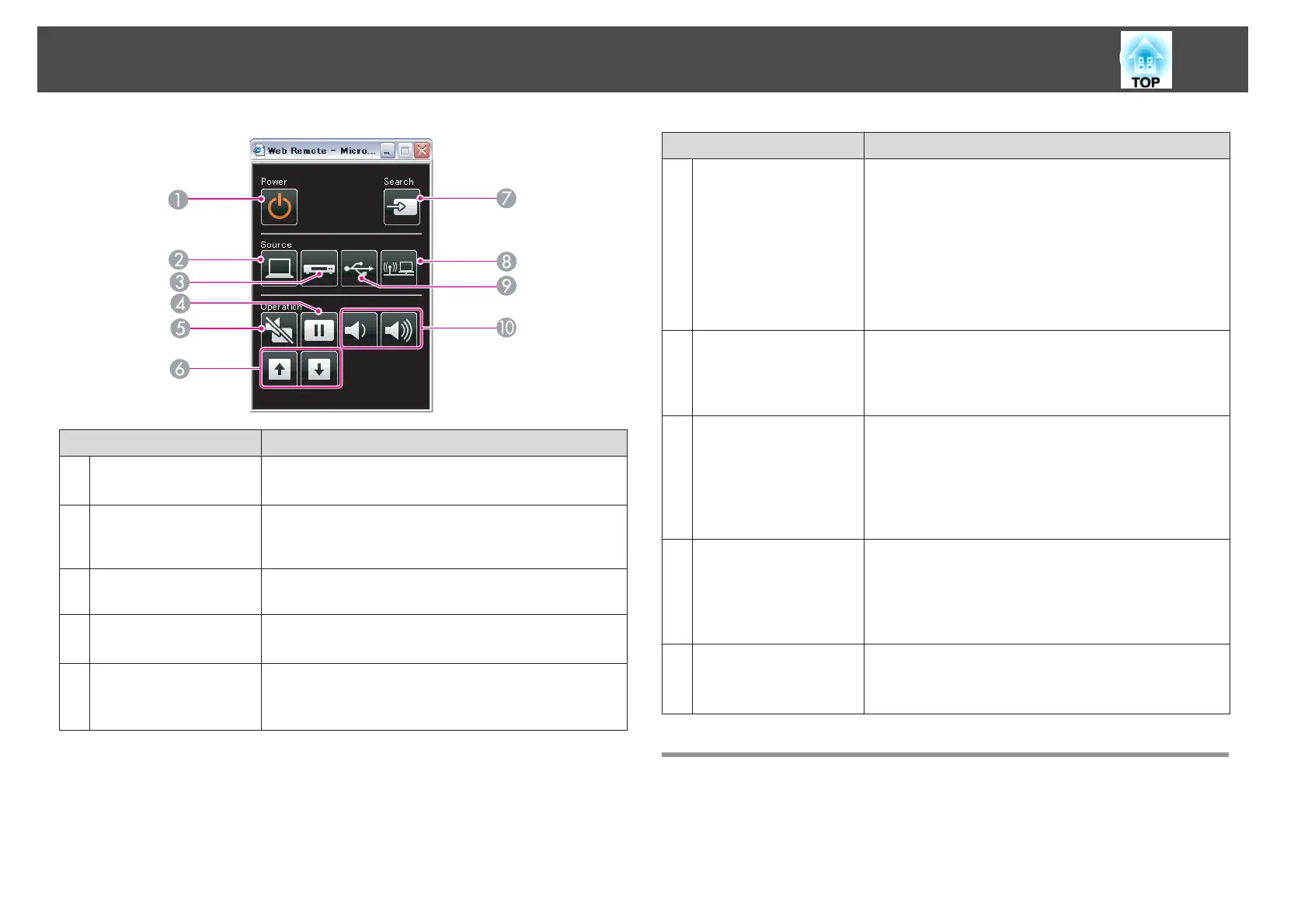
Name Function
A
[t] button
Turns the projector power on or off.
s "From Installation to Projection" p.30
B
[Computer] button
Each time you press the button, the input changes between
images from the Computer1 port and the Computer2
port.
C
[Video] button
Each time the button is pressed, the image cycles through
Video, S-Video, and HDMI ports.
D
[Freeze] button
Images are paused or unpaused.
s "Freezing the Image (Freeze)" p.48
E
[A/V Mute] button
Turns the video and audio on or off.
s "Hiding the Image and Sound Temporarily (A/V
Mute)" p.47
Name Function
F
[Page] buttons
[Up] [Down]
Changes pages in files such as PowerPoint files when using
the following projection methods.
• When using the Wireless Mouse function
s "Using the Remote Control to Operate the
Mouse Pointer (Wireless Mouse)" p.50
• When connecting to a network
When projecting images using Slideshow, pressing these
buttons displays the previous/next image file.
G
[Source Search]
button
Switches to the image from the input port where video
signals are being input.
s "Automatically Detect Input Signals and Change the
Projected Image (Source Search)" p.31
H
[LAN] button
Changes to the images projected with EasyMP Network
Projection. When projecting using the optional Quick
Wireless Connection USB Key, this button switches to
that image.
s "Switching to the Target Image by Remote Control"
p.32
I
[USB] button
Changes to the following image.
• Images from the device connected to the USB (TypeA)
port
s "Switching to the Target Image by Remote Control"
p.32
J
[Volume] buttons
[a][b]
[a] Decreases the volume.
[b] Increases the volume.
s
"Adjusting the Volume" p.37
Using the Mail Notification Function to Report
Problems
When you set Mail Notification, notification messages are sent to the preset
email addresses when a problem or warning occurs with a projector. This
Monitoring and Controlling
116



 To Next Page