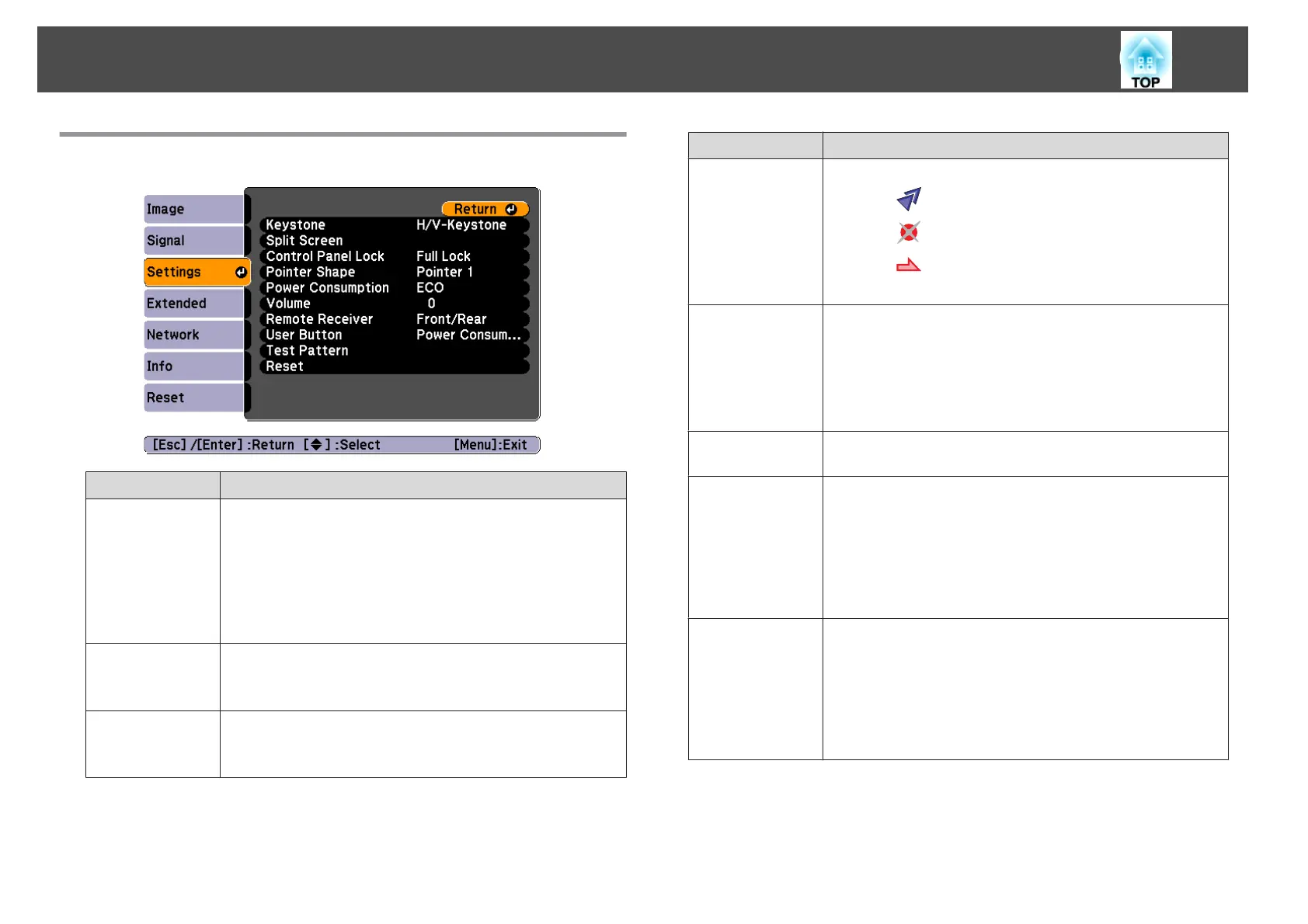
Settings Menu
Sub-menu Function
Keystone
You can correct keystone distortion.
• When H/V-Keystone is selected:
Adjust V-Keystone and H-Keystone to correct horizontal
and vertical keystone distortion.
• When Quick Corner is selected:
Select and correct the four corners of the projected image.
s "Quick Corner" p.34
Split Screen
You can split the screen into two screens.
s "Projecting Two Images Simultaneously (Split Screen)"
p.43
Control Panel
Lock
You can use this to restrict operation of the projector's control
panel.
s "Restricting Operation (Control Panel Lock)" p.59
Sub-menu Function
Pointer Shape
You can select the shape of the pointer.
Pointer 1:
Pointer 2:
Pointer 3:
s "Pointer Function (Pointer)" p.48
Power Consump-
tion
You can set the lamp brightness to one of two settings.
Select ECO if the images being projected are too bright, such as
when projecting images in a dark room or onto a small screen.
When ECO is selected, the power consumption is changed as
follows, and fan rotation noise during projection is reduced.
Electrical consumption: about 18 - 25% decrease
Volume
You can adjust the volume. Setting values are saved for each
source.
Remote Receiver
You can limit the reception of the operation signal from the
remote control.
When set to Off, you cannot perform any operations from the
remote control. If you want to make operations from the remote
control, hold down the [Menu] button on the remote control or
the control panel for at least 15 seconds to reset the setting to its
default value.
User Button
You can select an item from the Configuration menu to assign to
the remote control's [User] button. By pressing the [User] button
the assigned menu item selection/adjustment screen is displayed,
allowing you to make one-touch settings/adjustments. You can
assign one of the following items to the [User] button.
Power Consumption, Info, Progressive, Test Pattern, Multi-
screen, and Resolution
List of Functions
68



 To Next Page