b
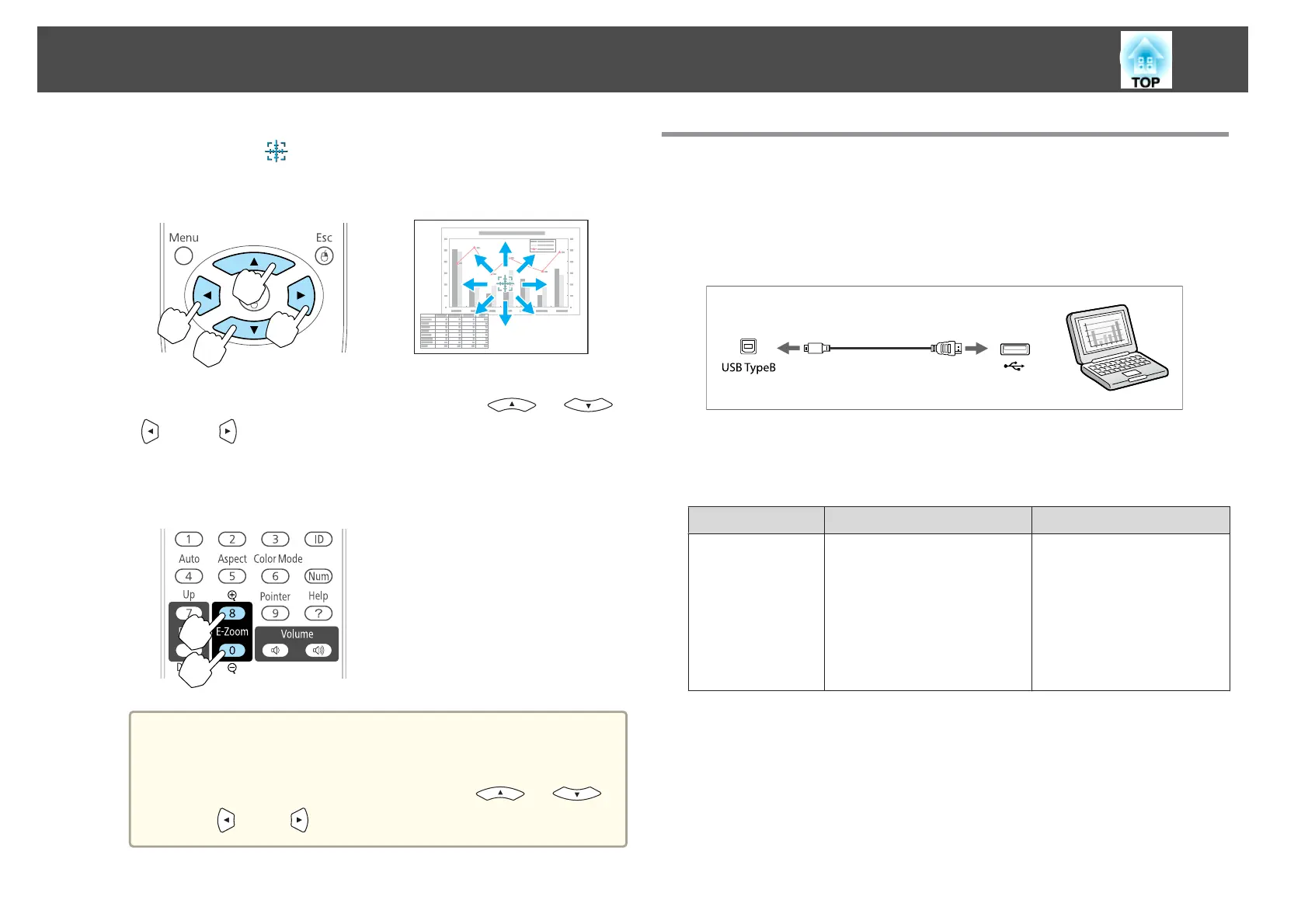
Move the Cross ( ) to the area of the image that you want to
enlarge.
Remote control
When pressed in conjunction with the adjacent [ ], [ ],
[
], and [ ] buttons, the pointer can be moved diagonally.
c
Enlarge.
Remote control
[z] button: Expands the area each time
it is pressed. You can expand quickly by
holding the button down.
[x] button: Reduces images that have
been enlarged.
[Esc] button: Cancels E-Zoom.
a
• The enlargement ratio appears on the screen. The selected
area can be enlarged to between 1 to 4 times in 25
incremental steps.
• During enlarged projection, press the [
], [ ],
[
], and [ ] buttons to scroll the image.
Using the Remote Control to Operate the Mouse
Pointer (Wireless Mouse)
When the USB port of a computer and the USB (TypeB) port on the
projector are connected with a commercially available USB cable, you can
use the remote control to control the computer's mouse pointer.
This is available when projecting images from a computer connected to the
Computer1, Computer2, or HDMI ports.
The following operating systems are compatible with Wireless Mouse.
Windows Mac OS
OS
Windows 98
Windows 98SE
Windows Me
Windows 2000
Windows XP
Windows Vista
Windows 7
Mac OS X 10.3.x
Mac OS X 10.4.x
Mac OS X 10.5.x
Mac OS X 10.6.x
It may not be possible to use the Wireless Mouse function under some versions of
the operating systems.
Projection Functions
50



 To Next Page