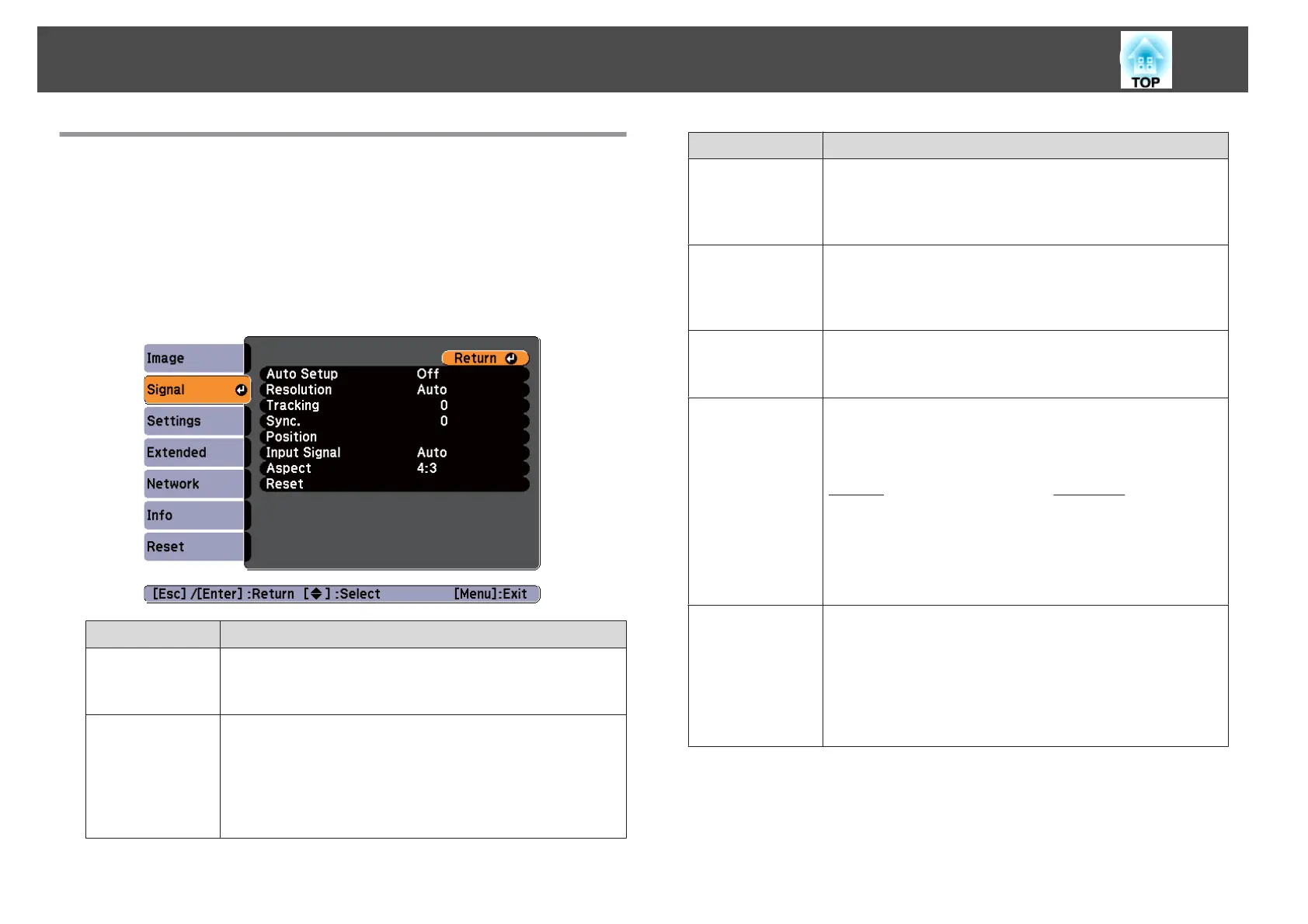
Signal Menu
Settable items vary depending on the image signal and source currently
being projected. Setting details are saved for each image signal.
You cannot make settings in the Signal menu when the input source is USB
or LAN.
s "Automatically Detect Input Signals and Change the Projected Image
(Source Search)" p.31
Sub-menu Function
Auto Setup
(Only available when a computer's analog RGB signal is input.)
Set to On to automatically adjust the image to the optimum state
when the input signal changes.
Resolution
(Only available when a computer's analog RGB signal is input.)
Set to Auto to automatically identify the resolution of the input
signal. If images are not projected correctly when set to Auto, for
example if some of the image is missing, adjust to Wide for wide
screens, or set to Normal for 4:3 or 5:4 screens depending on the
connected computer.
Sub-menu Function
Tracking
(Adjustment is only possible when a computer's analog RGB
signal is input.)
You can adjust computer images when vertical stripes appear in
the images.
Sync.
(Adjustment is only possible when a computer's analog RGB
signal is input.)
You can adjust computer images when flickering, fuzziness, or
interference appear in the images.
Position
(This setting is unavailable when the input source is HDMI)
You can adjust the display position up, down, left, and right when
a part of the image is missing so that the whole image is projected.
Progressive
(This can be set when composite video or S-video signals are
being input. If a component video or RGB video signal is input,
this can be set only when 480i/576i/1080i signals are being
input.)
Interlace
g
(i) signal is converted to Progressive
g
(p). (IP
conversion)
Off: Ideal for images with a large amount of movement.
Video: This is ideal for viewing general video images.
Film/Auto: This is ideal for movie films, computer graphics, and
animation.
Noise Reduction
(This cannot be set when a digital RGB signal is input, or when an
interlace signal is being displayed when Progressive is set to
Off.)
Smoothes out rough images. There are two modes. Select your
favorite setting. It is recommended that this is set to Off when
viewing image sources in which noise is very low, such as for
DVDs.
List of Functions
66



 To Next Page