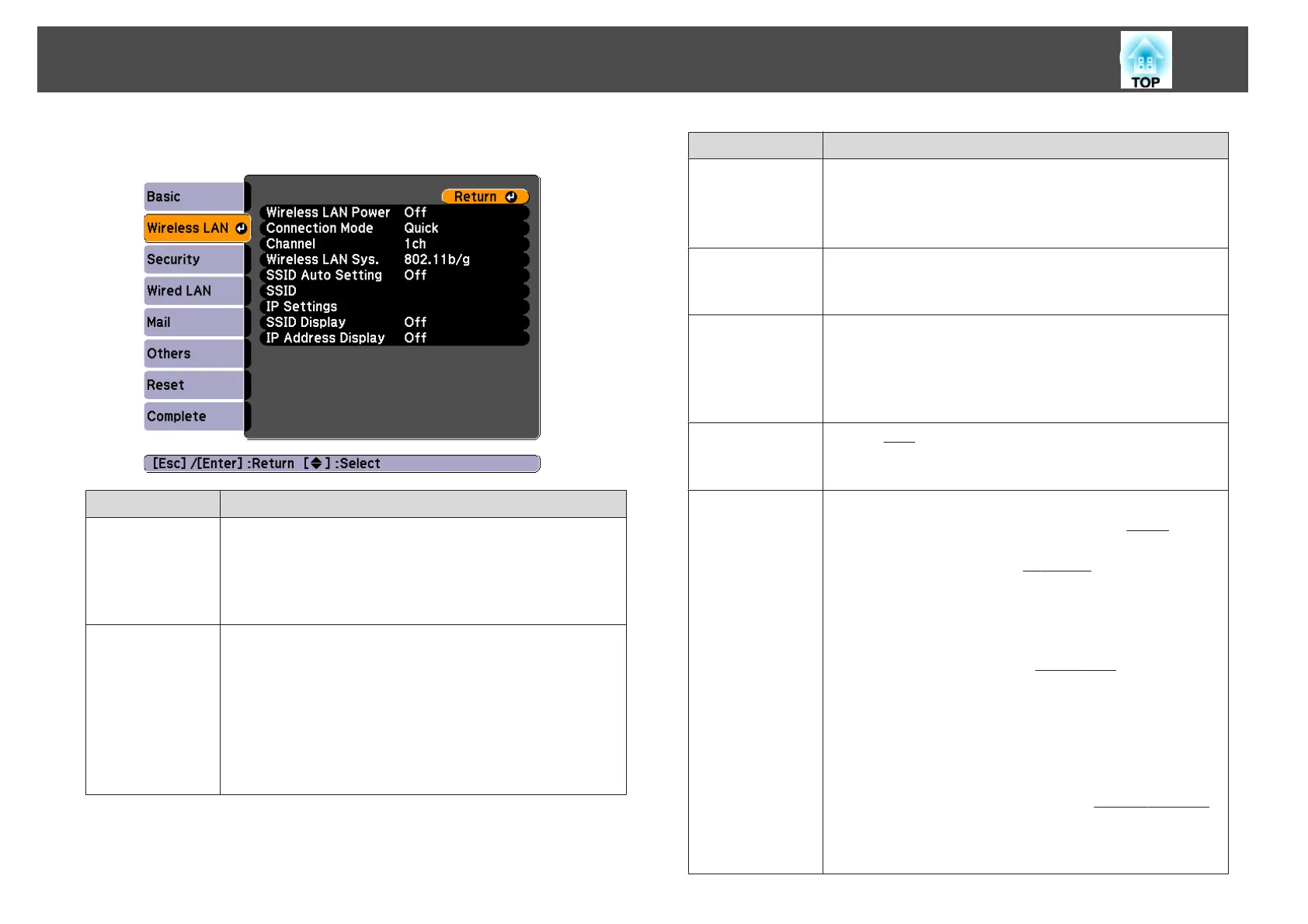
Wireless LAN menu
Submenu Function
Wireless LAN
Power
Turn On when connecting the projector to the computer over
wireless LAN.
If you do not want to connect via wireless LAN, turn it Off to
prevent unauthorized access by others.
This is set to On by default.
Connection
Mode
Select Quick when connecting a computer directly to the
projector.
Select Advanced when connecting a computer to the projector
via an access point.
Set to Advanced when connecting to multiple computers or
when controlling the projector via a network.
This is set to Quick by default.
s "Monitoring and Controlling" p.114
Submenu Function
Channel
(This can only be set if Connection Mode is set to Quick.)
Select the frequency band used by the wireless LAN from 1ch,
6ch, or 11ch.
This is set to 11ch by default.
Wireless LAN
Sys.
Set the wireless LAN system to either 802.11b/g or
802.11b/g/n.
The default value is 802.11b/g/n.
SSID Auto Set-
ting
Set to On to reduce the projector search time when connecting to
a network using Quick from Connection Mode.
Set to Off when connecting to multiple projectors at the same
time.
This is set to On by default.
SSID
Enter an
SSID
g
. When an SSID is provided for the wireless LAN
system in which the projector participates, enter the SSID.
You can enter up to 32 single-byte alphanumeric characters.
IP Settings
You can make network settings.
DHCP: Set to On to make network settings using
DHCP
g
. If this
is set to On, you cannot set any more addresses.
IP Address: You can input the
IP Address
g
assigned to the
projector. You can input a number from 0 to 255 in each field of
the address. However, the following IP addresses cannot be used.
0.0.0.0, 127.x.x.x, 224.0.0.0 to 255.255.255.255 (where x is a
number from 0 to 255)
Subnet Mask: You can input the
Subnet Mask
g
for the
projector. You can input a number from 0 to 255 in each field of
the address. However, the following subnet masks cannot be
used.
0.0.0.0, 255.255.255.255
Gateway Address: You can input the IP address for the gateway
for the projector. You can input a number from 0 to 255 in each
field of the address. However, the following
Gateway addresses
g
cannot be used.
0.0.0.0, 127.x.x.x, 224.0.0.0 to 255.255.255.255 (where x is a
number from 0 to 255)
List of Functions
74



 To Next Page