d
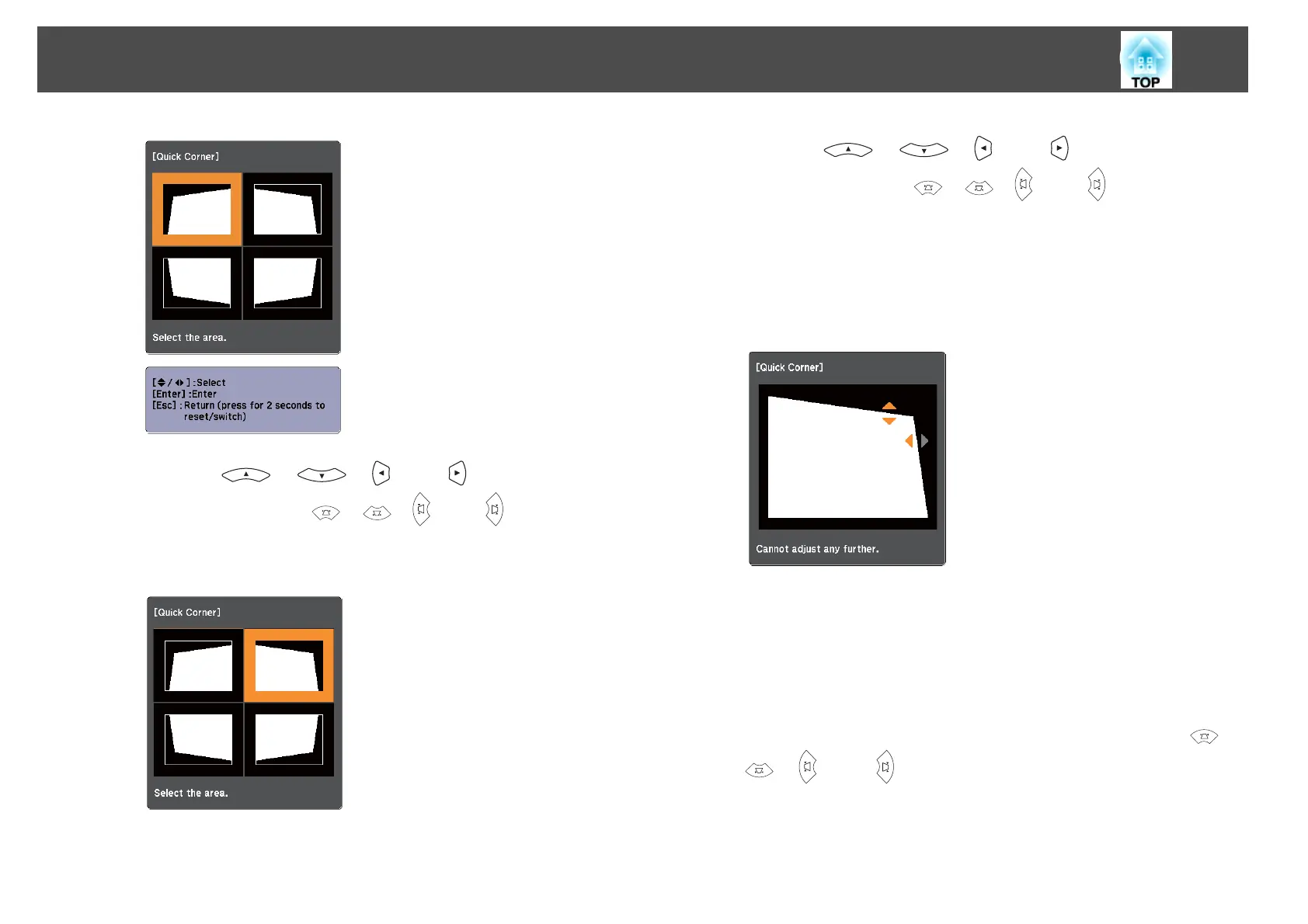
Using the [ ], [ ], [ ], and [ ] buttons on the
remote control, or the [
], [ ], [ ], and [ ] buttons on the
control panel, select the corner to correct, and then press
the [Enter] button.
e
Using the [ ], [ ], [ ], and [ ] buttons on the
remote control, or the [
], [ ], [ ], and [ ] buttons on the
control panel, correct the position of the corner.
When you press the [Enter] button, the screen shown in step 4 is
displayed.
If the triangle in the direction you are adjusting the shape turns gray,
as shown in the screenshot below, you cannot adjust the shape any
further in that direction.
f
Repeat procedures 4 and 5 as needed to adjust any remaining
corners.
g
When you are done, press the [Esc] button to exit the correction
menu.
Because Keystone was changed to Quick Corner, the corner
selection screen from step 3 is displayed when you press the [
],
[
], [ ], and [ ] buttons on the control panel next time.
Change Keystone to H/V-Keystone if you want to perform
Adjusting Projected Images
35



 To Next Page