EasyManua.ls Logo

Epson WF-7620 Series - User Manual

Epson WF-7620 Series
215 pages
Print Icon
To Next Page IconTo Next Page
Loading...
User’s Guide
NPD4893-05 EN

Table of Contents

Other manuals for Epson WF-7620 Series

Questions and Answers

  • D
    Dustin DunnSep 23, 2025
    What to do if Epson WF-7620 destination could not be found?
    • A
      April HernandezSep 23, 2025
      If the destination could not be found because the destination information has been changed before sending the scanned data on your Epson printer, select the destination again.
  • D
    dhammondAug 23, 2025
    Why Epson WF-7620 Printer has no power?
    • S
      Sarah JohnsonAug 23, 2025
      Your Epson Printer might not be powering on due to a few potential hardware issues. It could be due to damage to the Power Supply Unit, the Main Board, or the Panel Unit. Suggested solutions include Power Supply Unit replacement, Main Board replacement or Panel Unit replacement.
  • J
    jamesbenjaminAug 25, 2025
    Why does my Epson WF-7620 show a communication error?
    • O
      odanielsAug 26, 2025
      If your Epson printer shows a communication error, ensure it's properly connected to the network. Refer to the Network Guide for detailed instructions. Also, verify the Location settings. The problem could also be a file with the same name already existing or being open/read-only.
  • T
    tonihenryAug 27, 2025
    What to do if Epson Printer has a communication error acquiring destination list?
    • T
      Timothy SmithAug 27, 2025
      If your Epson printer displays a communication error while acquiring the destination list, ensure that the product is correctly connected to the network. Consult the Network Guide for detailed instructions.
  • J
    James NewmanAug 27, 2025
    How to fix communication error on Epson Printer?
    • A
      agarnerAug 27, 2025
      If your Epson printer displays a communication error, check the Email Server settings via Setup > System Administration > Wi-Fi/Network Settings > Advanced Setup > Email Server > Connection Check. Also, ensure the product is correctly connected to the network. Refer to the Network Guide for details.
  • M
    Michelle WilliamsonSep 17, 2025
    What to do if Epson WF-7620 Printer has no folder created to save scanned data?
    • J
      Jennifer JenningsSep 17, 2025
      If no folder has been created to save the scanned data on your Epson printer, insert another external memory device.
  • D
    Desiree FosterSep 14, 2025
    What to do if Epson WF-7620 line was disconnected by recipient machine?
    • J
      Joseph LopezSep 14, 2025
      If the line was disconnected by the recipient machine when using your Epson printer, wait a moment, and then try again.
  • M
    Miss Lauren Cunningham MDSep 15, 2025
    What to do if Epson WF-7620 does not have enough storage space on external memory device?
    • R
      ramirezkaylaSep 15, 2025
      If your Epson printer says there is not enough storage space available to save the data in the external memory device, increase the storage space. When scanning, reduce the number of documents or change the settings to reduce the size of the scanned data by selecting a lower resolution or a higher Compression Ratio.
  • K
    Kara WilkinsSep 6, 2025
    What to do if Epson WF-7620 memory is full?
    • A
      Angel DavisSep 6, 2025
      If the Epson printer memory is full, allow other ongoing jobs to finish before starting a new one.
  • K
    Kristy TylerSep 3, 2025
    How to resolve DNS error on Epson WF-7620 Printer?
    • B
      Brent NelsonSep 3, 2025
      If your Epson printer displays a DNS error, check the printer's DNS settings via the control panel. Go to Setup > System Administration > Wi-Fi/Network Settings > Advanced Setup > DNS Server. Verify the DNS settings for the server, computer, or access point.

Summary

Copyright and Trademarks

Copyright and Trademarks

Legal notice regarding reproduction and use of publication content.

Introduction

Where to Find Information

Locating the latest versions of manuals on the Epson support website.

Available Features

Overview of features available for different product models.

Important Instructions

Safety Instructions

Guidelines for the safe use of the product and electrical safety.

Product Advisories and Warnings

Instructions to avoid damaging the product or property during setup.

Getting to Know Your Product

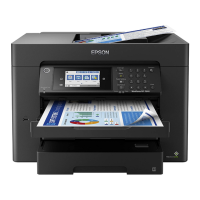
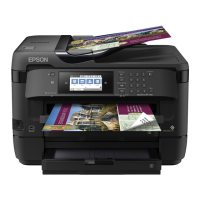
Product Parts

Identification of physical components of the product.

Guide to the Control Panel

Explanation of buttons and indicators on the product's control panel.

Paper and Media Handling

Loading Paper into the Paper Cassette

Step-by-step instructions for loading paper into the cassette.

Placing Originals

Automatic Document Feeder (ADF)

Procedures for placing documents in the ADF for copying, scanning, or faxing.

Scanner glass

Instructions for placing originals on the scanner glass.

Copying

Copying Documents

Step-by-step guide for performing basic document copying.

Printing

Printing from the Control Panel

Printing data directly from memory cards or USB devices.

Printing from Your Computer

Introduction to using the printer driver and status monitor.

2-sided printing

Guidelines and procedures for performing double-sided printing.

Scanning

Scanning from the Control Panel

Scanning documents via the product's control panel.

Scanning to a memory device

Saving scanned images directly to memory cards or USB drives.

Scanning to a computer

Scanning documents directly to a connected computer.

Faxing

Connecting to a Phone Line

Instructions for connecting the product to a phone line.

Sending Faxes

Basic procedures for sending faxes.

Receiving Faxes

Information and setup for receiving faxes.

Ink Cartridge and Consumable Information

Ink Cartridges

Information on compatible ink cartridges and their specifications.

Replacing Ink Cartridges

Ink Cartridge Safety Instructions, Precautions, and Specifications

Safety guidelines and precautions for handling ink cartridges.

Replacing an ink cartridge

Step-by-step guide for replacing an ink cartridge.

Maintaining Your Product and Software

Checking the Print Head Nozzles

How to check print head nozzle status.

Cleaning the Print Head

Steps to clean the print head for better quality.

Aligning the Print Head

Methods to align the print head for better print quality.

Error Indicators

Error Messages on the Control Panel

Explains meanings of error messages displayed on the LCD screen.

Error Code on the Status Menu

Table of error codes, problems, and their solutions.

Troubleshooting for Printing;Copying

Diagnosing the Problem

Two-step approach to troubleshoot printing and copying issues.

Paper Jams

General information and cautions regarding paper jams.

Horizontal banding

Troubleshooting steps for horizontal banding in prints.

Troubleshooting for Scanning

Problems Indicated by Messages on the LCD Screen or Status Light

Troubleshooting based on LCD screen messages or status lights.

Problems When Starting a Scan

Troubleshooting steps for issues encountered when initiating a scan.

Scan quality is unsatisfactory

Adjusting settings to improve scanned image quality.

Troubleshooting for Faxing

Cannot send and receive fax

Comprehensive troubleshooting for fax transmission issues.

Memory full error occurs

Troubleshooting steps when the product's memory is full.

Product Information

System Requirements

Specifies system requirements for Windows and Mac OS X.

Printer specifications

Detailed specifications for printer functions.

Scanner specifications

Technical details of the scanner component.

Where To Get Help

Technical Support Web Site

Epson support website for drivers, FAQs, and manuals.

Contacting Epson Support

Information needed for contacting Epson support.

Epson WF-7620 Series Specifications

General IconGeneral
FunctionsPrint, Copy, Scan, Fax
Max Print Resolution4800 x 2400 dpi
Automatic Duplex PrintingYes
Scanner TypeFlatbed, ADF
Max Scan Resolution1200 x 2400 dpi
ADF Capacity35 sheets
Wireless PrintingYes
Display4.3" Color Touchscreen
Number of Paper Trays2
Ink TypeDURABrite Ultra pigment ink
Fax MemoryUp to 180 pages
Fax Transmission Speed33.6 Kbps
Print TechnologyPrecisionCore Inkjet
Max Paper Size13 x 19 inch (A3+)
ConnectivityUSB, Ethernet, Wi-Fi, Wi-Fi Direct
Input Paper Capacity250 sheets
Mobile PrintingEpson Connect, Apple AirPrint, Google Cloud Print
Maximum Scan Area11.7 x 17 inches
Ink Cartridge Configuration4 individual ink cartridges (Black, Cyan, Magenta, Yellow)
Print Speed (ISO)Black: 18 ppm, Color: 10 ppm
Dimensions22.3 x 19.1 x 13.4 inches

Related product manuals