Appendix: Troubleshooting Problems 55
network adapter. You only need to change
the value for the corresponding network
adapter.
• Close the registry editor.
• Restart your workstation in order to make
your changes take effect.
8.3.2 Search for Ethernet Hardware fails
Cause: Personal Firewall blocks Communication
For a detailed description on problems caused by personal firewalls and possi-
ble solutions see "Personal Firewall blocks Communication" on page 57.
Cause: Client Software for Remote Access blocks Communication
PCs or notebooks which are used outside the ETAS hardware network some-
times use a client software for remote access which might block communica-
tion to the ETAS hardware. This can have the following causes:
• A firewall which is blocking Ethernet messages is being used (see
„Cause: Personal Firewall blocks Communication“ on page55)
• By mistake, the VPN client software used for tunneling filters messages.
As an example, Cisco VPN clients with versions before V4.0.x in some
cases erroneously filtered certain UDP broadcasts.
If this might be the case, please update the software of your VPN client.
Cause: ETAS Hardware hangs
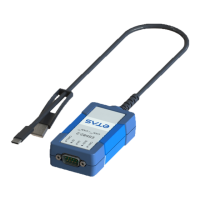
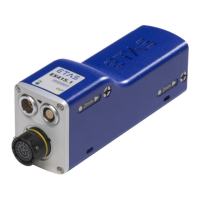
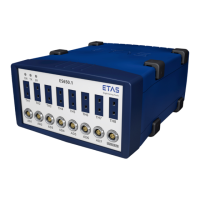
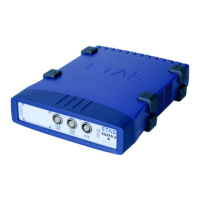
Occasionally the ETAS hardware might hang. In this case switch the hardware
off, then switch it on again to re-initialize it.
Cause: Network Adapter temporarily has no IP Address
Whenever you switch from a DHCP company LAN to the ETAS hardware net-
work, it takes at least 60 seconds until ETAS hardware can be found. This is
caused by the operating system’s switching from the DHCP protocol to APIPA,
which is being used by the ETAS hardware.
Cause: ETAS Hardware had been connected to another Logical Network
If you use more than one PC or notebook for accessing the same ETAS hard-
ware, the network adapters used must be configured to use the same logical
network. If this is not possible, it is necessary to switch the ETAS hardware off
and on again between different sessions (repowering).
Manual.book Seite 55 Montag, 13. Juli 2009 6:24 18


 To Next Page