Room Scheduling System • Room Agent Installation and Configuration 17
Automatically Discover Panels
Automatically discover panels that are on the same subnet as the computer running the
Room Agent software as follows:
NOTE: Any panels not on the same subnet as the computer running Room Agent must
be added using the Manually Add Panels pane (see “Manually Add Panels”).
1. If Panel Management view is not currently displayed, click the Panel Management tab.
2. Click the Discover button above the Auto Discovered Panels pane (see figure 10,
1
on the previous page).
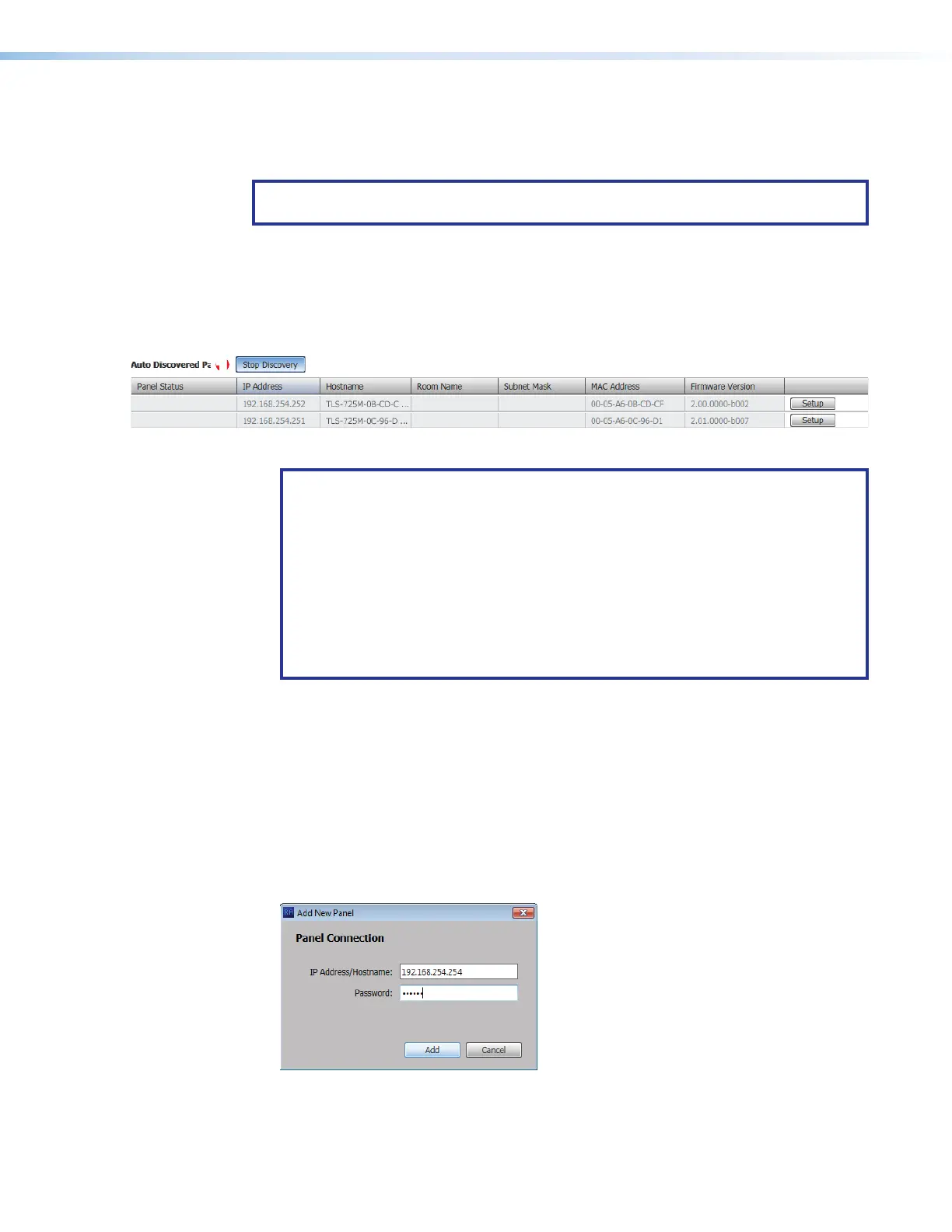
The Discover button becomes the Stop Discovery button. Panels that are located
on the same subnet are automatically discovered and displayed (see figure 11).
11111111111111
Figure 11. Auto Discovered Panels Pane
NOTES:
• TLS scheduling panels ship with scheduling firmware installed. Extron
recommends using firmware version 1.12.0001.b001 or higher.
• TLP Pro touchpanels ship with control firmware installed. Room Agent
requires that scheduling panels run different, scheduling, firmware, version
2.03.0000-b001 or higher to connect to them.
• For either family of panel models, if you receive the message Cannot
connect to this device, click OK in the message dialog box, STOP
HERE and update the panel firmware (see Update Firmware on
page 37, beginning at step 5).
3. When all of the panels are displayed, click the Stop Discovery button to end the
search (see figure 11,
1
).
Manually Add Panels
Manually add panels that are on a different subnet than the computer running the Room
Agent software as follows:
1. If Panel Management view is not currently displayed, click the Panel Management tab.
2. Click the Add New button above the Manually Added Panels pane (see figure 10,
2
).
The Add New Panel dialog box opens (see figure 12).
1111111111
1111
2222222222
2222
3333333333
3333
Figure 12. Add New Panel Dialog Box
3. Enter the IP address of the desired panel in the IP Address/Hostname: field
(see figure 12,
1
on the previous page).
figure 12



 To Next Page