Room Scheduling System • EMS Setup 48
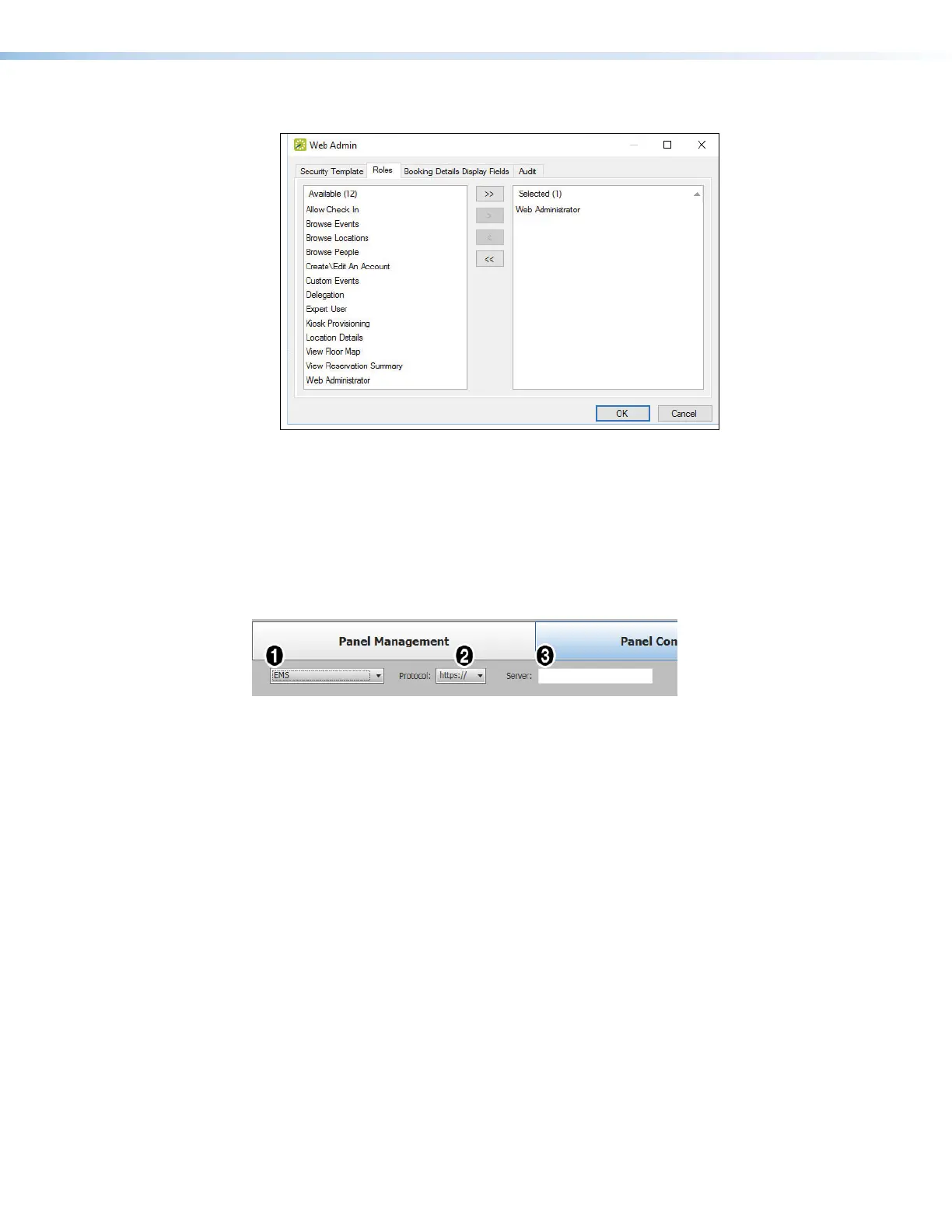
The new security role dialog box opens (see figure 48).
1111111111
1111
3333333333
3333
4444444444
4444
2222222222
2222
Figure 48. New Template Dialog Box
6. Click to highlight and select Web Administrator in the left field (
1
) and click the Move
Right button ( ,
2
) to transfer it into the right field.
7. Move any other necessary roles to the right field.
8. Click OK (4).
Calendar Setup
Figure 49. Selecting the EMS Calendar
1. Select EMS from the Select a Calendar Type drop-down list (see figure 49,
1
).
2. Select a protocol (http:// or https://) (
2
).
If you use https:// the Proxy Server must be setup as “TLS Pass Through”. This is
required for the TLS to validate the calendar server’s SSL certificate (see Setting up a
Proxy Server
on page 82).
3. Enter the name of the EMS server in the Server field (
3
).
Typically this is https://<your_server_name>/EmsPlatform.



 To Next Page