Room Scheduling System • Microsoft Extchange Setup 66
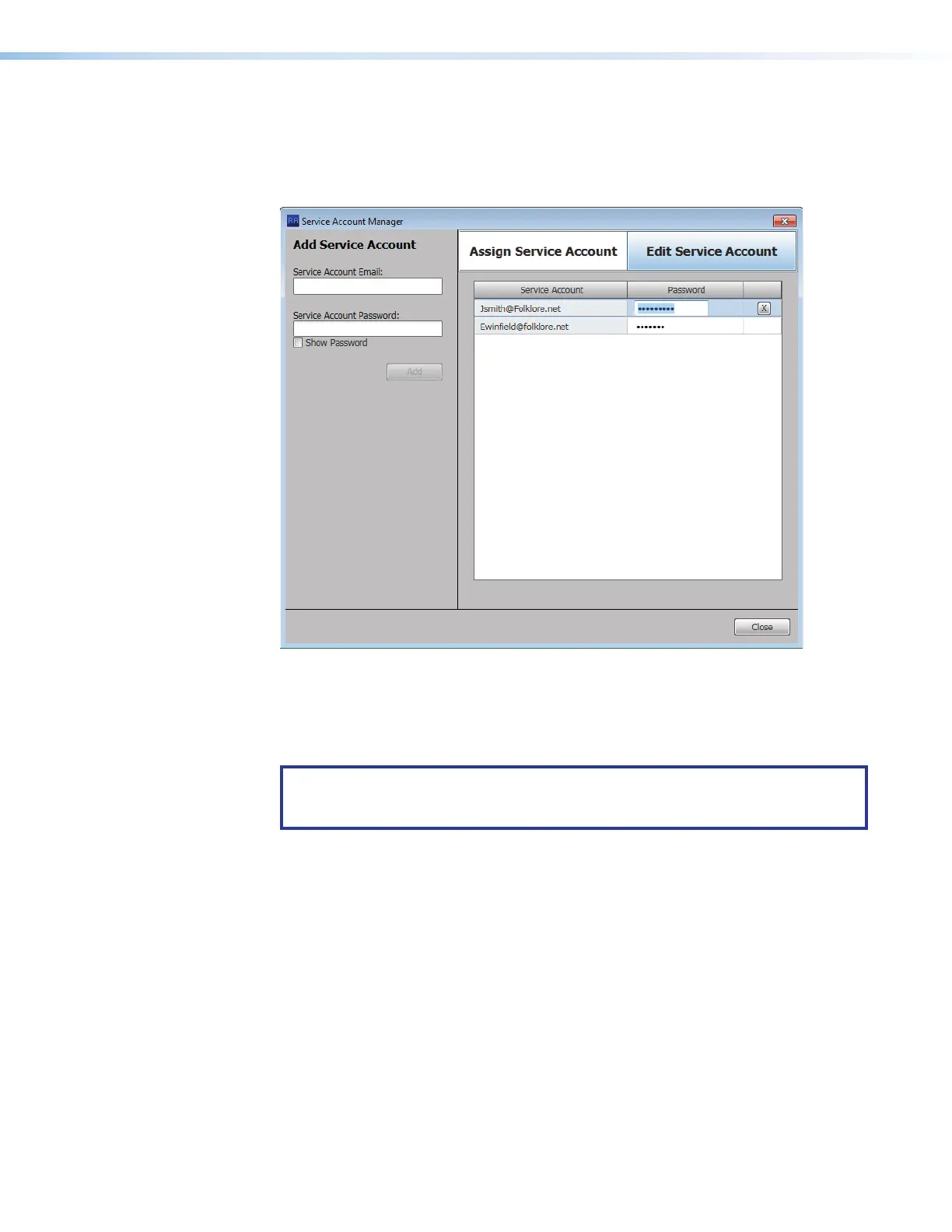
Editing a Service Account
1. Click Service Account Manager (see figure 71 on page 63) to open the Service
Account Manager dialog box.
2. Click the Edit Service Account tab (
1
).
2222222222
2222 3333333333
3333 6666666666
66665555555555
5555
4444444444
4444
1111111111
1111
Figure 74. Service Account Manager — Edit Service Account
3. Double-click in the Password field for the service account to be edited (2).
4. Highlight the password and type a new value (
3
).
5. Press <Enter> on the keyboard.
TIP: The Password field is normally masked (•••). When the existing password
is deleted, the Show option activated. Click Show to toggle between viewing or
masking the password characters as you type.
6. Click Close (
4
).
Deleting a Service Account
1. Click Service Account Manager (see figure 71 on page 63) to open the Service
Account Manager dialog box.
2. Click the Edit Service Account tab (see figure 70,
1
, above).
3. Click a service account (
5
) to highlight and select it.
4. Click the Delete (X) button (
6
).
5. Click Close (
4
).



 To Next Page