Room Scheduling System • Microsoft Extchange Setup 65
Assigning a Service Account
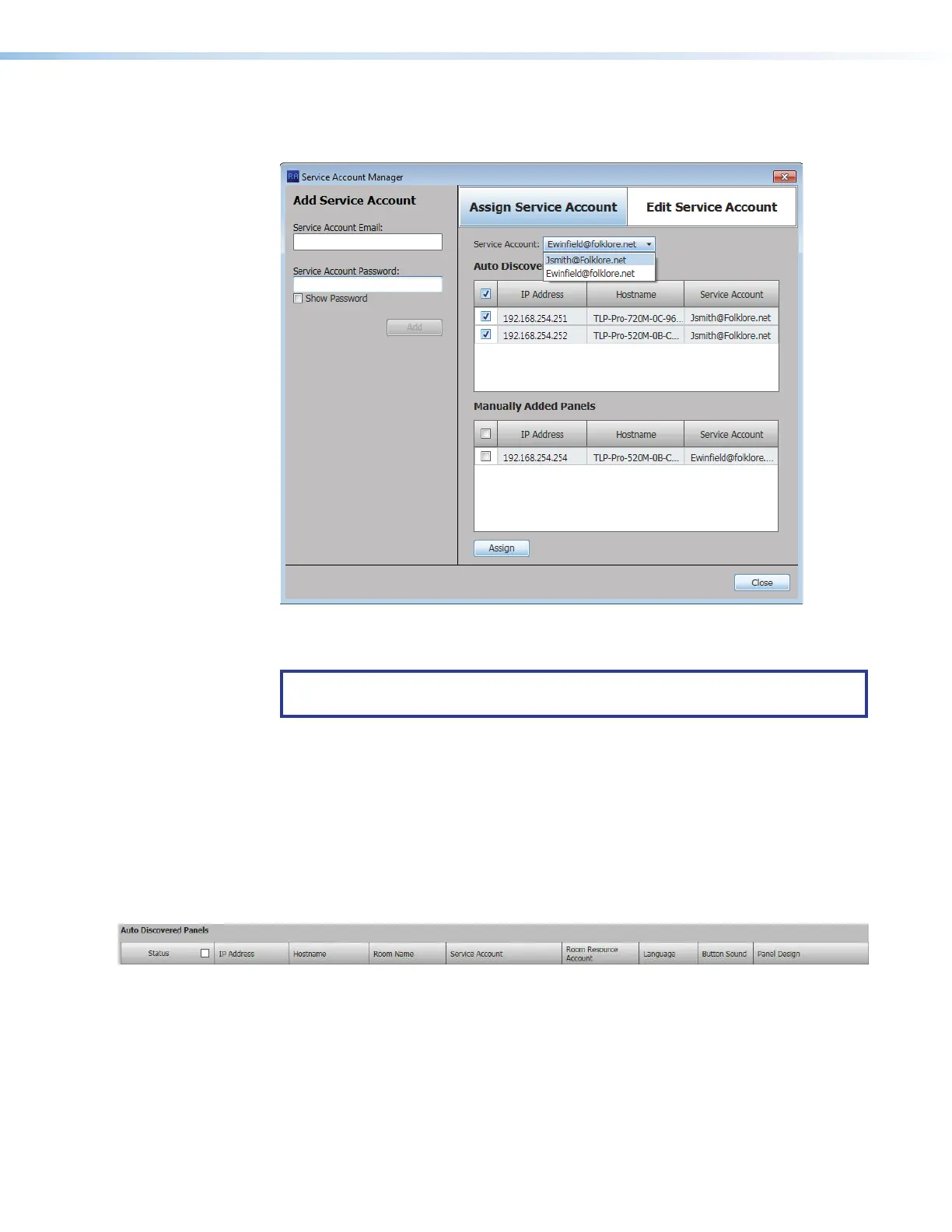
1. If necessary, click the Assign Service Account tab (
1
).
11
11111111
44
44444444
22
22222222
55
55555555
66
66666666
77
77777777
33
33333333
Figure 73. Service Account Manager — Assign Service Account
2. Select one or more panel IP Address checkboxes (
2
).
TIP: Select check box at the top of either the Auto Discovered Panels (
3
) or
Manually Entered Panels to select all panels in that pane.
3. Select the desired service account among the entries in the Service Account drop-
down list (
4
).
4. Click Assign (
5
).
The selected service account is assigned to the designated panels (
6
).
5. Repeat steps 2 through 4 to assign other service accounts to other panels.
6. Click Close (
7
).
The Service Account Manager dialog box closes and the Room Agent software
returns with the Panel Configuration tab displayed.
7. In the Room Resouce Account column of each touchpanel, enter the email address
used as the fully-qualified room resource.
figure 73



 To Next Page