Room Scheduling System • Microsoft Extchange Setup 64
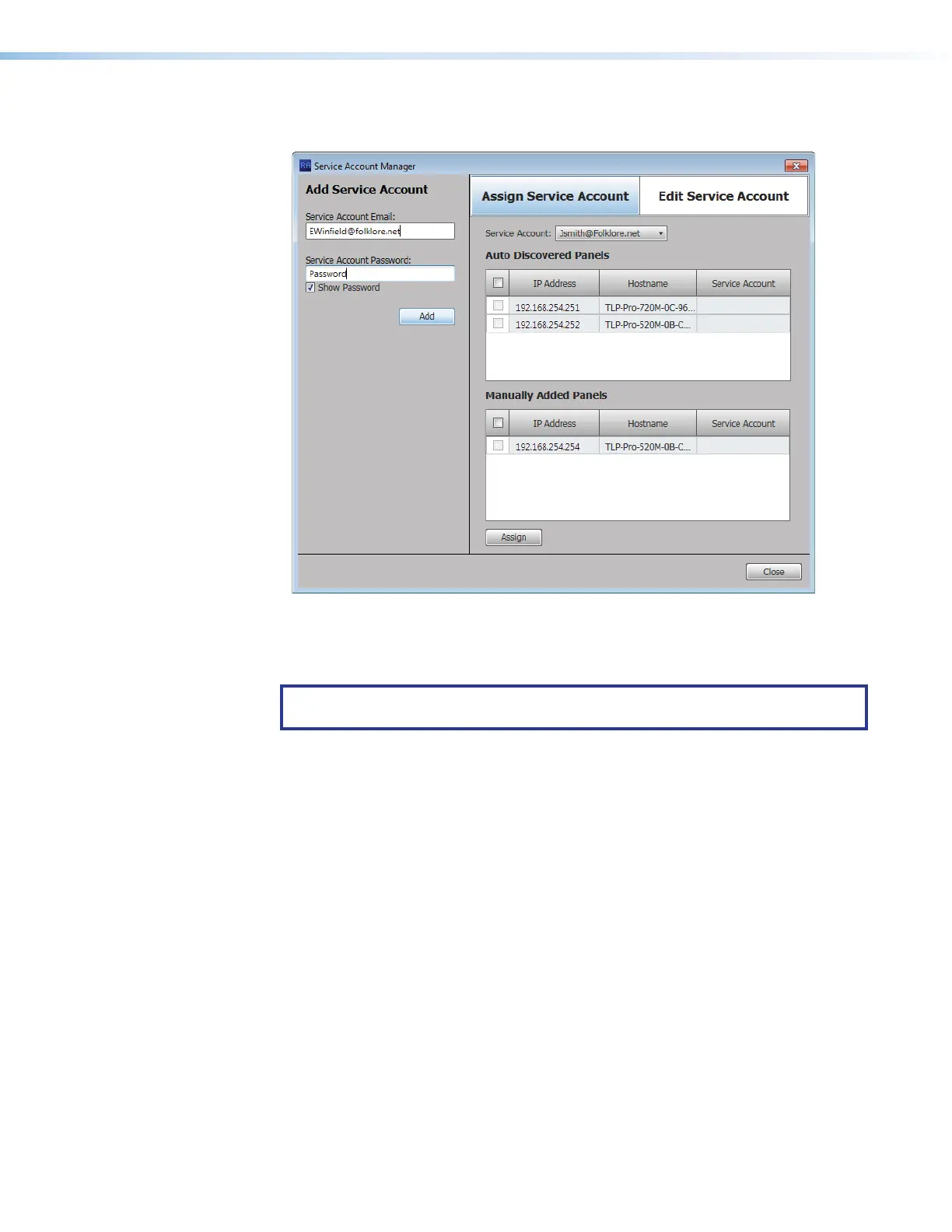
The Service Account Manager dialog box opens, with the Assign Service Account
tab (see figure 72,
1
) selected.
2222222222
2222
3333333333
3333
4444444444
4444
1111111111
1111
6666666666
6666
5555555555
5555
Figure 72. Service Account Manager — Add Service Account
4. Enter a valid Service Account Email address (
2
).
5. Enter the Service Account Password (
3
).
TIP: The Service Account Password field is normally masked (•••). To see the
password characters as you type, select the Show Password checkbox (
4
) .
6. Click Add (
5
).
The message Service Account has been added and is ready to be assigned to
panels is displayed in the panel, under the Add button.
The account is added to the Service Account drop-down list (
6
).
7. Repeat steps 4 through 6 to add more service accounts.



 To Next Page