Room Scheduling System • Google Setup 55
Google Calendar
Setup
Calendar Setup
NOTES:
• When you select Google Calendar, you can have multiple devices using the same
calendar or multiple calendars.
• When you use Google, Microsoft Exchange, or Office 365 calendars, you can
create private meetings. For these meetings, the subject title defaults to Private
Meeting and the meeting organizer is hidden.
• Before setting up the calendar in Room Agent, you must have obtained a Google
account and a credential JSON file (see Downloading a JSON File on page 56).
When you use the https:// protocol, the Proxy Server must be setup as “TLS Pass
Through”. This is required for the TLS to validate the calendar server’s SSL certificate (see
Setting up a Proxy Server on page 82).
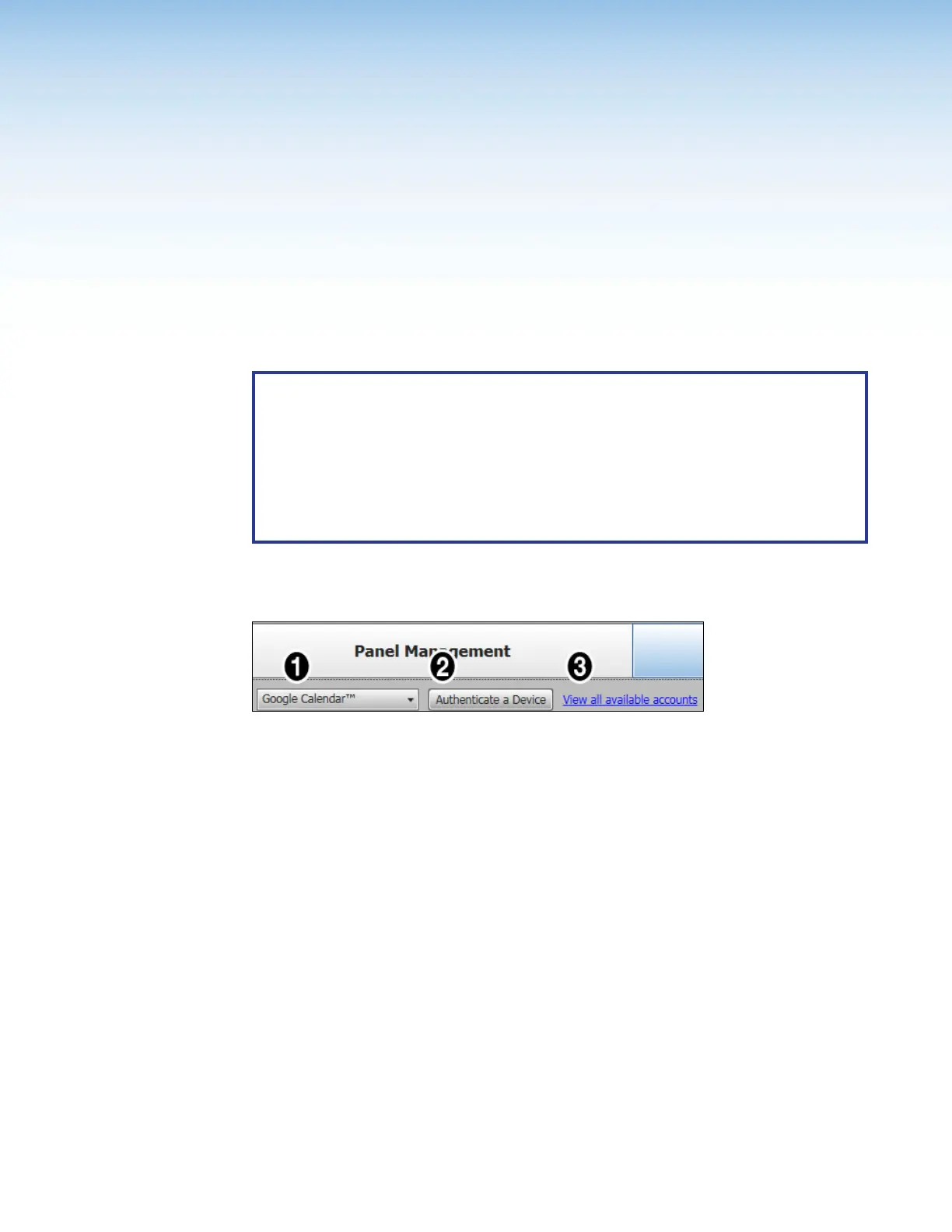
Figure 59. Selecting the Google Calendar
1. Select Google Calendar™ from the Select a Calendar Type drop-down list (see
figure 59,
1
).
2. Select one or more touchpanels that will be associated with a particular calendar by
checking the Status box in the list of panels (see figure ).
3. Click Authenticate to a Device (
2
). This connects the touchpanel to the
appropriate calendar (see Authenticate a Device to Google on page 58).
4. (Optional) You can view all available accounts. This is a list of all the accounts that have
been authenticated to work with your Room Agent setup.



 To Next Page