Room Scheduling System • Microsoft Extchange Setup 63
7. If required, select the Enable Service Accounts check box (see figure 69,
6
).
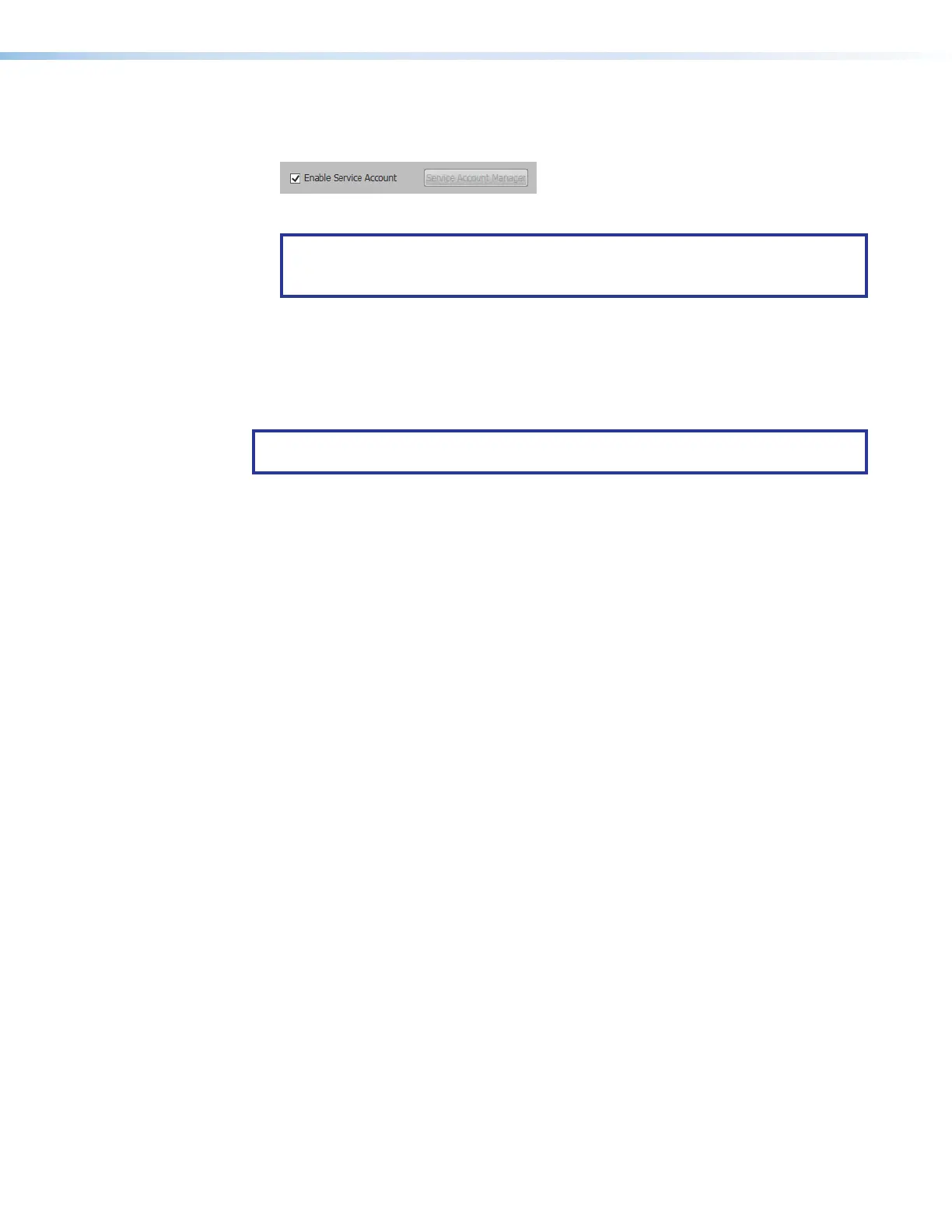
When this check box is selected, a Service Account Manager button appears:
Figure 71. Service Account Manager
NOTE: The Enable Service Account checkbox allows one or more service accounts
to be used to configure the panels. See Adding a Service Account on page 63
to configure and use service accounts.
Adding a Service Account
Service accounts, using Impersonation, allow the user to manage multiple touchpanels
from a single account. When passwords are updated, only the service account password
needs to be changed, not the passwords for all the individual touchpanels in the account.
NOTE: The service account requires the UPN, the name of a Windows network user in
an e-mail address format. The UPN must have an SMTP e-mail address assigned to it.
To set up a service account:
1. Select the Status check boxes of the touchpanels to be configured.
2. Select the Enable Service Account checkbox (see figure 69,
6
, on page 62).
The Service Account Manager button appears (see figure 71).
3. Click Service Account Manager.
figure 71



 To Next Page