Room Scheduling System • Microsoft Extchange Setup 62
11 22 3
3 4
4 5
5
6
6
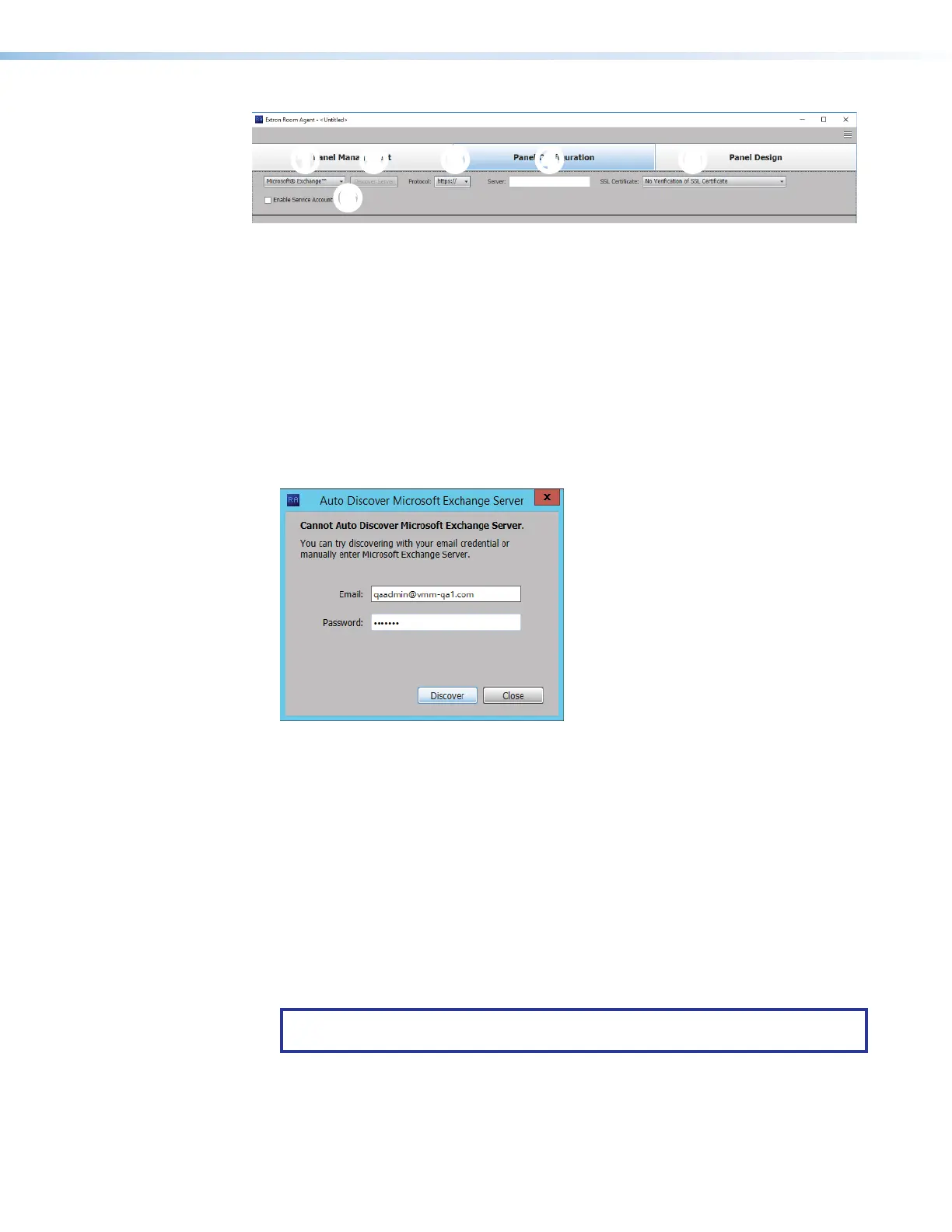
Figure 69. Selecting the Microsoft Exchange Calendar
1. Select Microsoft Exchange™ from the Select a Calendar Type drop-down list (see
figure 69,
1
).
2. Select a protocol (
3
). The options are http:// or https://.
When you select https://, the Proxy Server must be setup as “TLS Pass Through”.
This is required for the TLS to validate the calendar server’s SSL certificate (see Setting
up a Proxy Server
on page 82).
3. Click Discover Server (
2
).
If you click Discover Server but Room Agent cannot discover the server
automatically, the Auto Discover Microsoft Exchange Server dialog box opens (see
figure 70).
1111111111
1111
2222222222
2222
3333333333
3333
Figure 70. Discover Microsoft Exchange Server
4. Enter the Email address (
1
) and Password (
2
) of the account providing calendar
access.
5. Click Discover.
Room Agent finds the calendar server and enters the address in the Server field (see
figure 69,
4
).
6. Make the required SSL Certificate selection (
5
):
• Trusted CA Signed SSL Certificate — Directs Room Agent to validate that
certificates are signed by one or more trusted Certificate Authorities. This is the
correct selection for most applications.
• No Verification of SSL Certificate — Bypasses the validation. Use this selection
if the connecting Exchange server is using self-signed SSL certificates.
NOTE: Consult the Exchange administrator for the connecting server if you are
unsure about which is the correct selection.
figure 69



 To Next Page