Room Scheduling System • Room Agent Installation and Configuration 37
Update Firmware
To use version 1.10 of the Room Agent software, ensure that the touchpanels have the
following version of the firmware:
• Extron recommends that all TLS panels use firmware version 1.12.0001-b001 or later.
• TLP Pro panels require version 2.11.0002-b001 or later.
NOTE: The latest firmware for all compatible panels is automatically downloaded onto
your PC when you install the Room Agent software. New versions of Room Agent
software may have new firmware that supports new features.
Update panel firmware for any reason as follows:
NOTE: Whenever you download a new version of Room Agent software, you should
update firmware to take advantage of the any new features the software provides.
1. Click the Setup button for a panel to be updated.
NOTE: The button deletes a panel from the list.
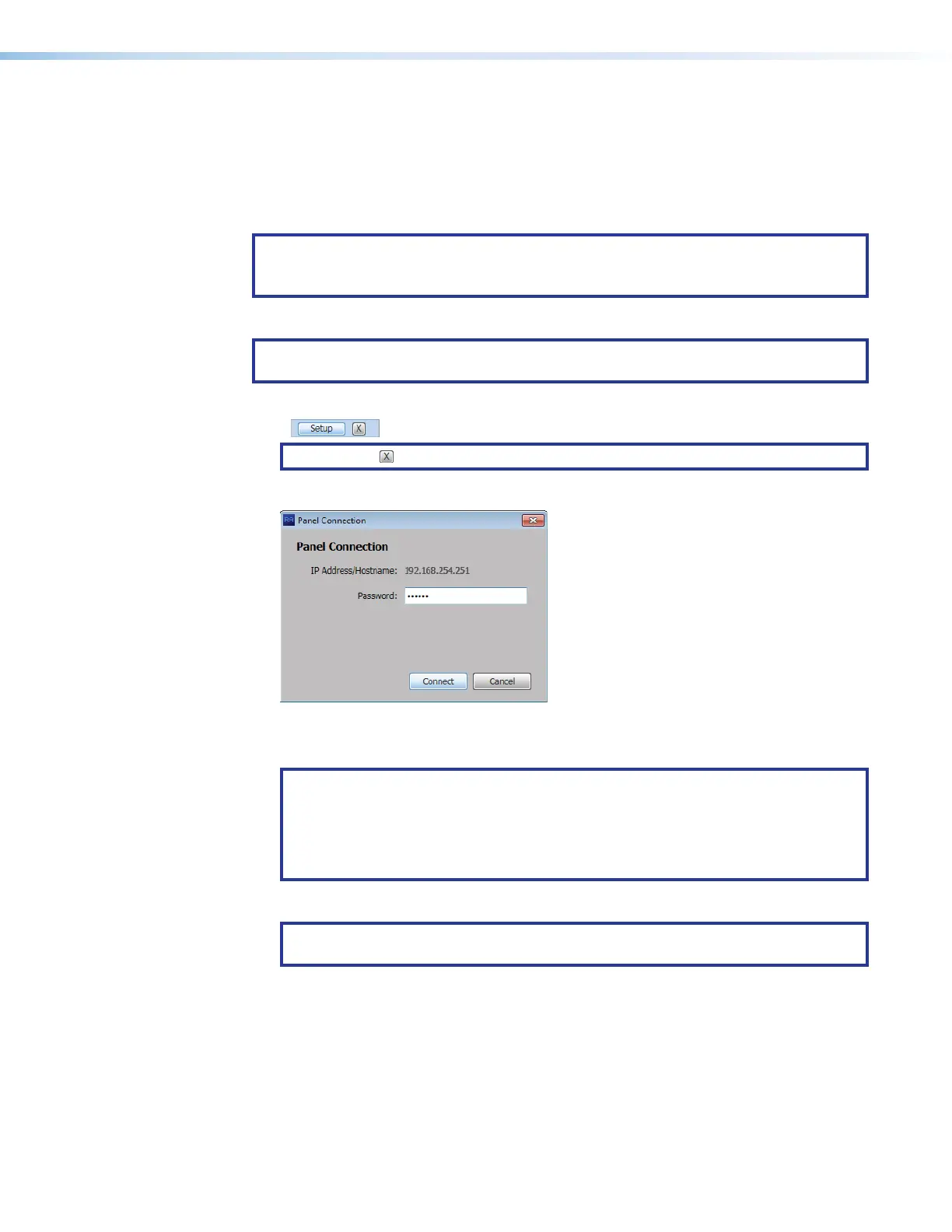
The Panel Connection dialog box opens (see figure 31).
1111111111
1111
2222222222
2222
Figure 31. Panel Connection Dialog Box
2. If applicable, enter a password in Password field (
1
).
NOTES:
• The factory configured passwords for all accounts on this device have been set
to the device serial number. Passwords are case sensitive.
• If the device is reset to default settings, the password will be the default
password configuration. The default password is extron.
3. Click the Connect button (
2
).
NOTE: This step and this connection are necessary to send a firmware file to the
panel.
The Room Agent software connects to and synchronizes with the panel. Once synced,
Room Agent displays the Device Management window with either the Communication
Settings tab (see figure 15 on page 20) or General Settings tab (see
figure 16 on page 21) selected.
steps 2 through 4
figure 31



 To Next Page